

How to Create A/B Quest in CMS
Follow these steps to create and configure a new A/B Quest in the CMS.
Log in to the CMS.
1. Navigate to Quest
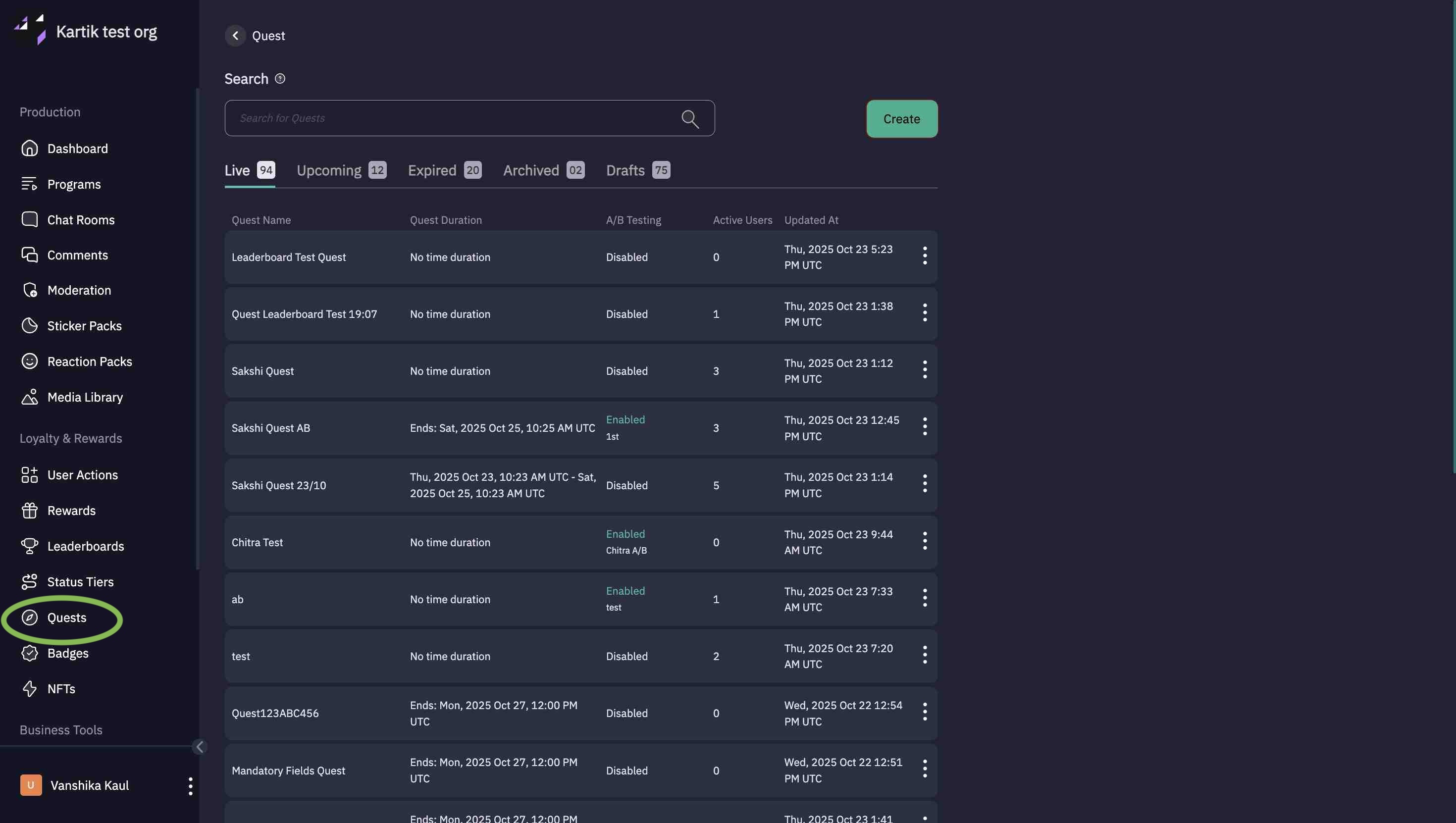
From the left-hand menu, click Quests.
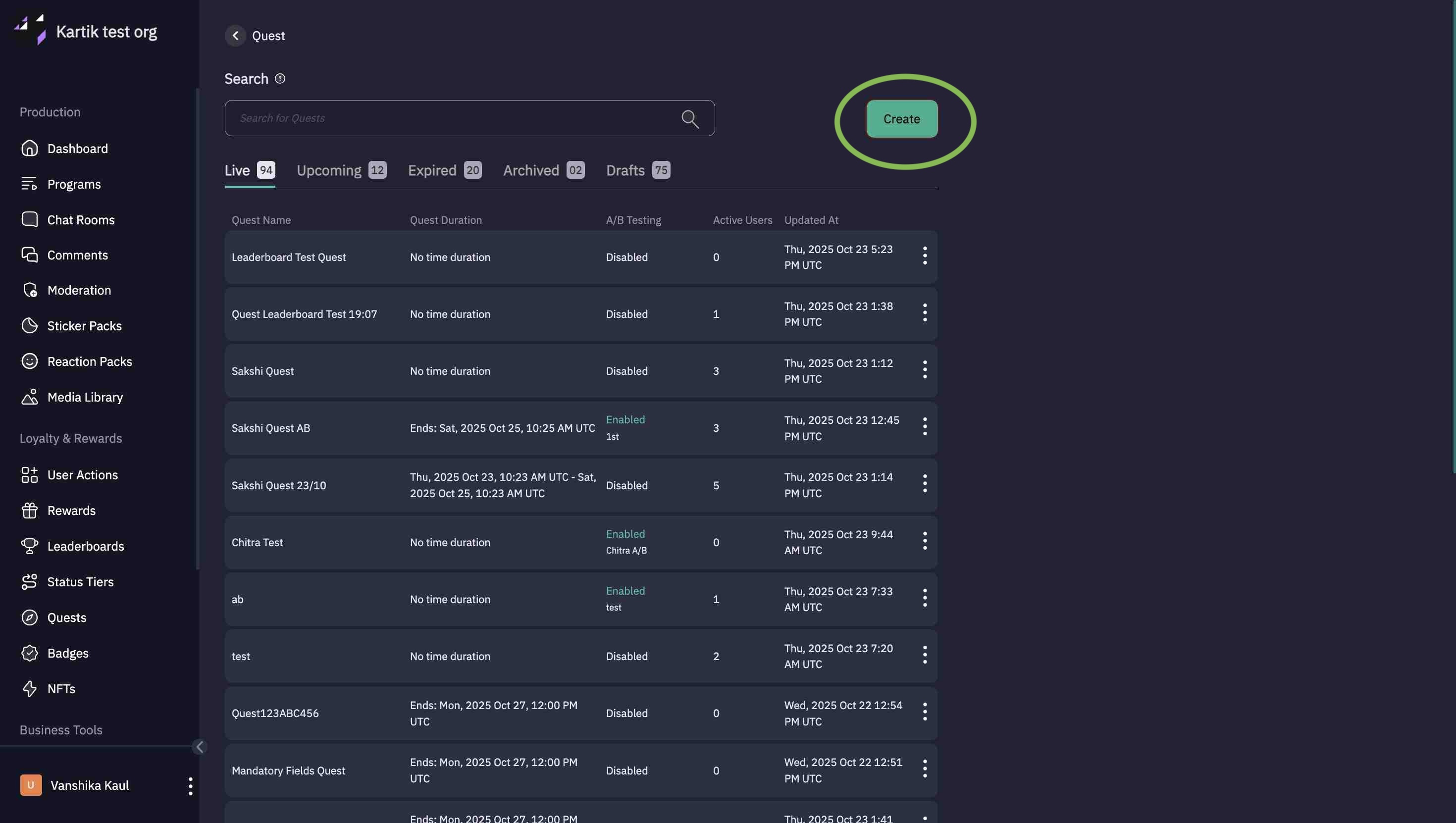
Click “Create ” to create Quest.
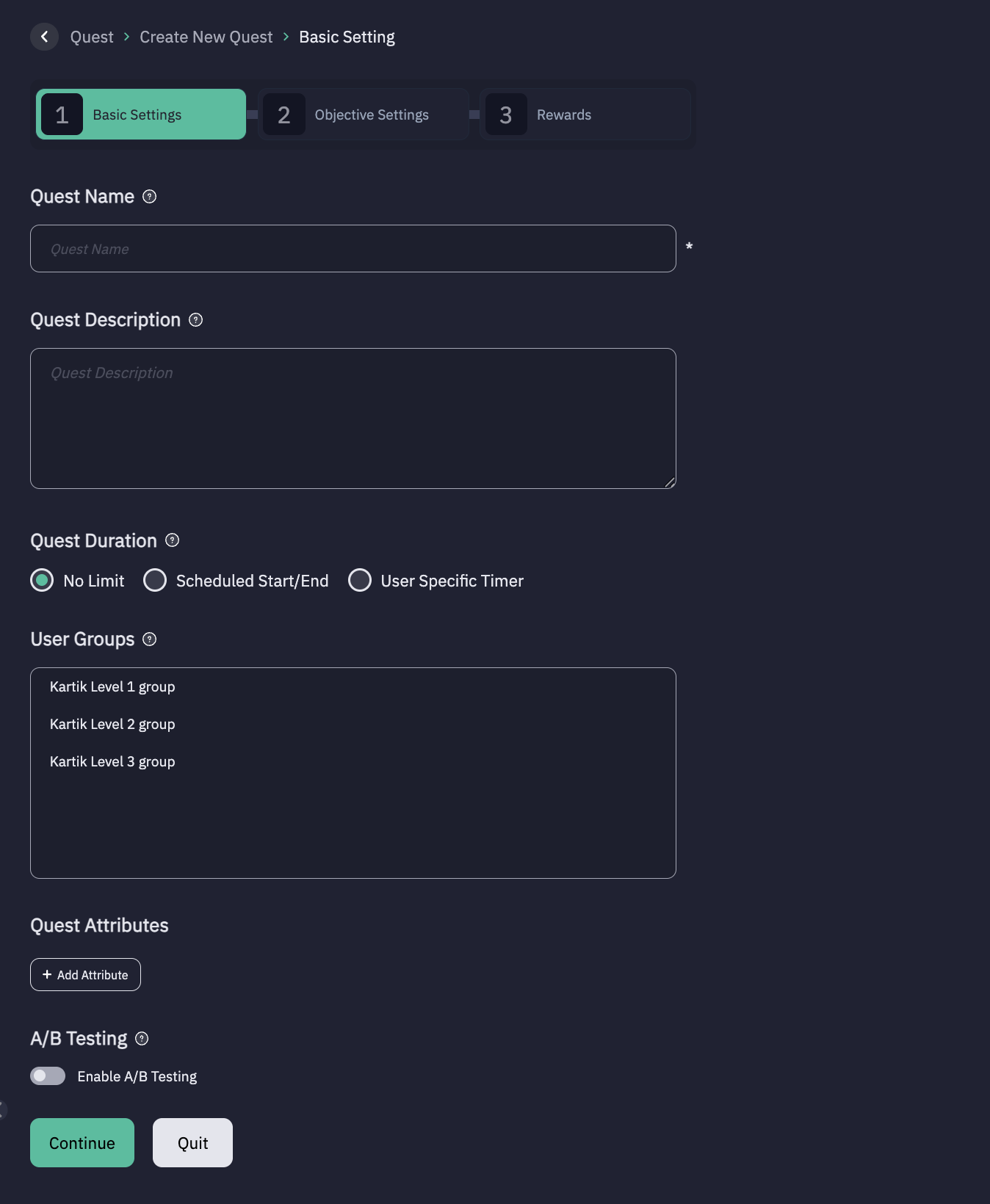
After clicking on Create below page will open up
2. Configure Basic Quest Details
On the Create Quest page, enter the following details:
-
Quest Name – e.g., “New User Quest”
-
Description (optional) – Brief summary of the quest’s purpose.
-
Quest Duration – Choose one of the three options:
Use this option when the quest doesn’t need a specific start or end time. Ideal for ongoing or evergreen quests that users can complete anytime.
Set a defined start and/or end date for your quest. Perfect for time-based events like seasonal campaigns or holiday specials (e.g., December 24–January 5).
You can set only a start date, only an end date, or both.
If no start date is defined, the quest begins immediately upon creation.Allows setting personalized time limits for each user once they start the quest.
Timers can be set in seconds, minutes, hours, days, weeks, or months.
Ideal for time-sensitive challenges like daily tasks, short contests, or multi-week learning goals.Example: In a game or learning app, you can give users 24 hours to complete a daily challenge or 30 days to finish a long-term mission.
-
User Groups (optional) – Assign which user groups can access this quest.
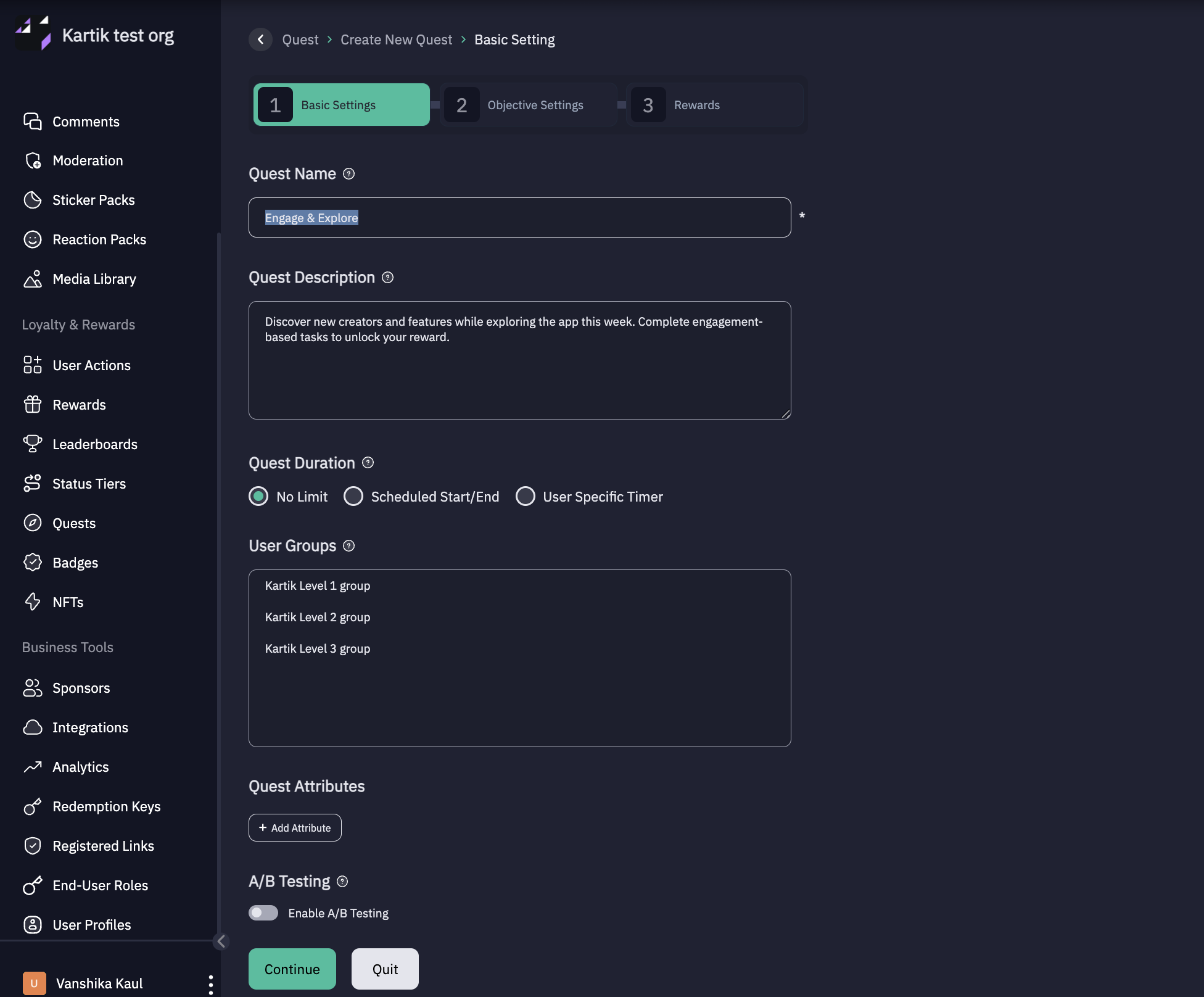
- Enable A/B Testing – Toggle ON to create an A/B Quest.
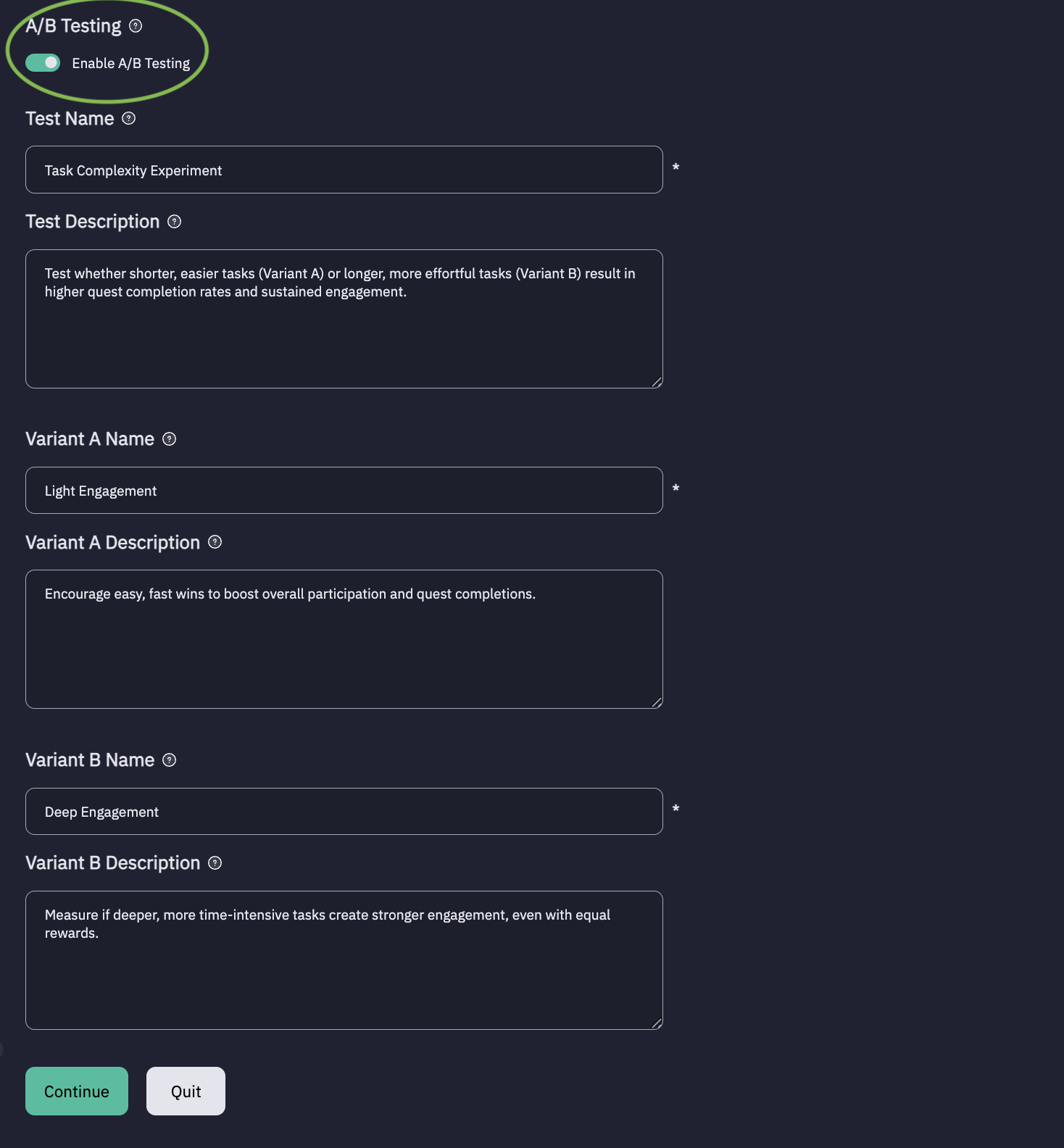
Once enabled, you’ll see the following additional fields:
- Test Name – e.g., “Task Complexity Experiment”
- Test Description (optional) – e.g., “Test whether shorter, easier tasks (Variant A) or longer, more effortful tasks (Variant B) result in higher quest completion rates and sustained engagement.”
- Variant A Name – e.g., “Light Engagement”
- Variant A Description (optional) – “Encourage easy, fast wins to boost overall participation and quest completions.”
- Variant B Name – e.g., “Deep Engagement”
- Variant B Description (optional) – “Measure if deeper, more time-intensive tasks create stronger engagement, even with equal rewards.”
Click "Continue" to proceed.
Configure Quest Objectives
Each variant (A & B) requires separate tasks.
Variant A
- Quest Task Name – Enter a task name for Variant A.
- Target Value – Number of times the task must be performed.
- Enable Link Action – Use the dropdown to select or search for the action to link.
- To add another task for Variant A, click + Add Task and repeat.
Variant B
- Quest Task Name, enter a task name for Variant B.
- Set Target Value – number of times the task must be performed.
- Enable Link Action – Use the dropdown to select or search for the action to link.
- To add another task for Variant B, click + Add Task and repeat the steps.
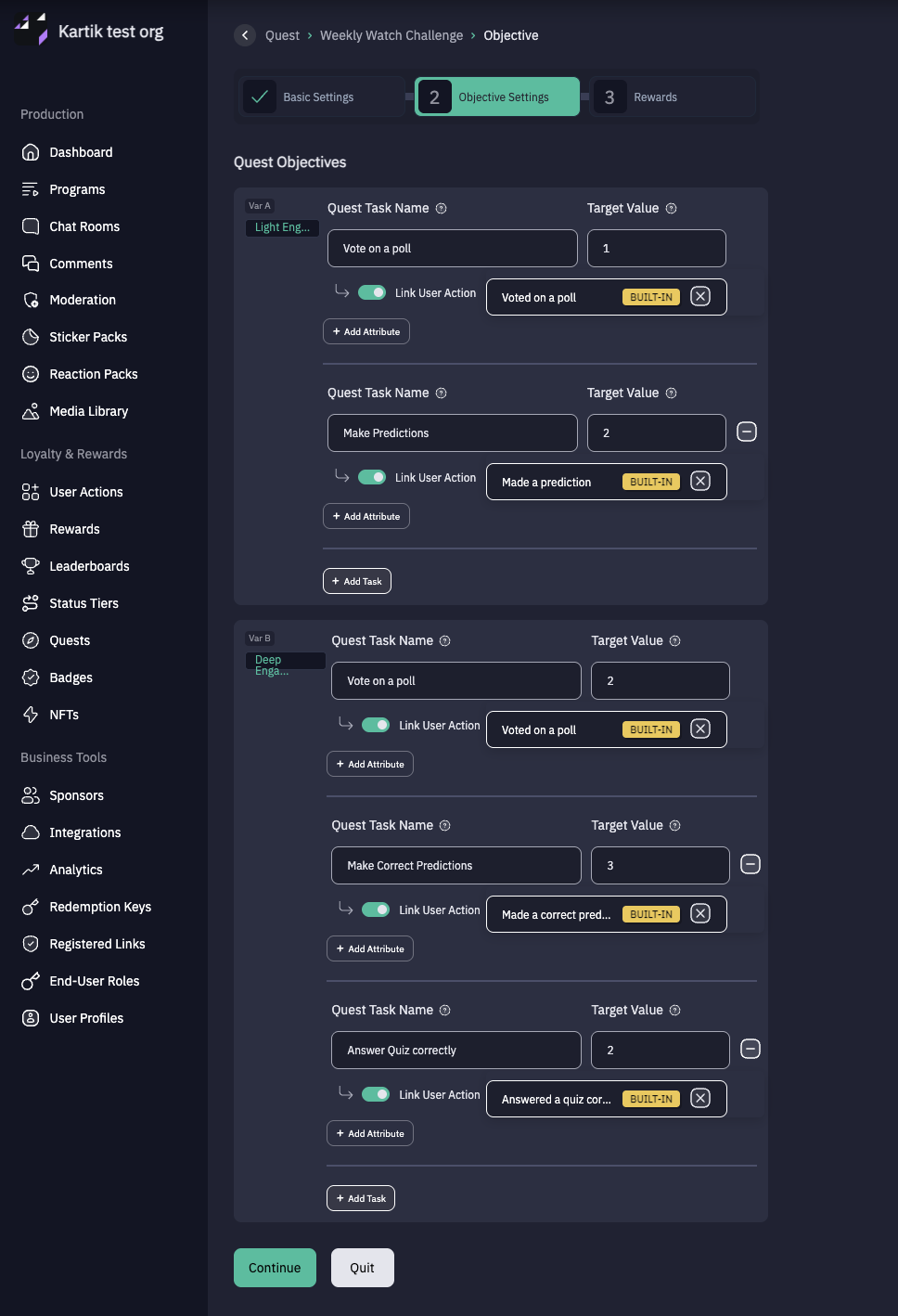
Click Continue when both are configured.
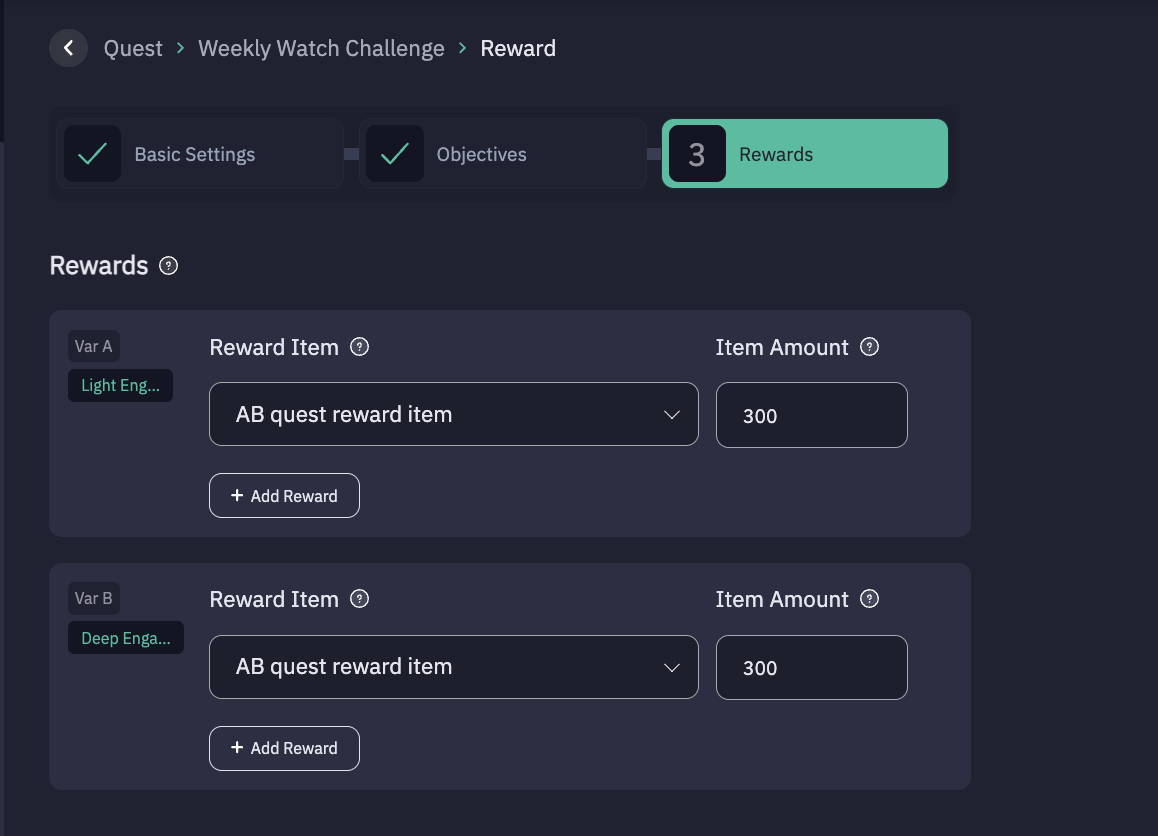
Configure Rewards (Optional)
You can reward users upon quest completion.
Variant A – Prediction
- Reward Item – Choose a reward from the dropdown.
- Item Amount – Specify reward quantity.
To add more rewards, click "+ Add Reward" under Var A and repeat.
Variant B – Voting
- Reward Item* – Choose a reward from the dropdown.
- Item Amount – Specify reward quantity.
To add more rewards, click "+ Add Reward" under Var B and repeat.
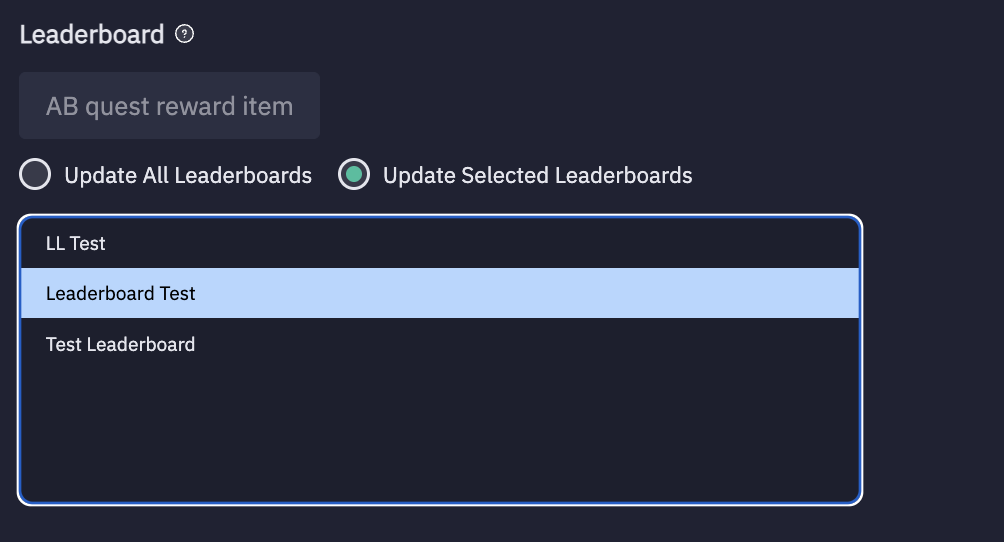
Add to Leaderboard (Optional)
- Select Update All Leaderboards or Update Selected Leaderboards.
- If selecting specific leaderboards, choose them from the dropdown.
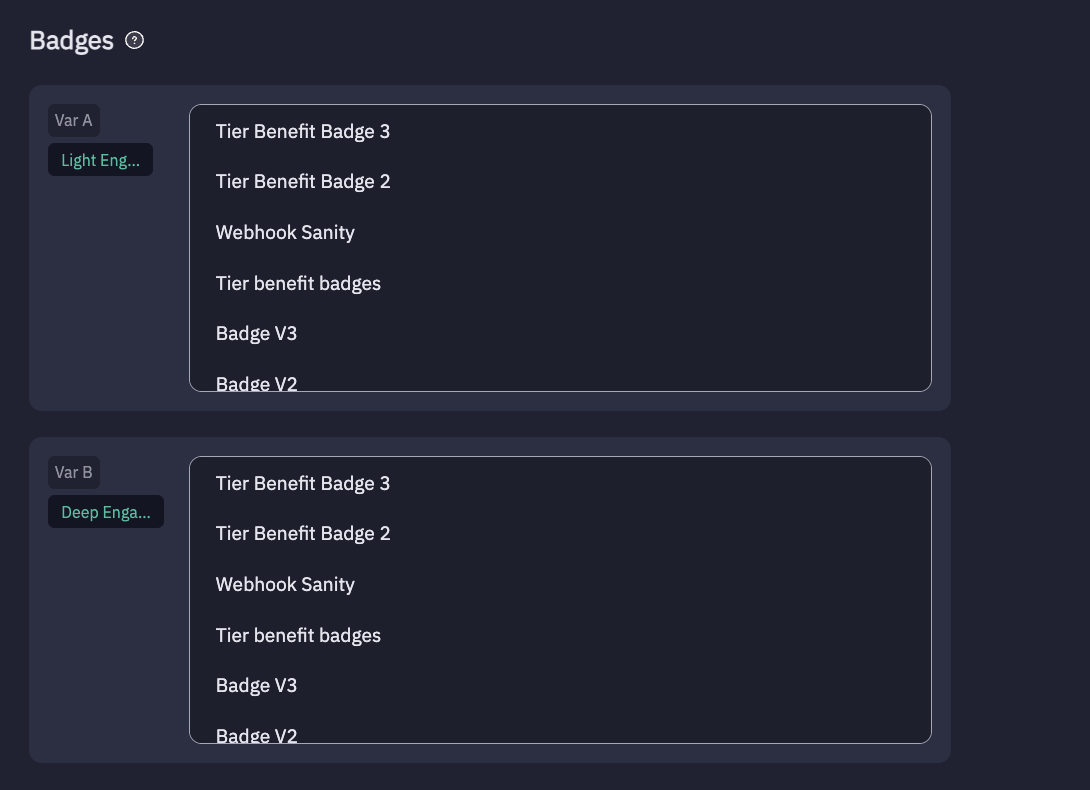
Add Badges (Optional)
- Variant A – Select a badge from Var A available section.
- Variant B – Select a badge from Var B available section.
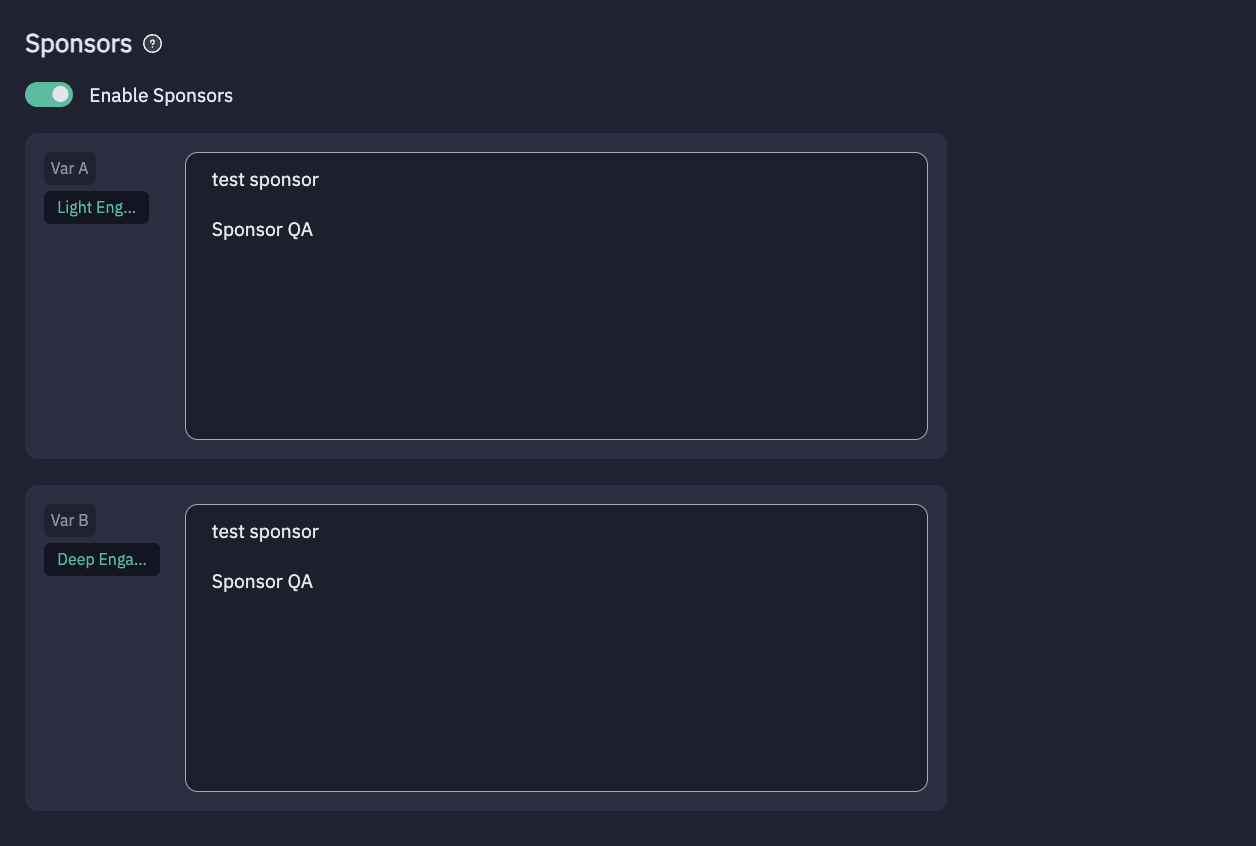
Add Sponsor (Optional)
Enable the Sponsor toggle.
- Select a sponsor for Variant A.
- Select a sponsor for Variant B.
Publish or Save Draft
After all configurations are complete:
- Click Publish to make the A/B Quest live.
Before publishing, both variants must pass all validation checks:- Each variant includes at least one task.
- Shared fields — such as quest name, duration, and user group — are consistent across variants.
- Task names are unique (no duplicates within the quest or between variants).
- If rewards are added, each item must have an assigned value.
Once validation is complete and the quest is published: - Variants are locked and can no longer be edited or deleted.
- The parent quest status automatically updates to Published.
Tip: Always double-check task consistency and reward setup before publishing, since variants can’t be changed afterward.
- Or choose Save and Quit to save it as a draft.
Your A/B Quest is now live!
The CMS will automatically segment users into Variant A or B groups and track their engagement, completion, and rewards.
Updated 10 months ago