

Consecutive Action Streak CMS Guide
Follow these steps to create and configure a new Consecutive Action Streak in the CMS.
Log in to the CMS.
1. Navigate to Streaks.
From the left-hand menu, click Streaks.
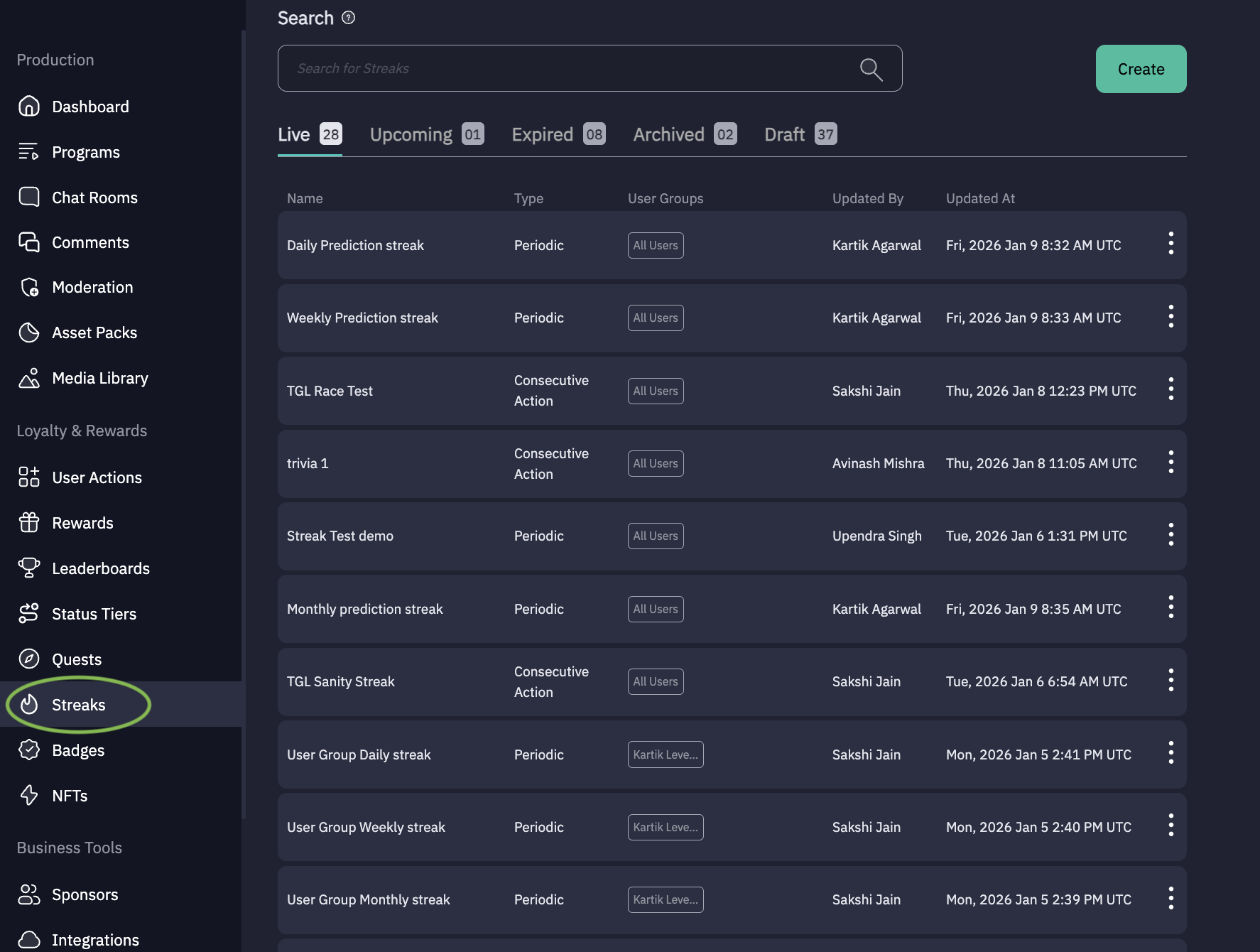
Click “Create ” to create New Streak.
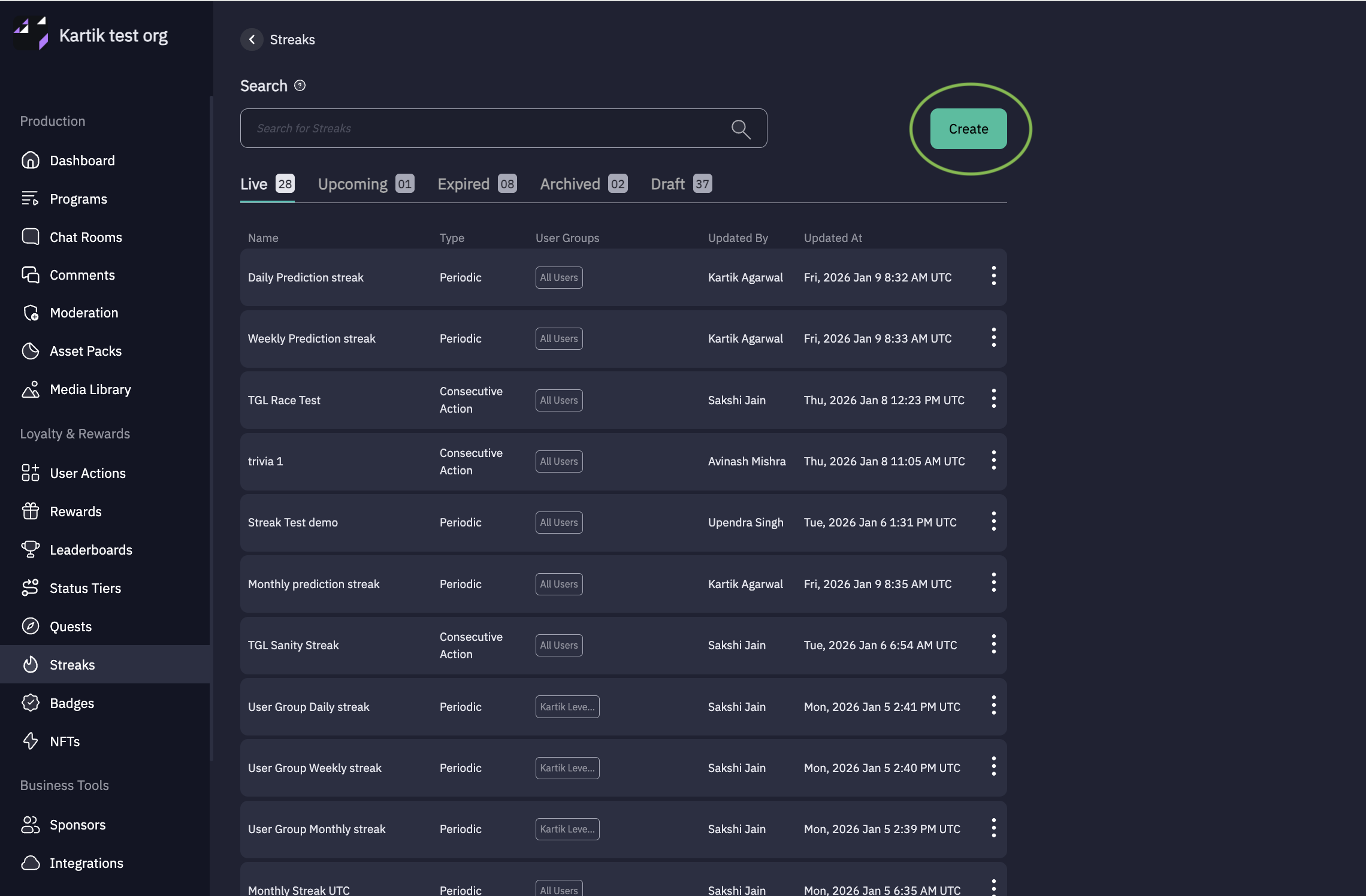
After clicking on Create below page will open up
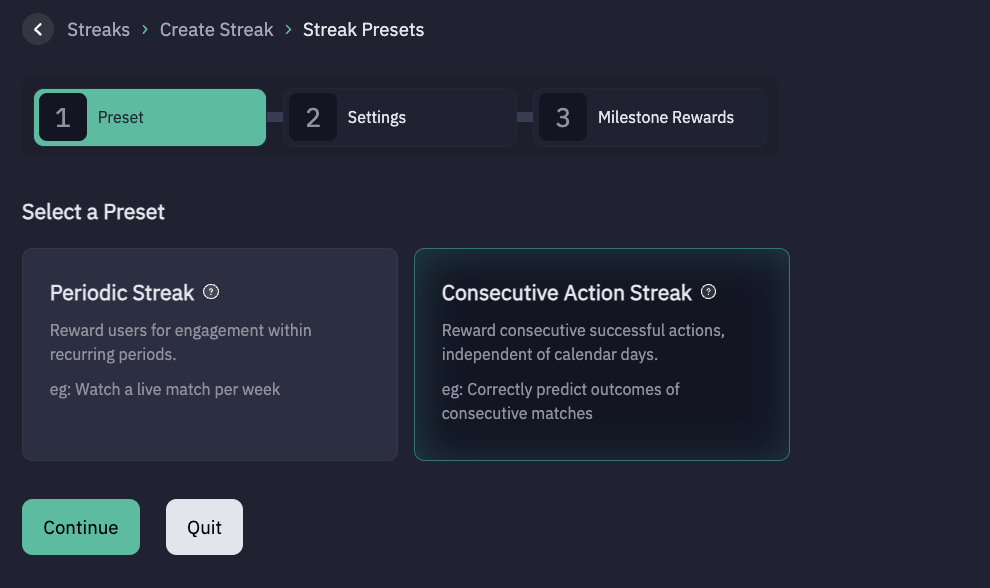
Select Streak Type: Periodic Streak or Consecutive Action Streak
Steps for Consecutive Action Streak:
Choose Consecutive Action Streak. Click Continue.
2. Configure Consecutive Streak Settings
On the Consecutive Action Streak Settings page, fill in the following details:
- Streak Name - Example: Prediction Streak
- Description (optional) - A brief summary describing the purpose of the streak.
- Streak Action - Select the user action that will trigger streak progress. (Choose from built-in or custom action)
- Streak Reset Action (optional, and only applicable to Consecutive Action Streak) - Select the user action that will trigger streak reset. Some steak actions inherently support a reset action such as "Answer a quiz correctly" resets on incorrect answer. If not set, Consecutive Action Streak only resets on manually resetting it by admin.
- Start Time & End Time (optional) - Set the duration during which the streak will be active.
- User Group - Select All Users, or Choose a specific User Groups to target.
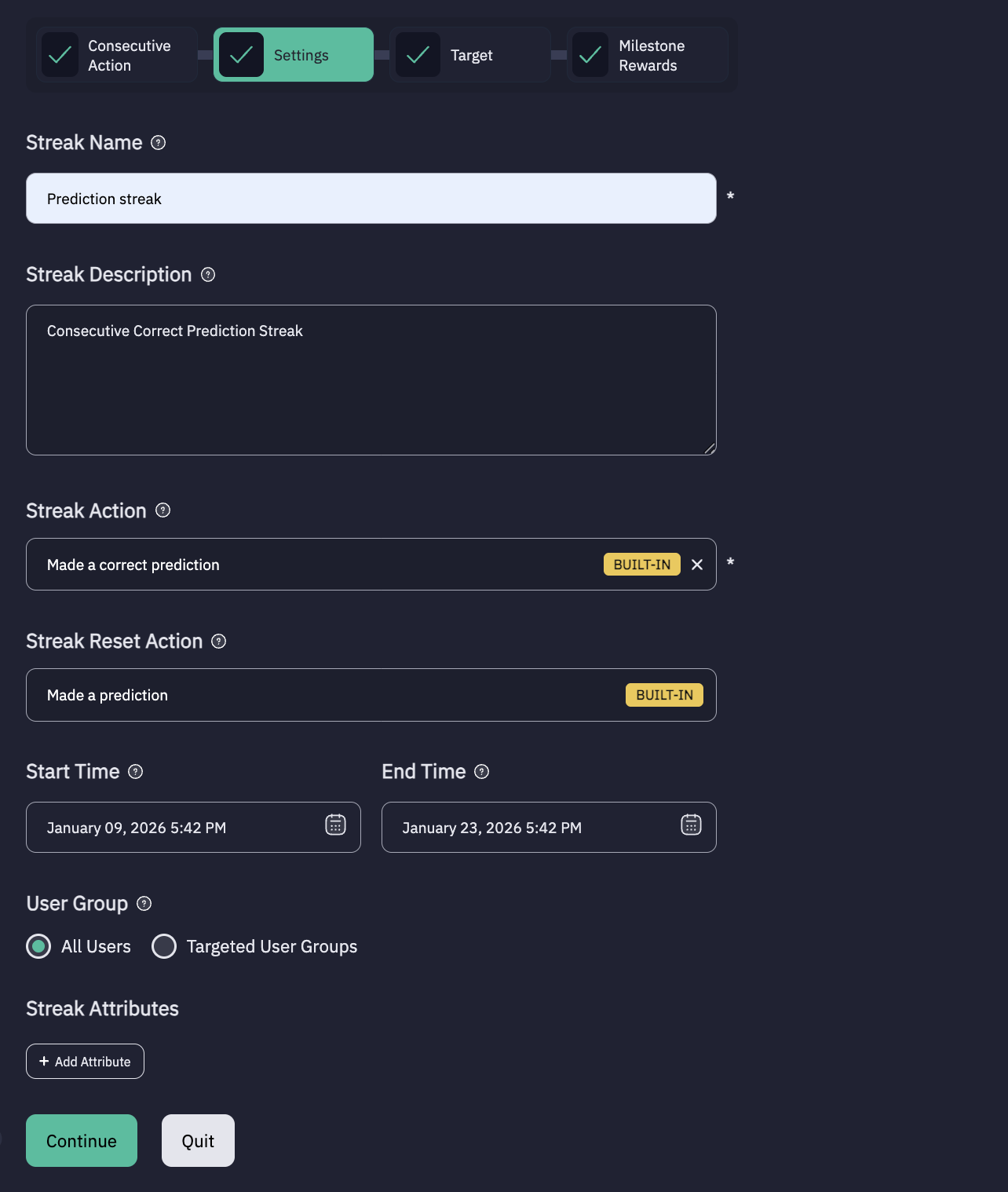
- Click Continue once all fields are filled.
3. Configure Target settings
Set Target - When you on this toggle it let you choose targets (such as widgets, mini games or external resources such as tournament IDs, season IDs) on which user actions will be tracked to progress or reset streaks.)
For Built in action - Set Target toggle will be on by default and panel view will be there to select targets.
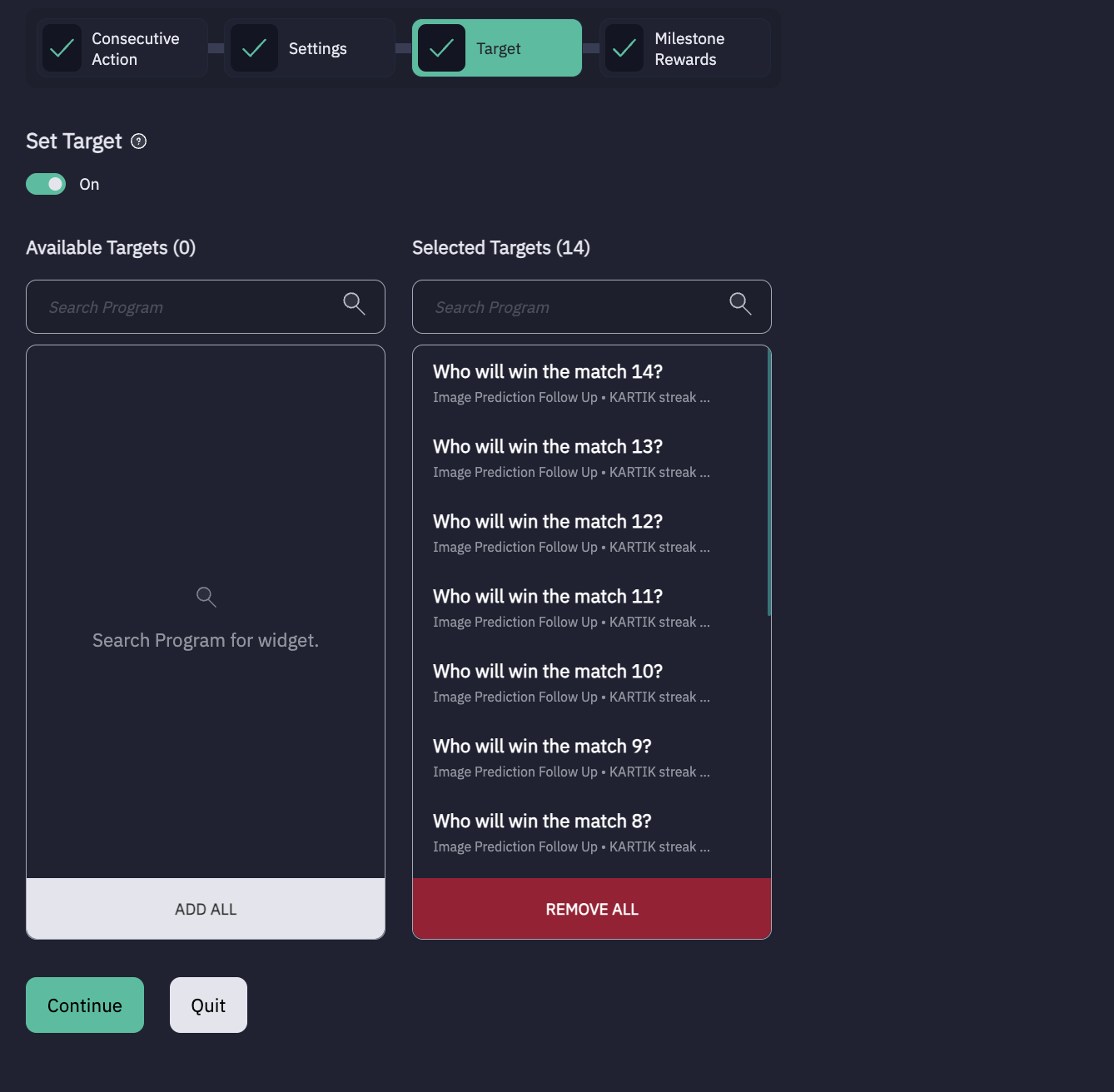
For Custom action - Upload the CSV file with desired target keys/IDs.
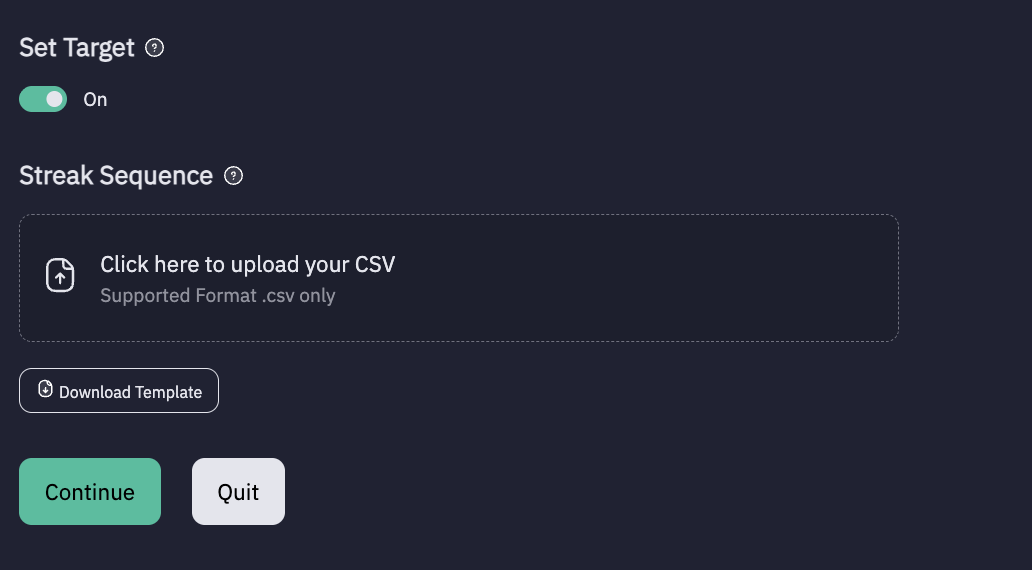
Click Continue
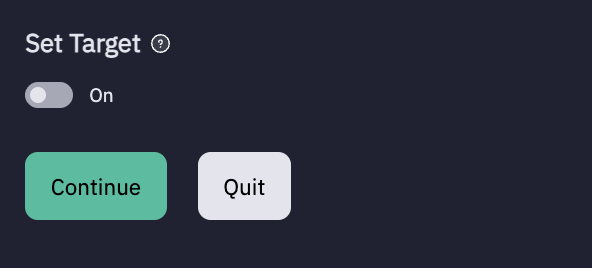
If target tracking is not required - turn off the toggle and click Continue
4. Configure Milestone Rewards
For each milestone, configure the following:
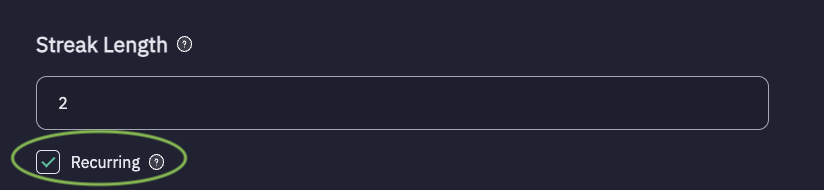
- Streak Length - The number of consecutive, uninterrupted increment of streak, often taken as 3 or more.
- Recurring - Enable this checkbox if users should receive the reward at set streak length-intervals (e.g., streak length 3 → rewards at 3, 6, 9, 12…)
- Reward Item - Select the reward to be granted.
- Item Amount - Enter the reward item value. Only positive integers are allowed.
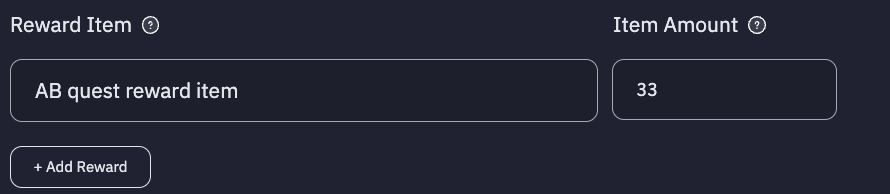
Add More Rewards - Click + Add reward to add additional rewards under the same milestone.
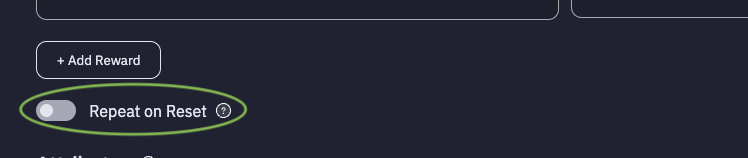
- Repeat on Reset - Toggle this option to allow or prevent users from earning the reward for the same milestone again after their streak resets.
Click + Add milestone to configure multiple milestone levels.
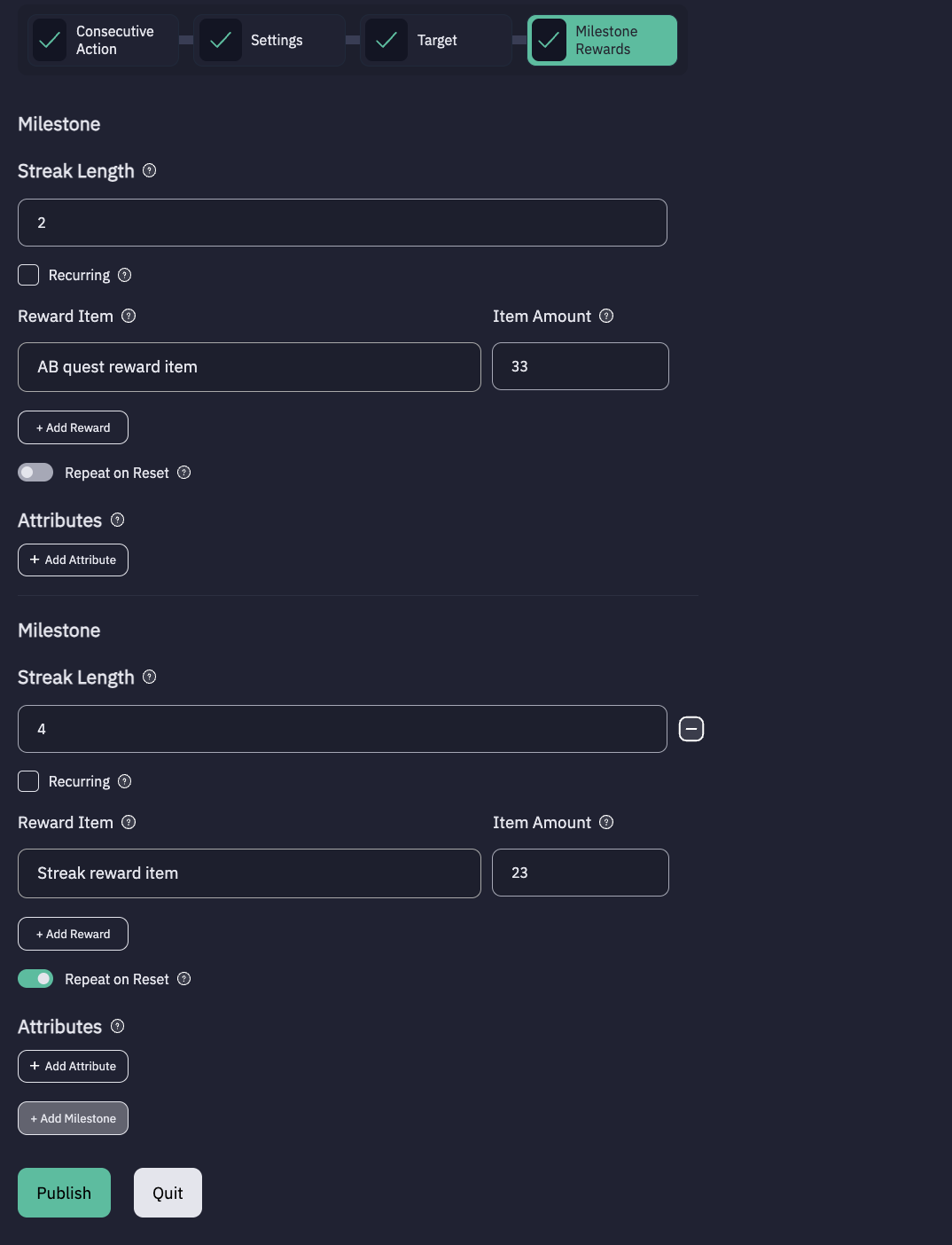
Publish or Save Draft
Click Publish to make the streak live.
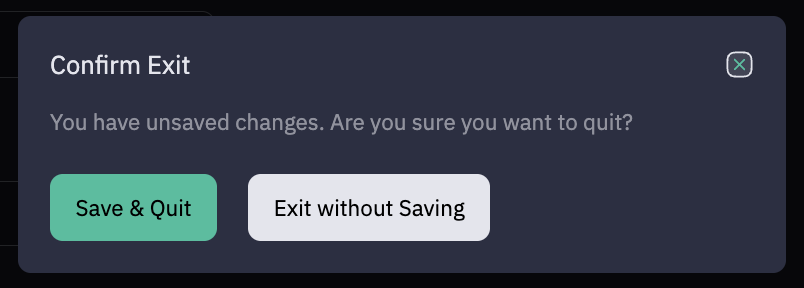
If you want to Save as Draft:
Click Quit and Select Save and Quit.
Updated 5 months ago