

Sync Segment Audiences to User Groups
Segment Audiences can be kept in sync with User Groups on LiveLike. This ensures groups on LiveLike always stay up to date with their corresponding audiences you define in Segment.
Why sync audiences to groups
- Save time. No need to update LiveLike and Segment separately.
- Stay accurate. Syncing ensures your groups always reflect their corresponding Segment audiences.
- Keep flexibility. You can still add members manually, stop syncing anytime, and see at a glance which groups are synced.
Mapping Segment users to profiles
Segment users can be mapped to LiveLike profiles via the livelike_profile_id or custom_id properties on the Segment user. The default identifier defined by Segment that is the user_id or segment_user_id are treated as LiveLike custom_id by default.
Setting up group sync
-
Create your audience in Segment. Define who you want to target using events, traits, or existing data.
-
Create the corresponding group on LiveLike. Enable Segment Sync and configure the audience ID (starting with
aud_) from Segment.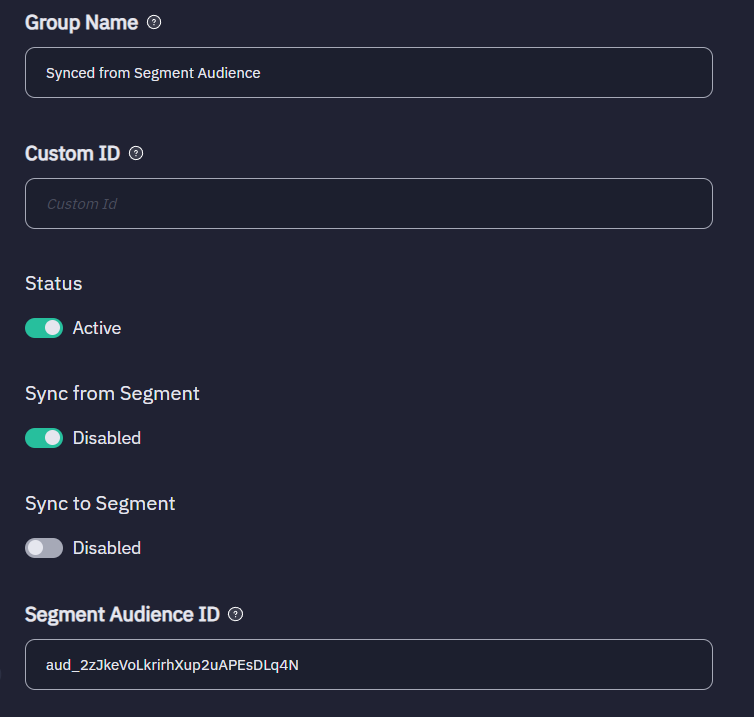
-
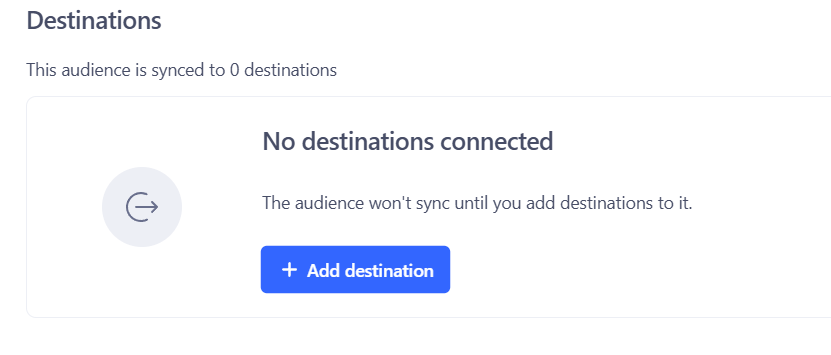
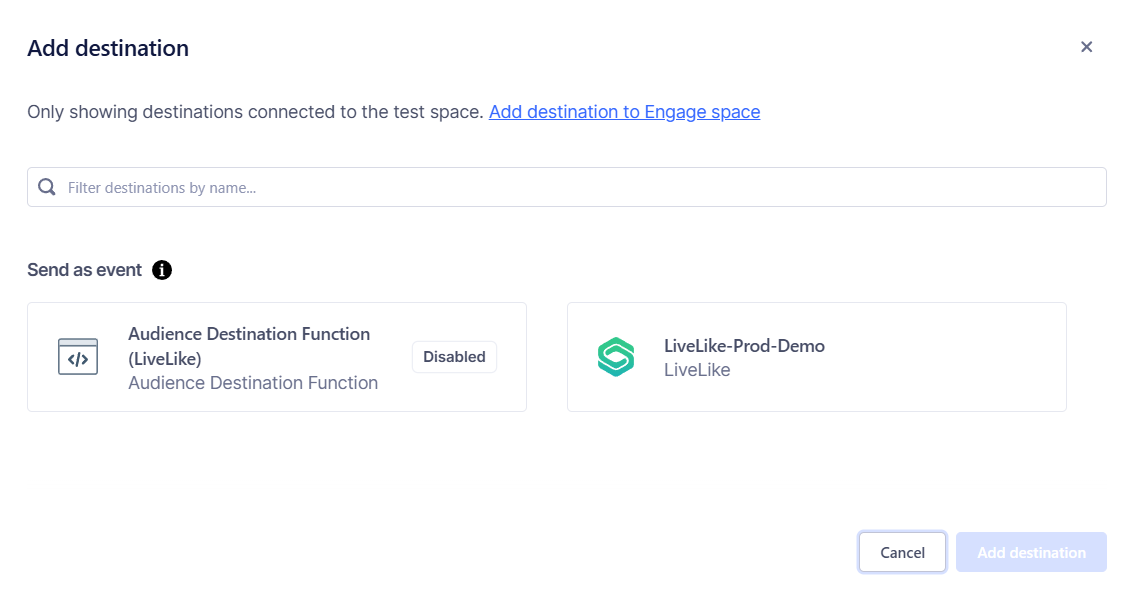
Connect your audience to LiveLike. Select the LiveLike destination inside Segment.
-
Enable Track events for the destination.

-
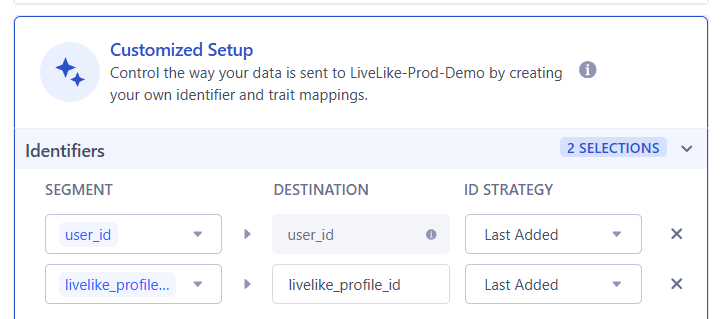
Add identifiers you have setup for your audience using the customized setup. (These can include livelike_profile_id, custom_id, user_id, etc).
-
Add additional required traits like livelike_profile_id, custom_id in your audience. (Optional)
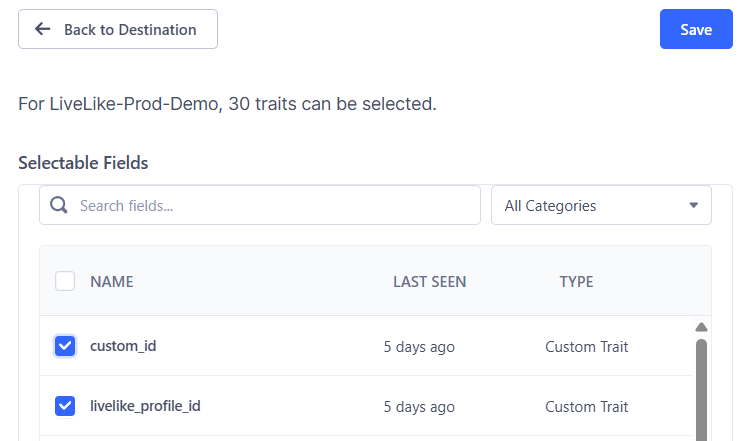
-
Save and Add the destination.
-
Configure mappings for the added destination for the user group sync.
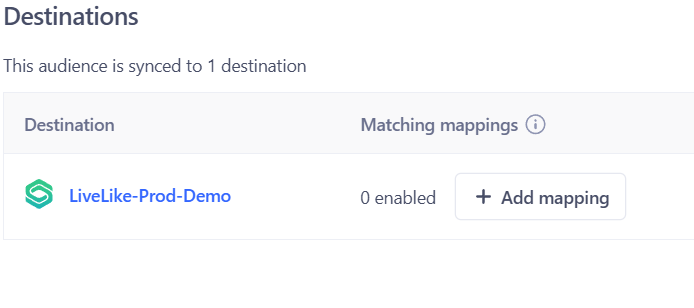
-
Choose "Sync to User Group" action.
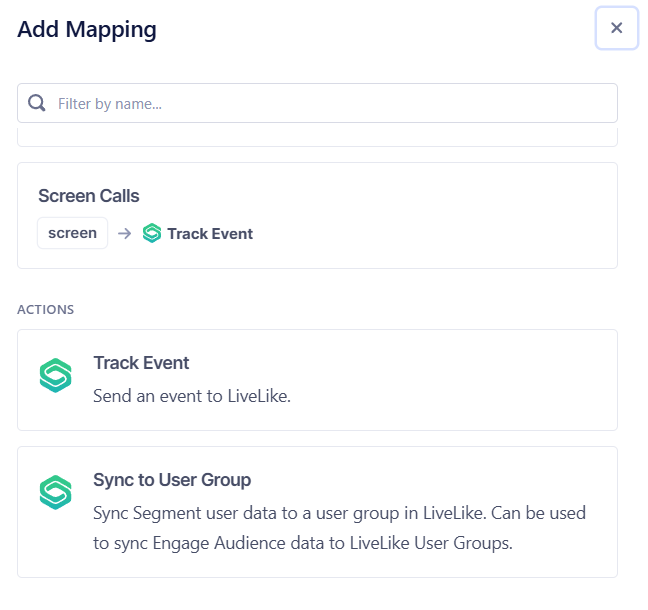
-
Choose Event trigger type as "Track".
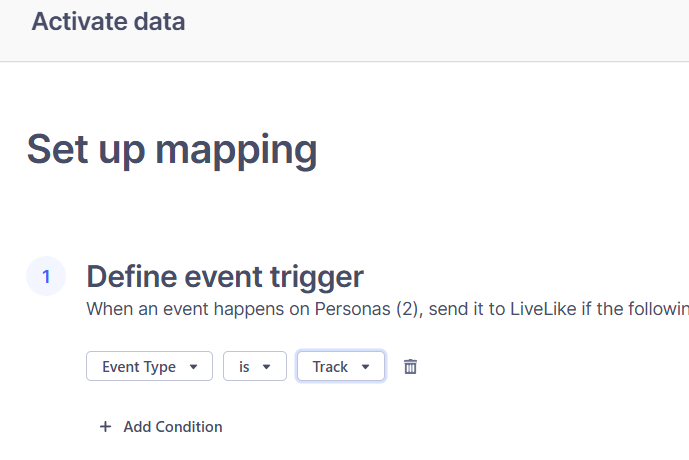
-
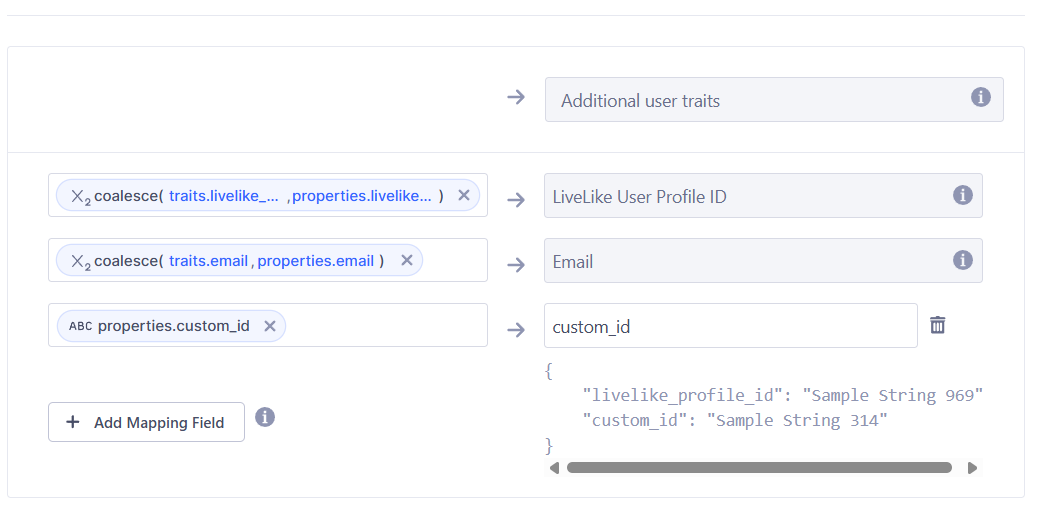
Add additional traits to the mapping (For example, custom_id if setup as traits).
-
Save and enable the mapping.
That’s it! Your LiveLike group will now stay in sync with your Segment audience automatically.
Best practices
For optimal setup and data consistency:
- Create your LiveLike group first,
- Sync it with the desired Segment Audience before adding any users manually.
This sequence ensures that group membership, IDs, and sync logic are aligned from the start, minimizing rework or data mismatches.
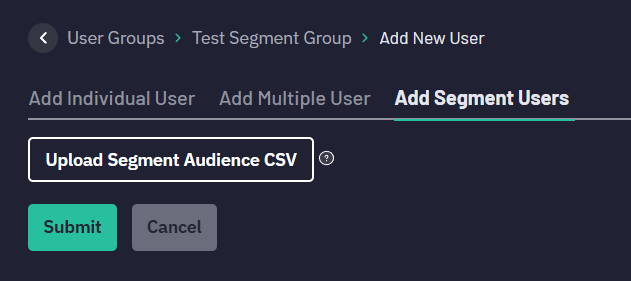
If you already have an existing audience that you want to backfill into a group, export the audience from Segment as an unhashed CSV, and then import it into the group using our "Add Segment Users" feature in the CMS as shown below.
Updated 9 months ago