

Guess The Image CMS Guide
Guess The Image minigame challenges users to identify an image using a limited number of attempts. Images can optionally appear pixelated to increase the difficulty of the challenge. Players attempt to guess the correct answer before exhausting their allowed attempts.
Producers can configure the game schedule, rules, attempts, themes, and localization through the MiniGames CMS.
CMS Setup
GTI (Guess The Image) is available in the experiences list.
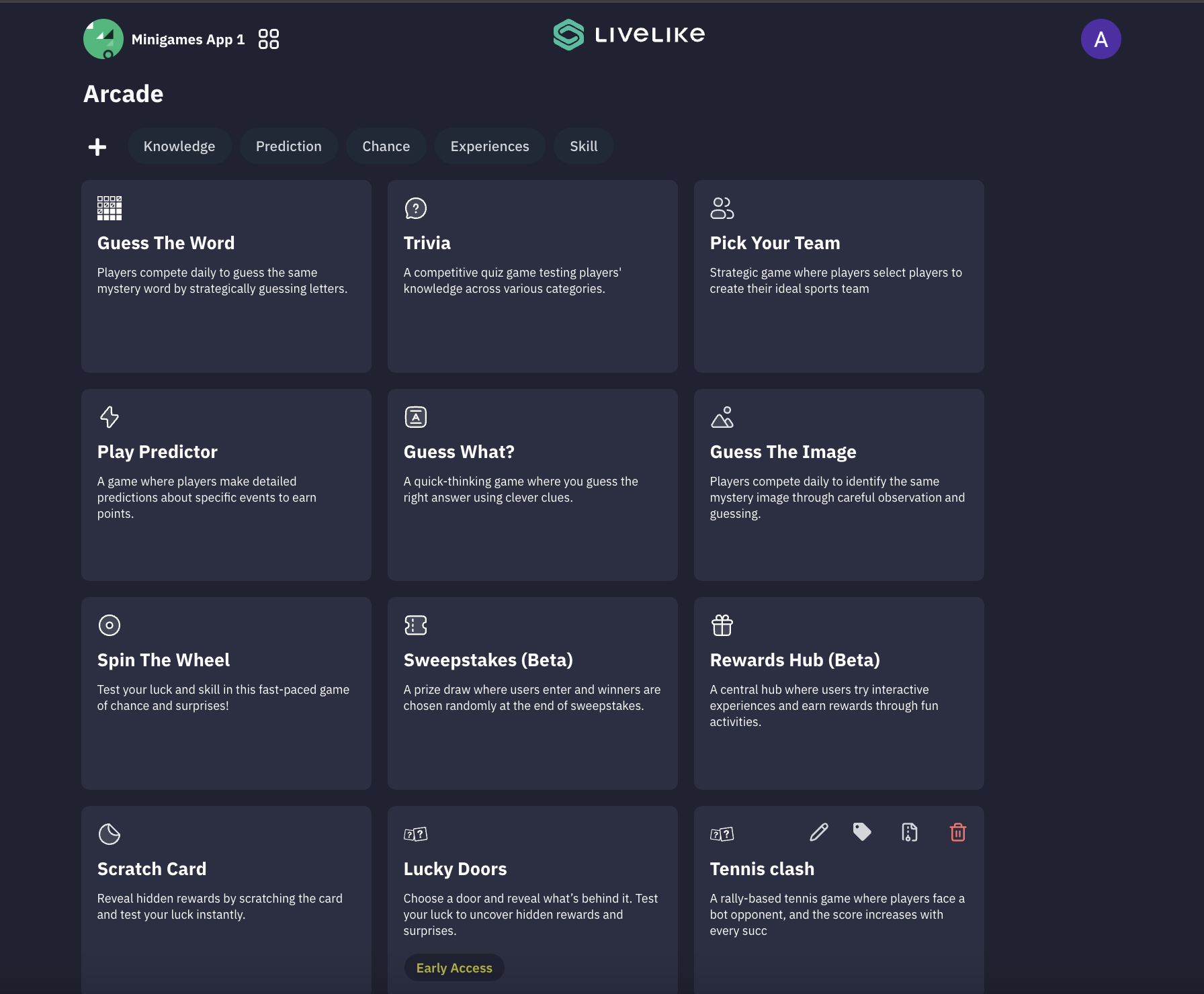
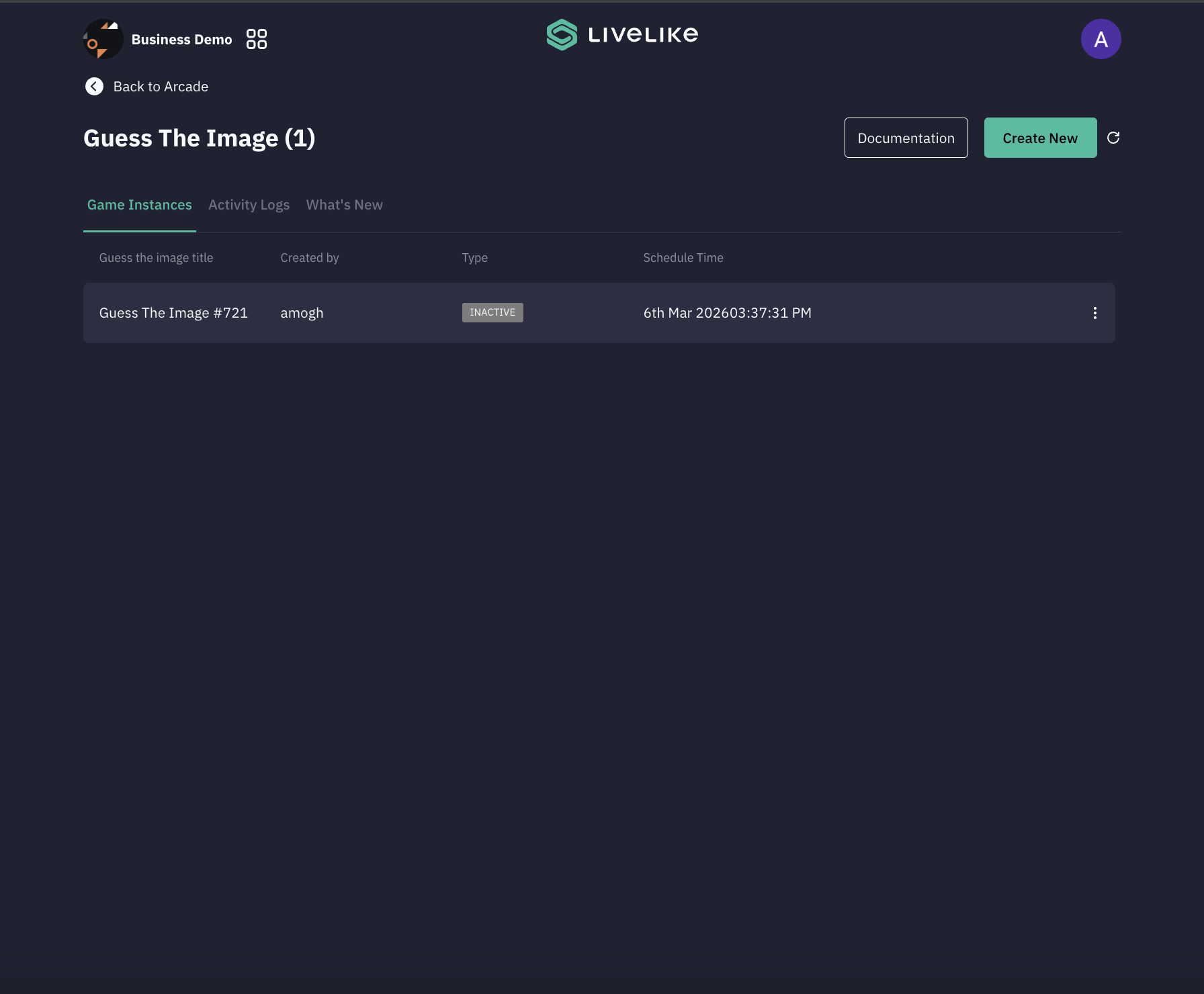
To begin, either select an existing game or click "Create New" to start fresh. The setup process consists of 8 key steps.
- Game Settings
- The Game Settings section defines when the game starts and when new images reset.
-
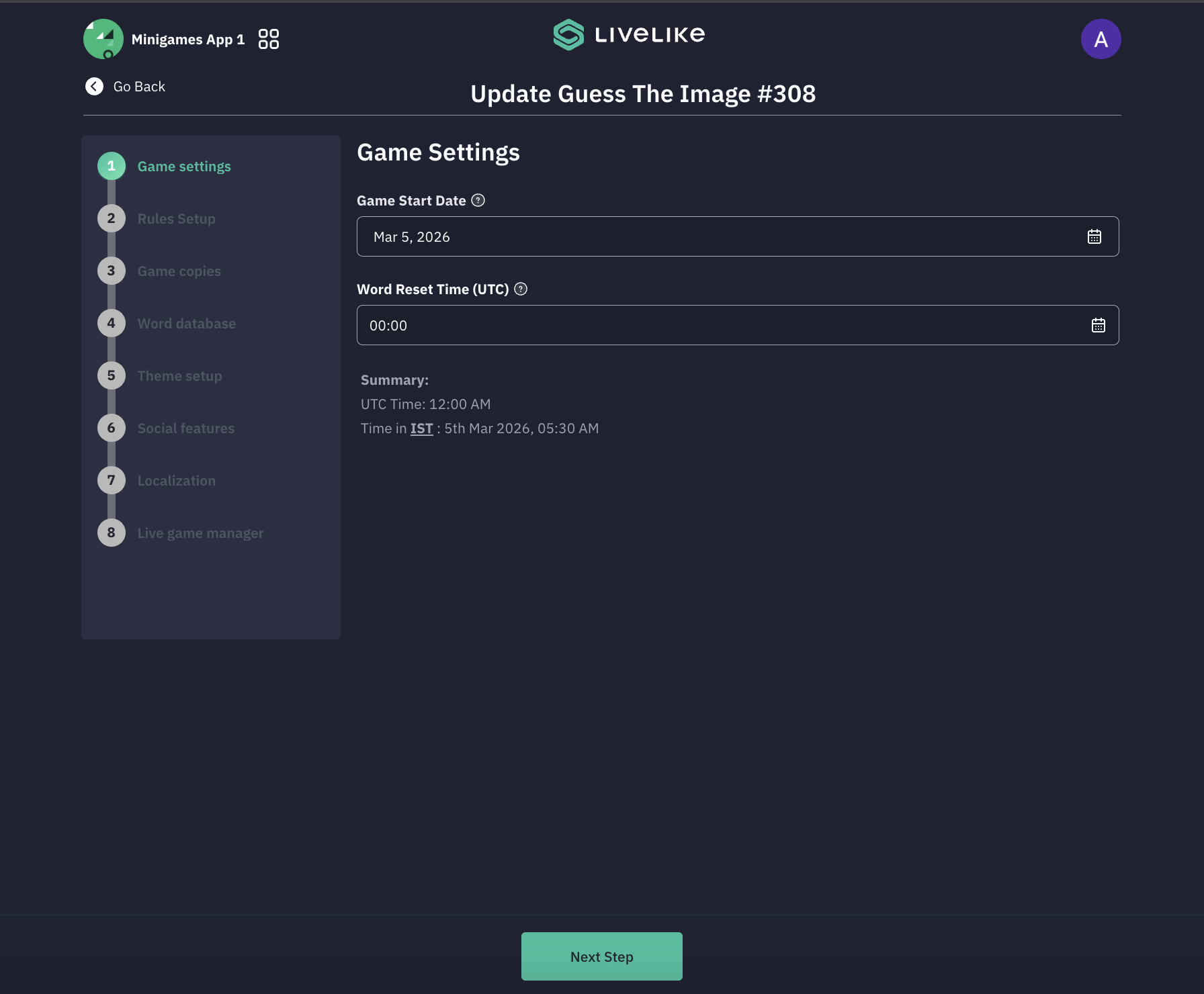
Game Start Date: Defines the date when the game becomes active and available to players.
-
Word Reset Time (UTC): Defines the time when the next scheduled image becomes active.
-
The reset time determines when a new image from the database will be displayed to users.
-
Summary: The CMS displays a summary showing the reset time converted into the Producer’s local timezone.
Example:
UTC Time: 12:00 AM
Local Time: 05:30 AM IST
-
- The Game Settings section defines when the game starts and when new images reset.
-
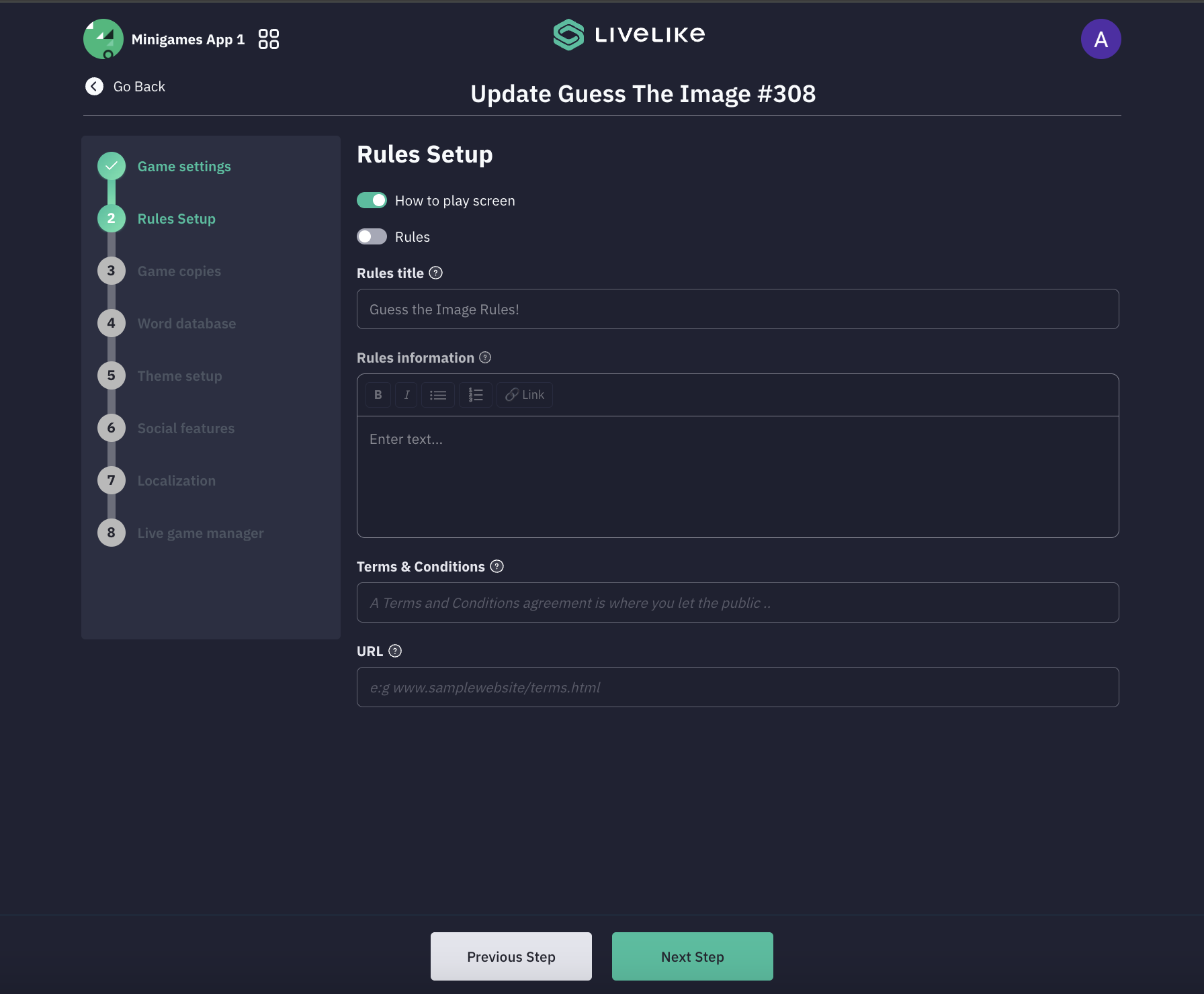
Game Rules This section allows Producers to configure instructional content and game rules shown to players.
-
How to Play Screen: Enable this option to display a How to Play screen explaining the gameplay.
-
Rules: Enable this option to display a Rules screen before the game begins.
-
Rules Title: Defines the title displayed on the rules page.
Example:
Guess the Image Rules
-
Rules Information: Allows Producers to provide instructions explaining how to play the game.
-
Terms & Conditions: Optional field to add legal terms or participation conditions.
-
URL: Allows Producers to link to an external Terms & Conditions page.
-
-
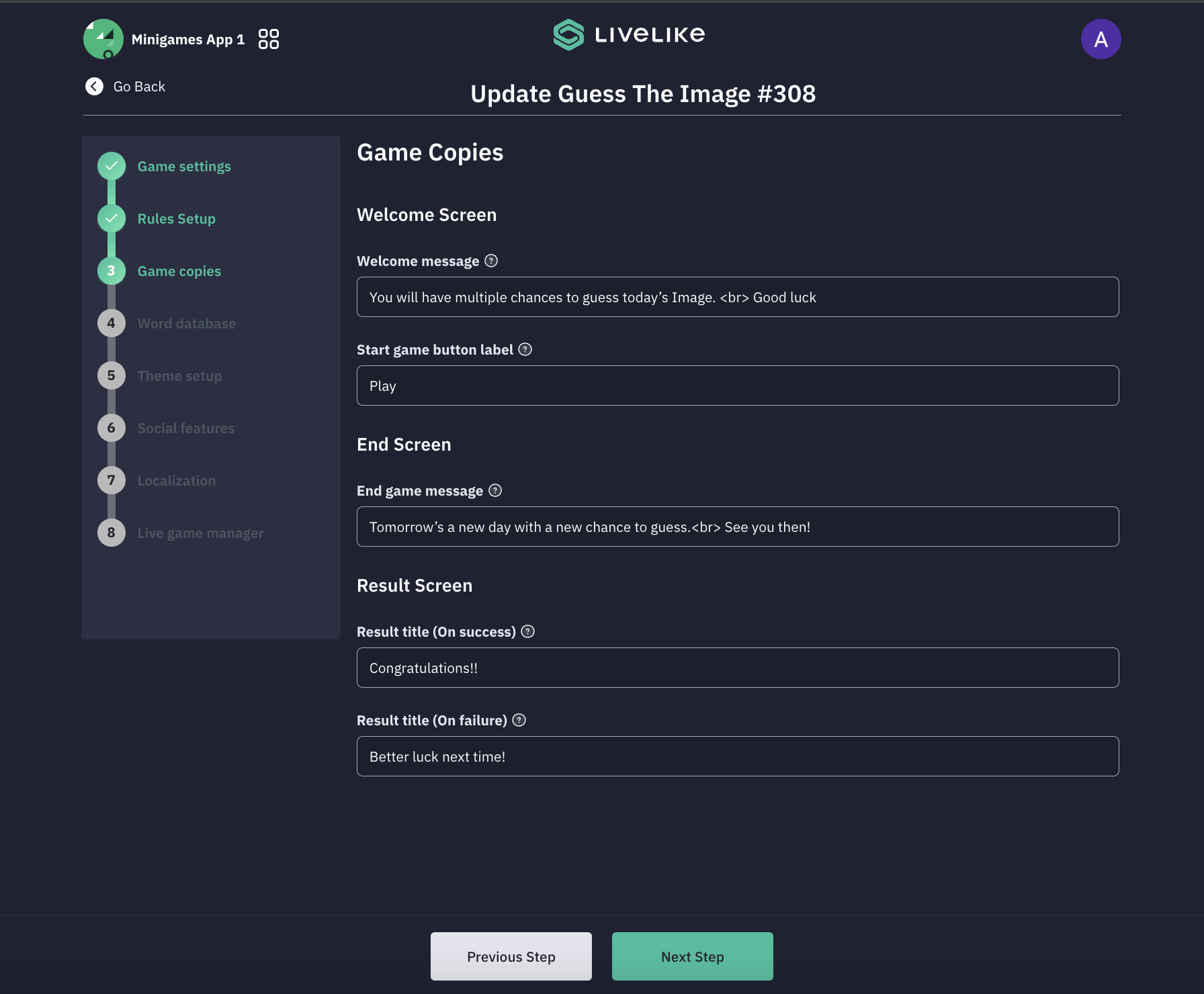
Game Copies Configure game text elements:
- Welcome screen with a custom greeting and a start button
- End screen with closing message
- Result screen with two display types: Single/Score Based
-
Word Database
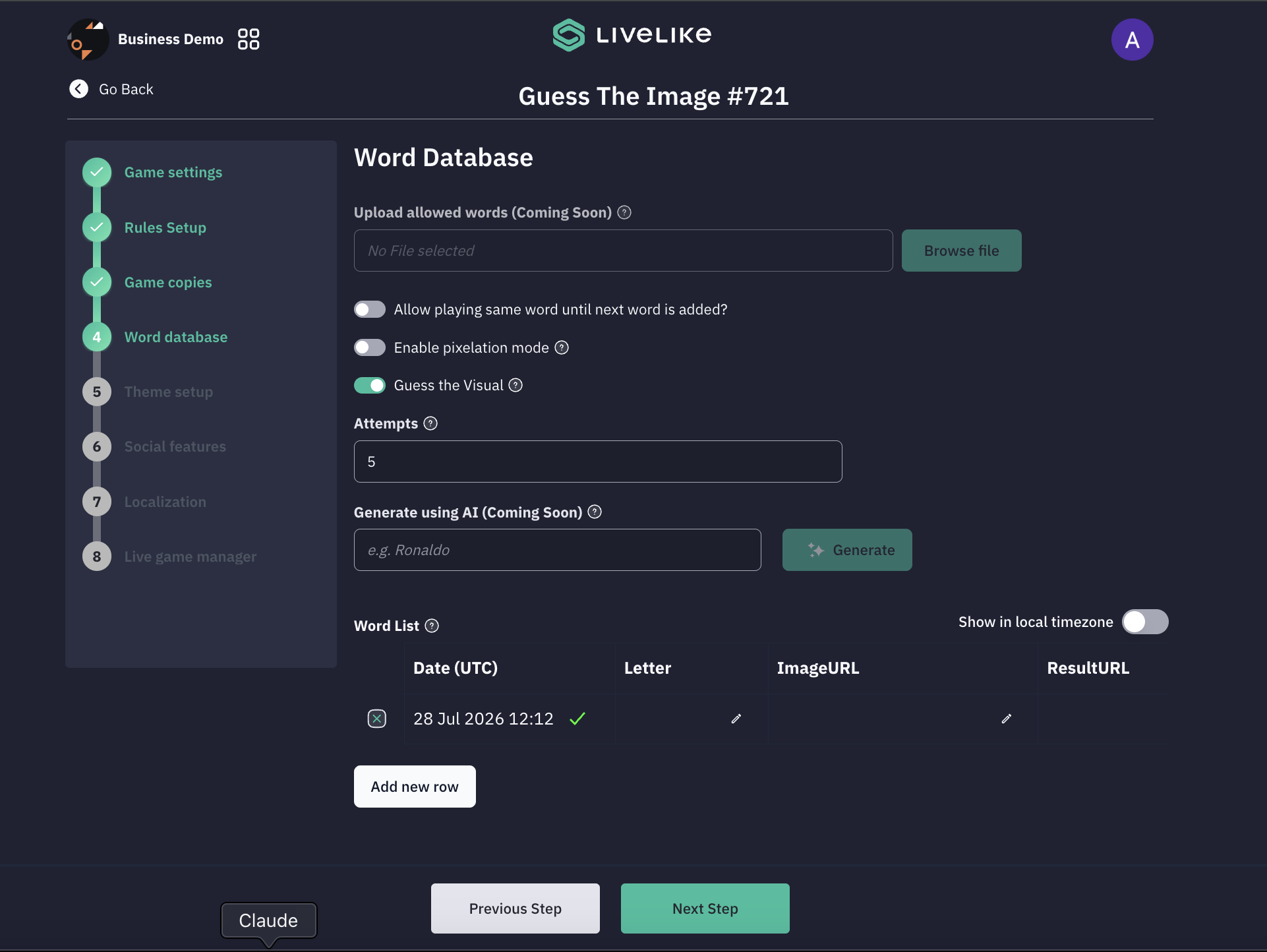
- You can set up target words and images for each date, with support for word lengths ranging from 5 to 10 letters.
- By default, we provide a database of pre-configured words for 15 days.
- Allow Playing Same Word Until Next Word is Added
- When enabled, the current image will remain active until a new image is added to the database.
- Enable Pixelation Mode
- When enabled, images will appear pixelated during gameplay to increase difficulty.
- Guess The Visual Mode
- A new mode where each entry uses two image URLs instead of one:
- Question URL — the image shown to the player as the prompt (e.g. "Guess where the ball is," "Guess the jersey number," "Guess the jersey season").
- Result URL — the image revealed once attempts are exhausted or the player guesses correctly, showing the answer.
- A new mode where each entry uses two image URLs instead of one:
- Attempts
- Defines the maximum number of guesses a player can make per image.
-
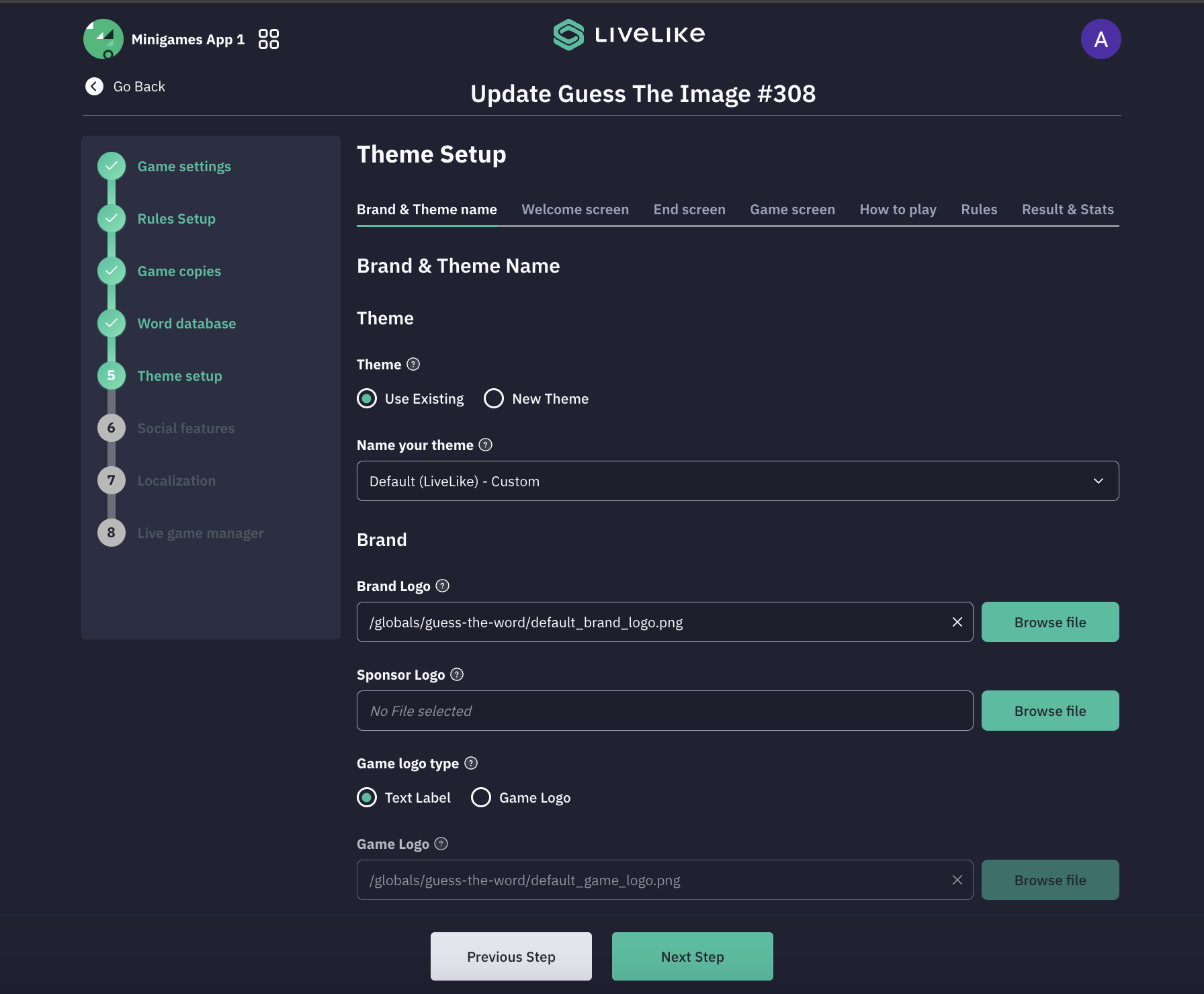
Theme Setup
-
In this step, you can customize the visual branding and theme elements of your game.
-
This is part of the game's customization process, allowing you to maintain brand consistency and create a unique visual identity for your GTI implementation. The theme setup ensures your game matches your brand's visual guidelines and style requirements.
-
Please note:
- The structure of the game stays the same. Positioning, adding, and resizing of components cannot be done
- Only colors/background images and text copies can be customised
- Brand Logo - Max size: 42x300 pixels
- Game Font: Applied to all text except letters input in the Grid.
- Grid Font: Applied to only Letters in the Grid.
- Game logo: Max size: 42x300 pixels
- Sponsor Logo: Max size: 42x300 pixels
- Background image: Recommended size 1080x1920 , max size 1mb
-
-
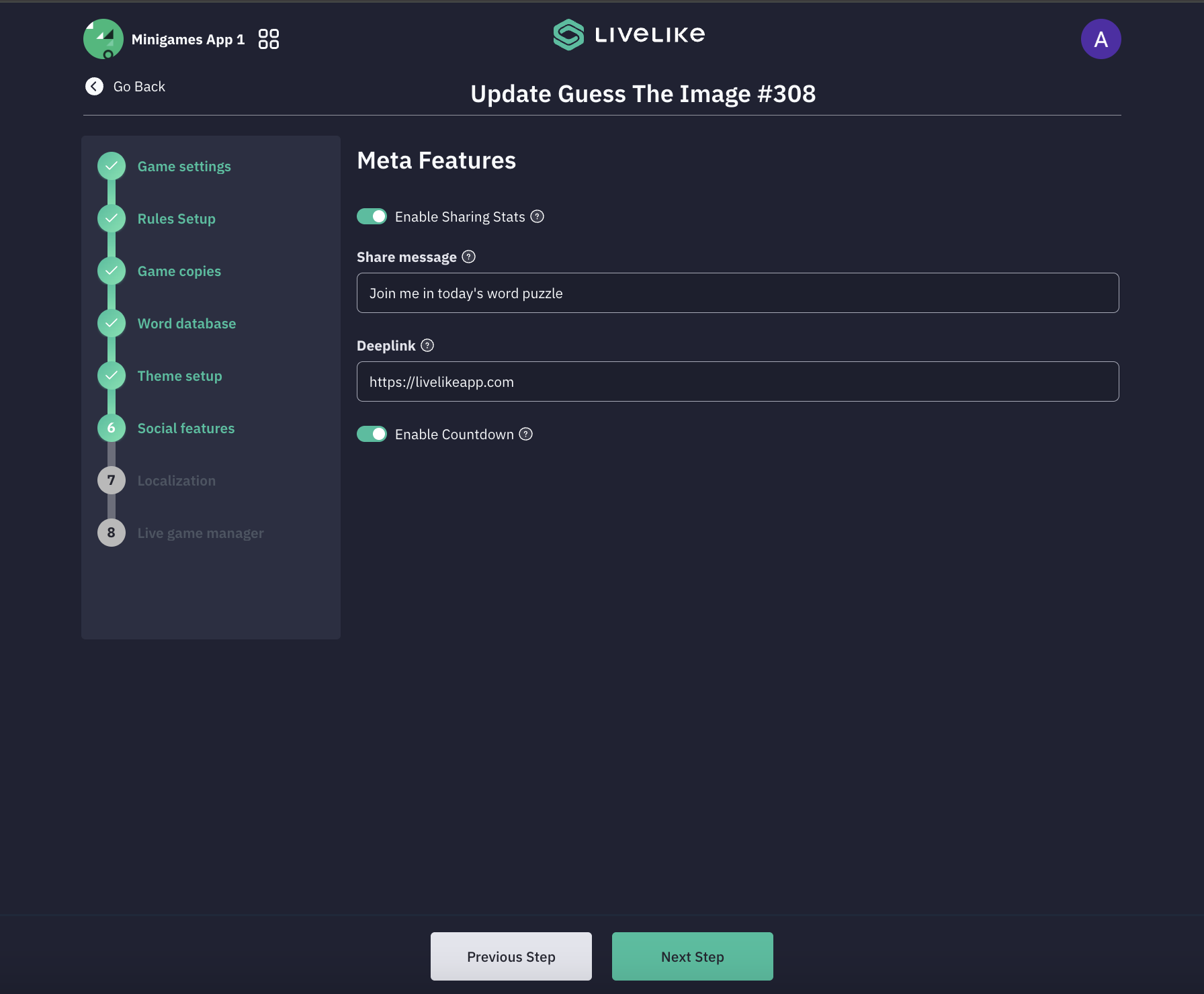
Social featuresThe section includes toggles for showing user stats and enabling stat sharing capabilities.
- Players can customize a share message (defaulted to "Join me in today's word puzzle") to invite others. The Deeplink feature allows configuration of deep linking functionality, along with a countdown toggle that displays a countdown when today's game ends but the new game hasn't started yet, indicating when the next game day begins.
- Count Down features when enabled, displays a countdown when today's game ends but the new game hasn't started yet, indicating when the next game day begins.
-
Localization
-
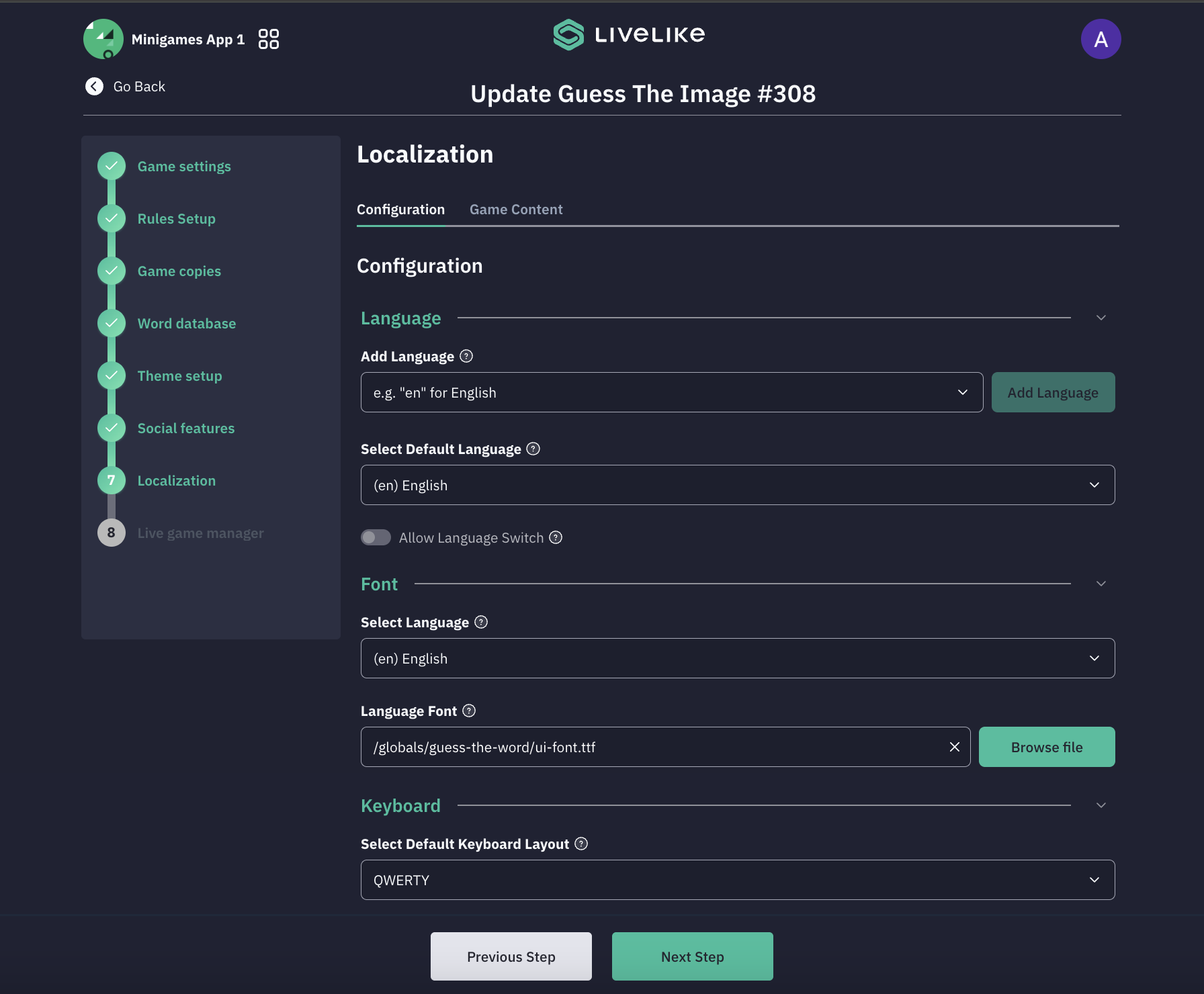
The Localization section allows Producers to configure language support, fonts, and keyboard layouts.
-
Add Language: Allows Producers to add additional languages to the game.
-
Select Default Language: Defines the default language displayed to players.
-
Allow Language Switch: Allows players to switch between supported languages.
-
Select Language: Defines which language the font configuration applies to.
-
Language Font: Allows Producers to upload fonts specific to the selected language.
-
Select Default Keyboard Layout: Defines the keyboard layout used for player input.
Example: QWERTY
-
Allow Keyboard Switch: Allows players to switch keyboard layouts if multiple layouts are configured.
-
-
Live Game Manager
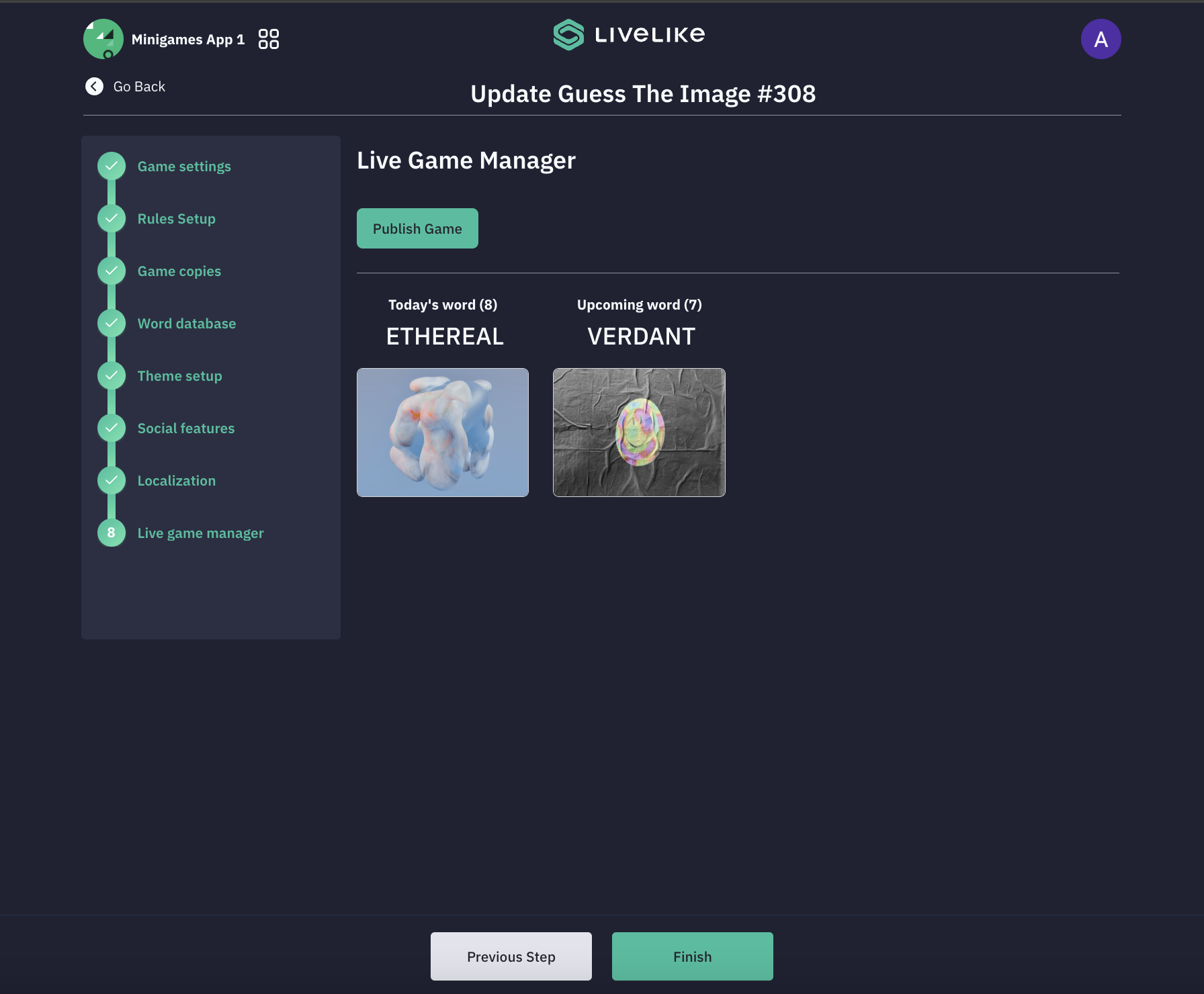
- This section provides real-time management capabilities for your GTI game.
- This interface includes a "Publish Game" button for launching your game and displays the word and image timeline.
Updated 3 months ago