

New Reward Store
Overview
The Reward Store is the "burn" side of the LiveLike economy. Users earn points through LiveLike experiences, then spend them on rewards inside your product. You curate a catalog of digital or physical items and control who can see and redeem each one.
What you can do
- Curate a catalog. Create products with images, descriptions, categories, and custom attributes, and set a point cost on each.
- Control eligibility and visibility. Restrict products to user groups, set availability windows, and cap how often a user can redeem.
- Redeem in one step. A redemption checks the user's balance, eligibility, and stock, deducts the points automatically, and creates an order.
- Track and manage orders. Every redemption is an order you can follow through fulfillment, rejection, or refund. Users can see their active and past orders.
- Build your own storefront. Storefront APIs cover products, categories, order history, redemption, reward items, and refunds, so the experience can match your product.
Typical storefront pages
- Catalog: product thumbnails, point costs, restrictions, and featured sections.
- Product details: large image, description, cost and eligibility, and a redeem button with a confirmation step.
- Order history: past and ongoing redemptions.
How it fits together
- Users earn points (the store's reward item) from your engagement features.
- You set up a store, categories, and products in the CMS.
- Users redeem products from your storefront and points are debited once per order.
- LiveLike delivers built-in and partner rewards automatically. You fulfill custom rewards (merchandise, experiences) yourself.
The rest of this guide covers each of these in detail.
How the Reward Store Is Organized
| Concept | What It Is |
|---|---|
| Store | The container for your catalog. A store is linked to the reward item (points currency) its products are priced in |
| Category | A way to group and order products in the storefront (for example, "Merch" or "Digital Perks") |
| Product | Something a user can redeem. Defines the type, who can redeem it, when it is available, and how often |
| Variant | The purchasable unit of a product. A variant owns the price and the stock (for example, size M, or the Gold edition) |
| Order | One checkout by one user. A container for one or more order items |
| Order Item | One variant line within an order. This is where the redemption status lives |
| Refund | A reversal of an order item that credits the points back and returns the item to stock |
Every product has at least one variant. Even a product with no real "options" (for example, a badge) has a single variant that carries its price and stock.
Product Types
LiveLike supports eight product types, grouped into three families based on who delivers the reward and whether you have anything left to do after an order is placed.
| Family | Types | Delivered By | Your Action After an Order |
|---|---|---|---|
| Built-in | Badge, Multiplier, Flair, Unique Code, Common Code | LiveLike, instantly at order time | None. Orders are Fulfilled immediately |
| Custom | Merchandise, Experience | You, through your own fulfillment process | Mark orders as fulfilled, reject, or refund |
| Partner | Konekt (for example, digital gift cards) | An external provider | None. Handled automatically |
Built-in Products
Built-in products are delivered the moment the order is placed. There is nothing for you to fulfill, so built-in orders cannot be manually fulfilled, rejected, or refunded.
| Type | What the User Receives | Source You Pick on the Variant | Rules |
|---|---|---|---|
| Badge | A badge from your application | Badge ID (active badges only) | One per user. A user who already owns the badge cannot redeem it again |
| Flair | A flair from your application | Flair (active flairs only) | One per user. A user who already owns the flair cannot redeem it again |
| Multiplier | A Reward Multiplier | Multiplier (see below) | One per order. A user can buy it again, for example after the previous one expires |
| Unique Code | A one-time coupon code from a pool you upload | CSV of codes | Stock is the number of codes left in the pool |
| Common Code | The same shared coupon code for every redemption | Code | Every redeemer gets the same code |
Multiplier products. The Multiplier dropdown lists only multipliers that are published, user-activated, and currently inside their active window. When a user buys one, it is added to their earned multipliers, ready for them to activate whenever they choose. The factor is captured at purchase, so later edits to the multiplier do not change multipliers already granted.
If a badge, flair, or multiplier is removed, archived, or unpublished after the product is published, orders for that product fail instead of charging the user for nothing.
Custom Products
| Type | Use For | Variant Fields |
|---|---|---|
| Merchandise | Physical goods you ship | Colour, Colour Hex Code, Size. At least a colour or size is required |
| Experience | Tickets, meet-and-greets, event access | Event Start and Event End (end must be after start) |
Points are charged when the order is placed and the order lands in Redeemed (paid, awaiting delivery). Once you have delivered it, mark it Fulfilled. See Managing Orders.
Partner Products (Konekt)
A Konekt product is redeemed and delivered by an external provider. After the order is placed, LiveLike places it with the provider in the background:
- Success: the order becomes Fulfilled and the delivered item (for example, the gift card) is saved on the order.
- Failure: the user is refunded automatically. Their points are credited back.
- Taking too long: orders still waiting after the retry window are flagged for the LiveLike team, who can refund them.
Konekt products appear in the CMS only if a Konekt integration is active for your application.
Before You Start
Make sure you have:
- At least one reward item (your points currency) under Rewards.
- Admin access to the Reward Store section. Creating, editing, publishing, and managing orders require admin access.
- Whatever your products will hand out: a badge, flair, or published user-activated multiplier for built-in products, a coupon code file for unique codes, or an active Konekt integration for partner products.
- Any user groups you want to use to restrict who can redeem a product.
Setting Up the Reward Store in the CMS
The setup flow is: Store → Categories → Products (with variants) → Publish.
Step 1: Create a Store
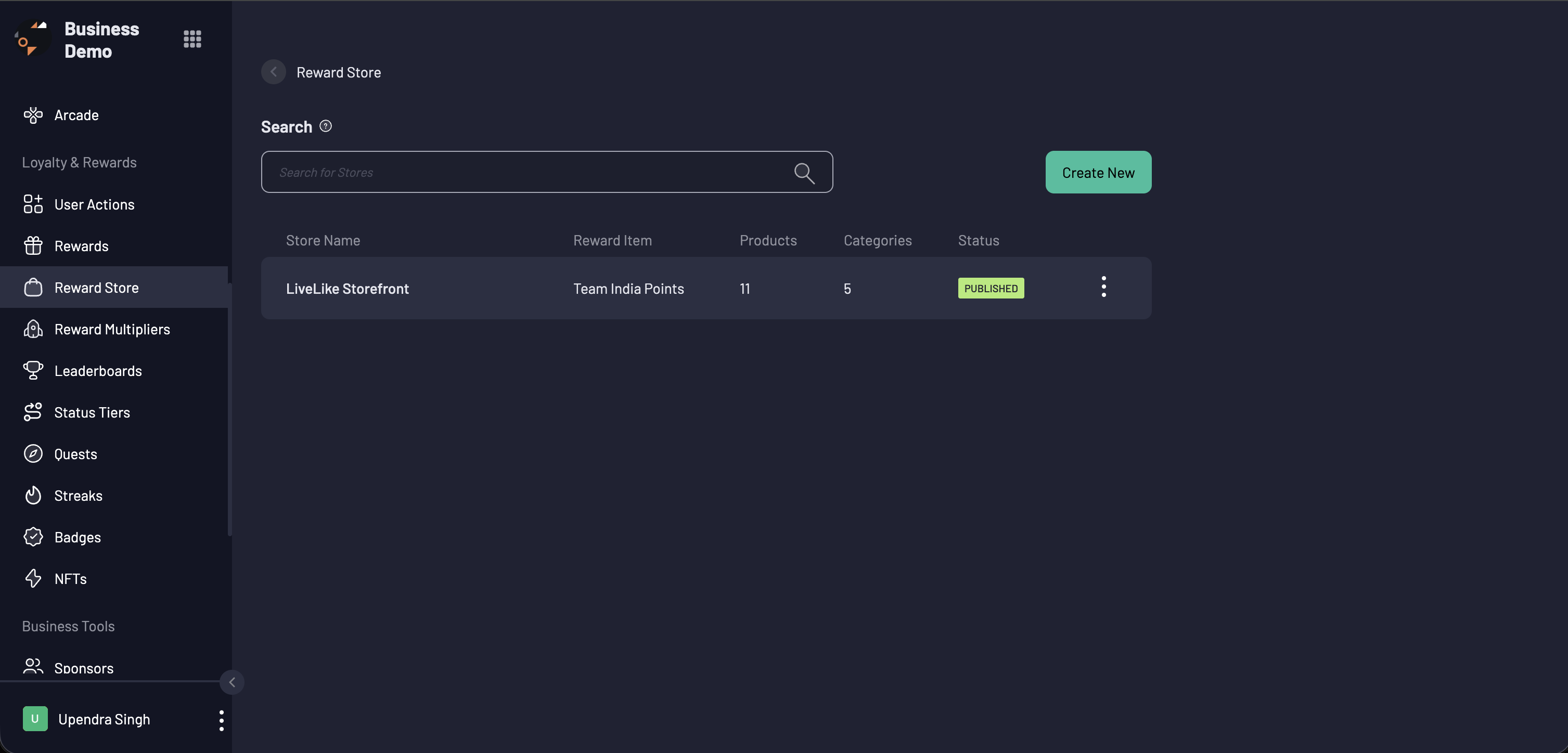
- In the left sidebar, open Reward Store. You will see your stores with their reward item, product count, category count, and status.
- Click Create New.
- Enter a Store Name.
- Under Select Reward Items, choose the reward item your products will be priced in. A store has one reward item.
- (Optional) Select a Sponsor.
- (Optional) Click Add Attribute to attach custom key/value data to the store.
- Click Create.
The store is created in Draft.
Heads up: Once a store is published, only its name can be edited. The reward item is locked, so choose carefully.
Step 2: Create Categories
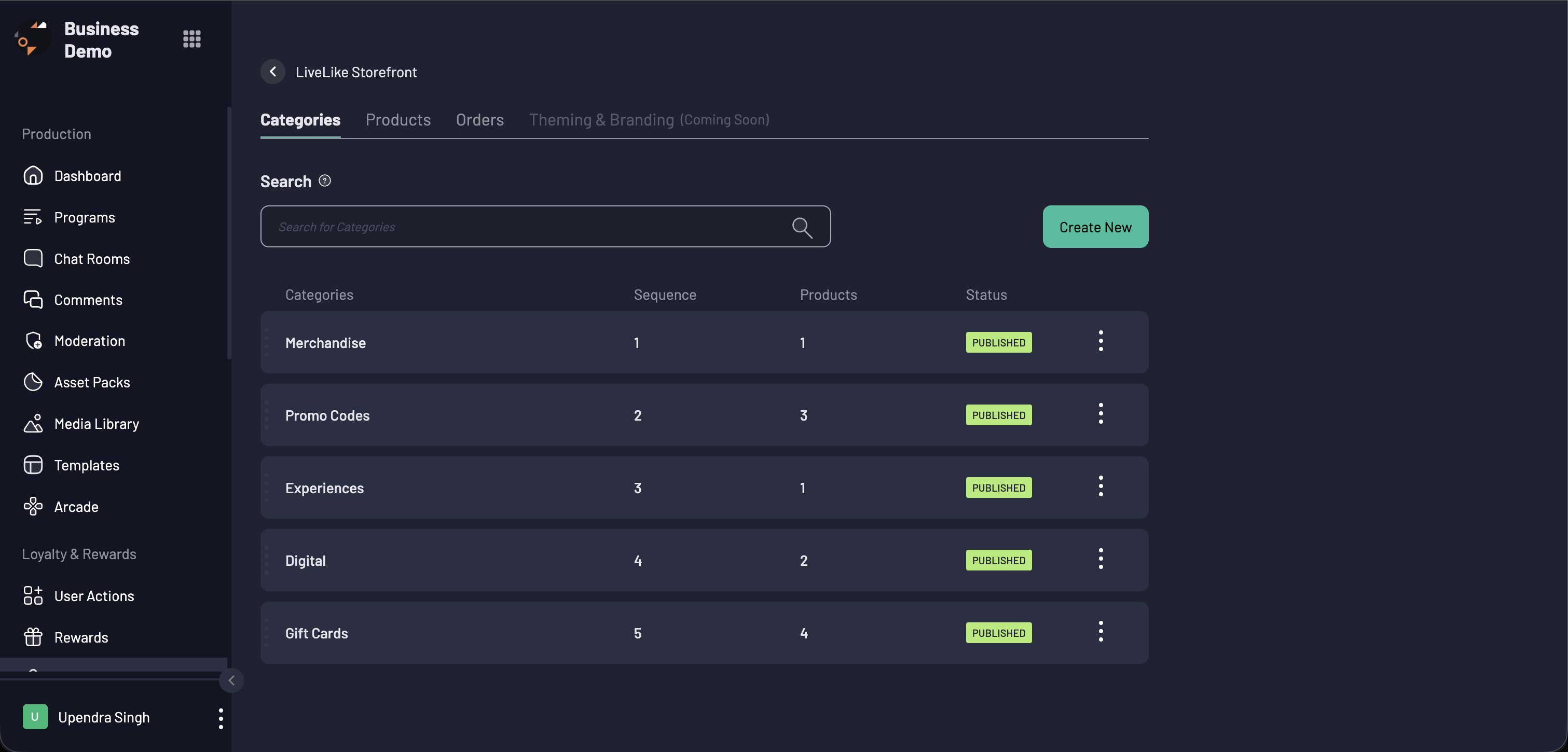
Categories organize your catalog. Create at least one before adding products.
- Open your store and select the Categories tab.
- Click Create New.
- Enter a Name (must be unique within the store) and a Description.
- Set the Sequence: the position of the category in the store. It must be greater than 0 and unique within the store. If you leave it blank, the next available position is used.
- (Optional) Add attributes.
- Click Create.
- Open the row menu (⋯) on the category and click Publish, then confirm.
A category needs both a Description and a Sequence to be published. Only published categories can be selected when you create a product.
Step 3: Create a Product
-
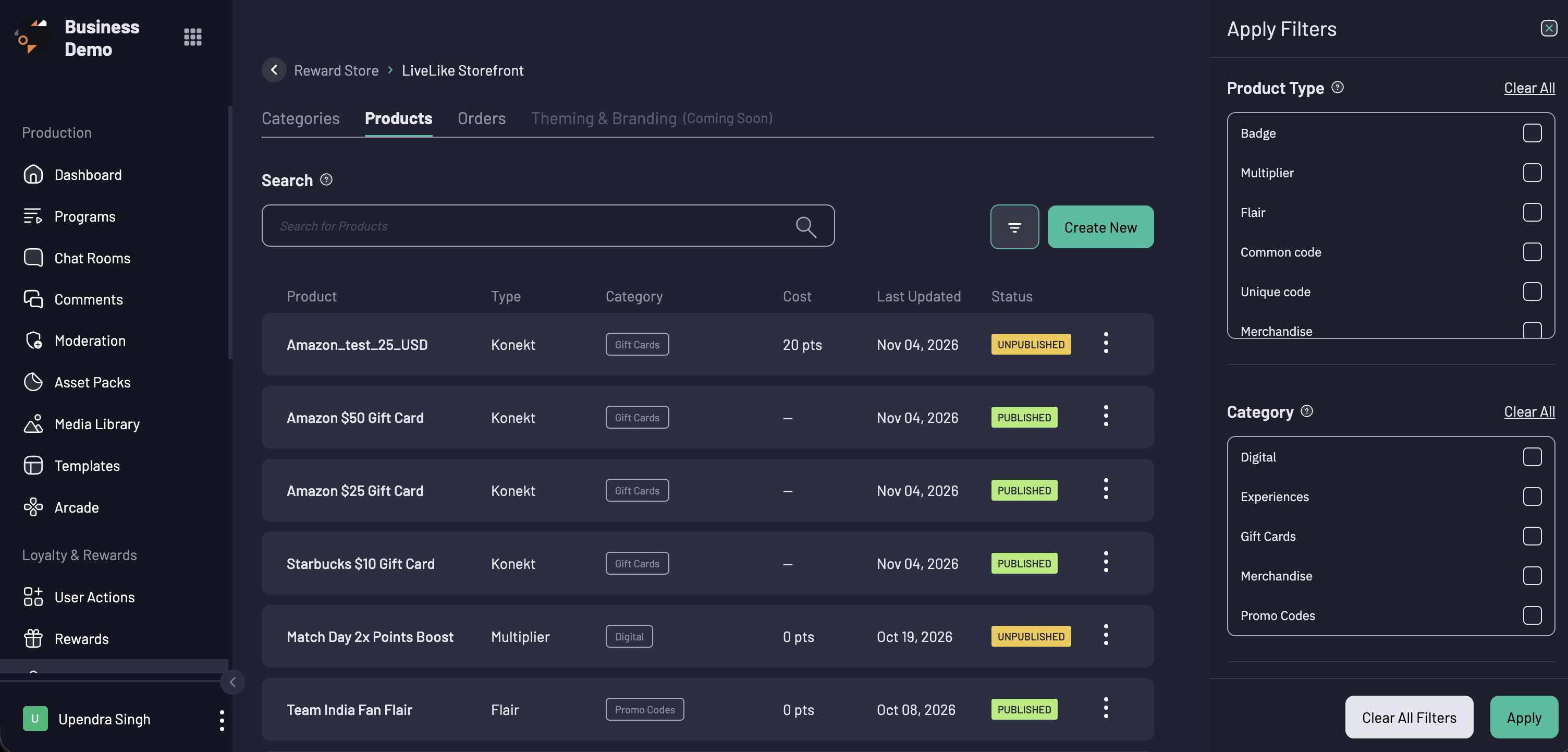
In your store, open the Products tab and click Create New.
-
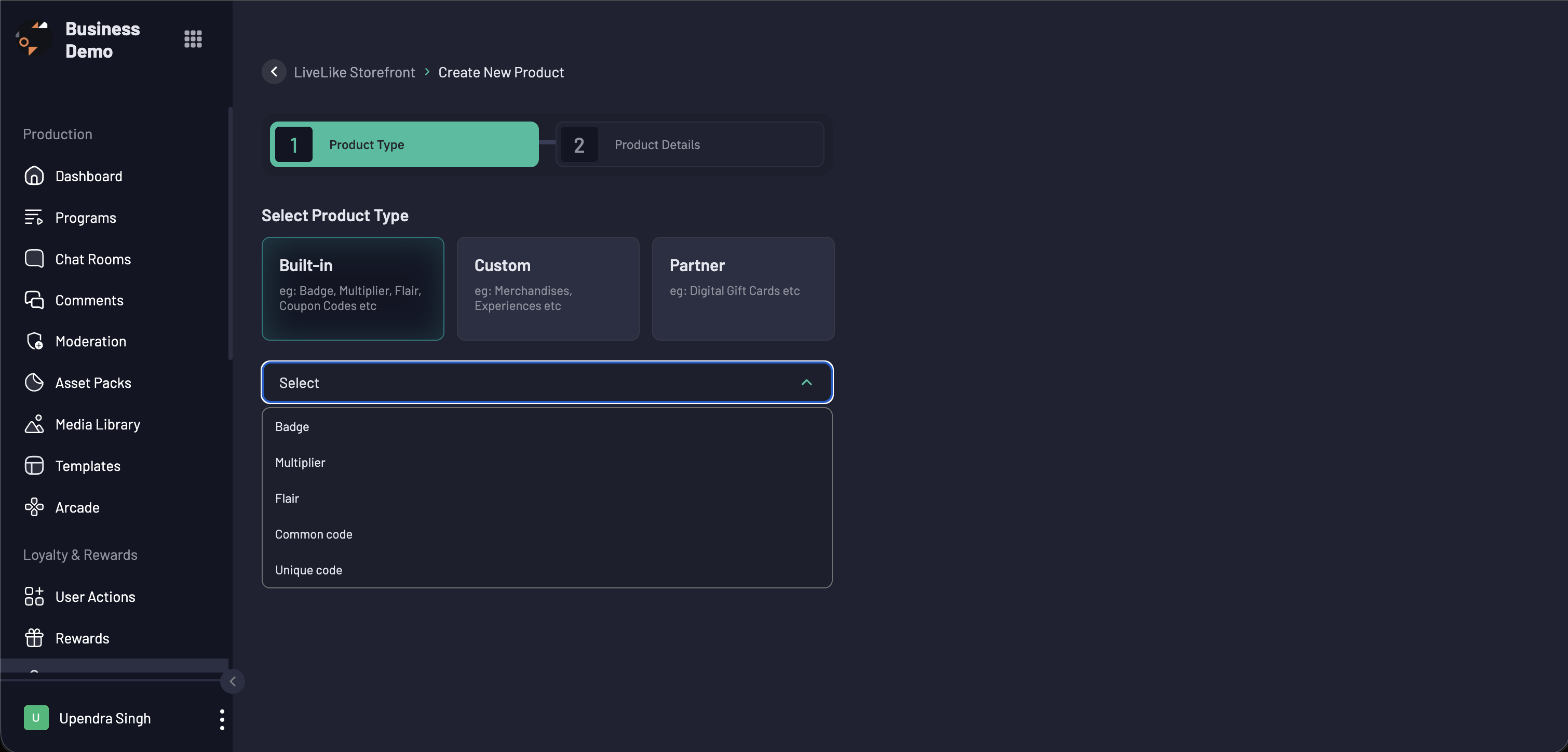
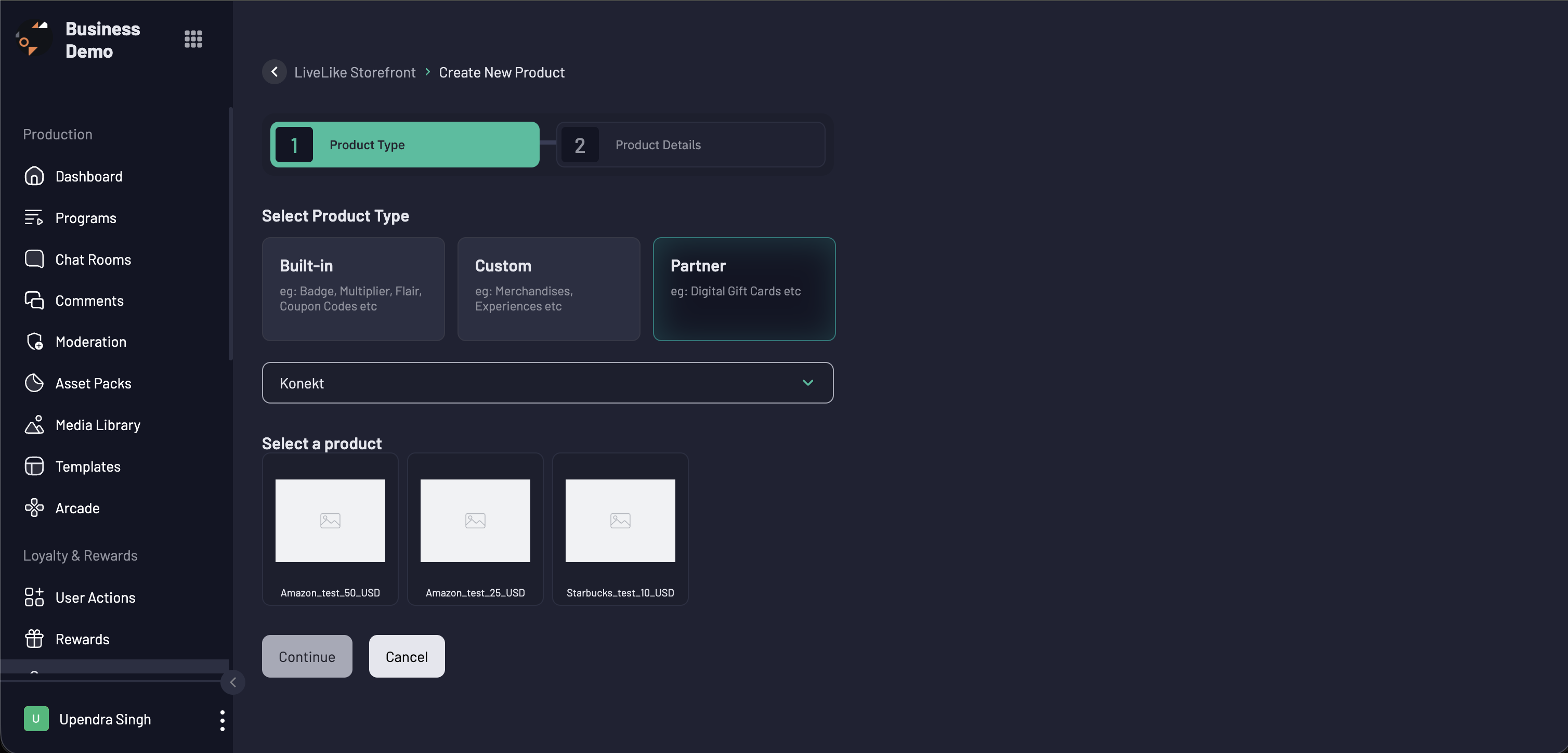
Select Product Type (step 1 of 2). Pick a family: Built-in, Custom, or Partner, then choose the specific type from the dropdown.
-
-
Click Continue.
Partner (Konekt) products work a little differently. After choosing the Partner family, select a product from your provider catalog under Select a product and click Continue. LiveLike creates the product and its single variant from the provider's catalog and takes you straight to its edit page, where you set the cost and finish the details. If you see "No integration exists for this product type. Contact admin.", the Konekt integration is not active for your application.
Product Details (step 2 of 2):
| Field | Description |
|---|---|
| Name | Product name shown to users |
| Description | Product description |
| Select Category | One or more published categories. A product needs at least one to be published |
| Images | Up to 5 images (JPG, PNG, GIF, WEBP) or a GLB 3D model. Drag to reorder. At least one is required to publish |
| Max Redemption (toggle) | Turn on to limit how many times one user can redeem this product. See Redemption Limits |
| Redemption Success Message | (Optional) Message to show after a successful redemption |
| Redemption Failure Message | (Optional) Message to show if redemption fails |
| Starts From / Expires At | (Optional) The window during which the product can be redeemed. Start cannot be in the past, expiry must be in the future and after the start |
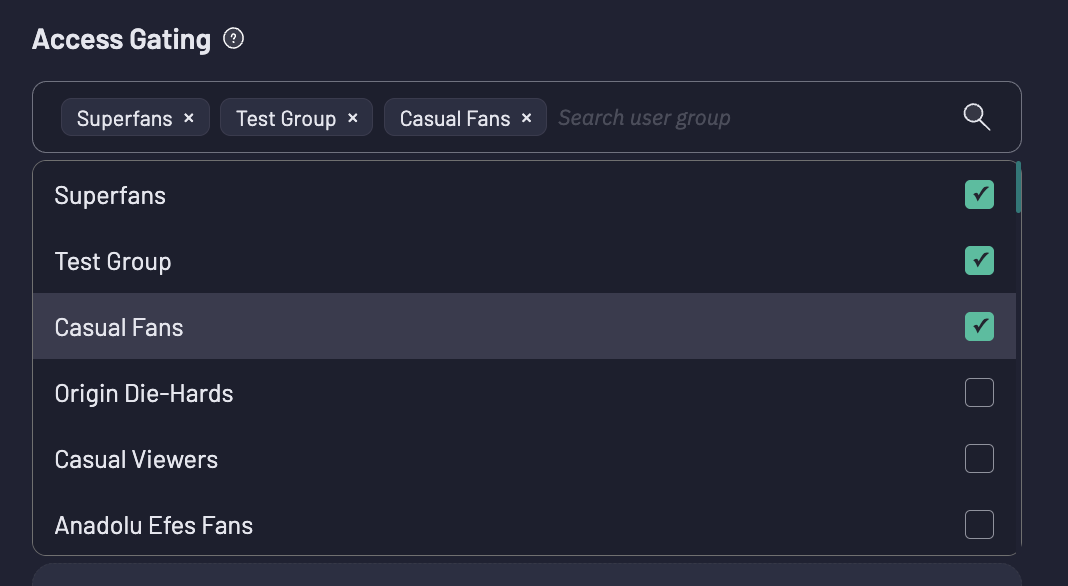
| Access Gating | (Optional) Restrict the product to members of selected user groups. Leave empty for everyone |
| Sponsor | (Optional) Sponsors associated with the product |
| Attributes | (Optional) Custom key/value data. Click Add Attribute |
The product is priced in the store's reward item. You do not choose a reward item on the product.
Step 4: Add Variants
Scroll to the variants section. Every product needs at least one variant. Click Add Variant for more (up to 15), or Clone to copy one.
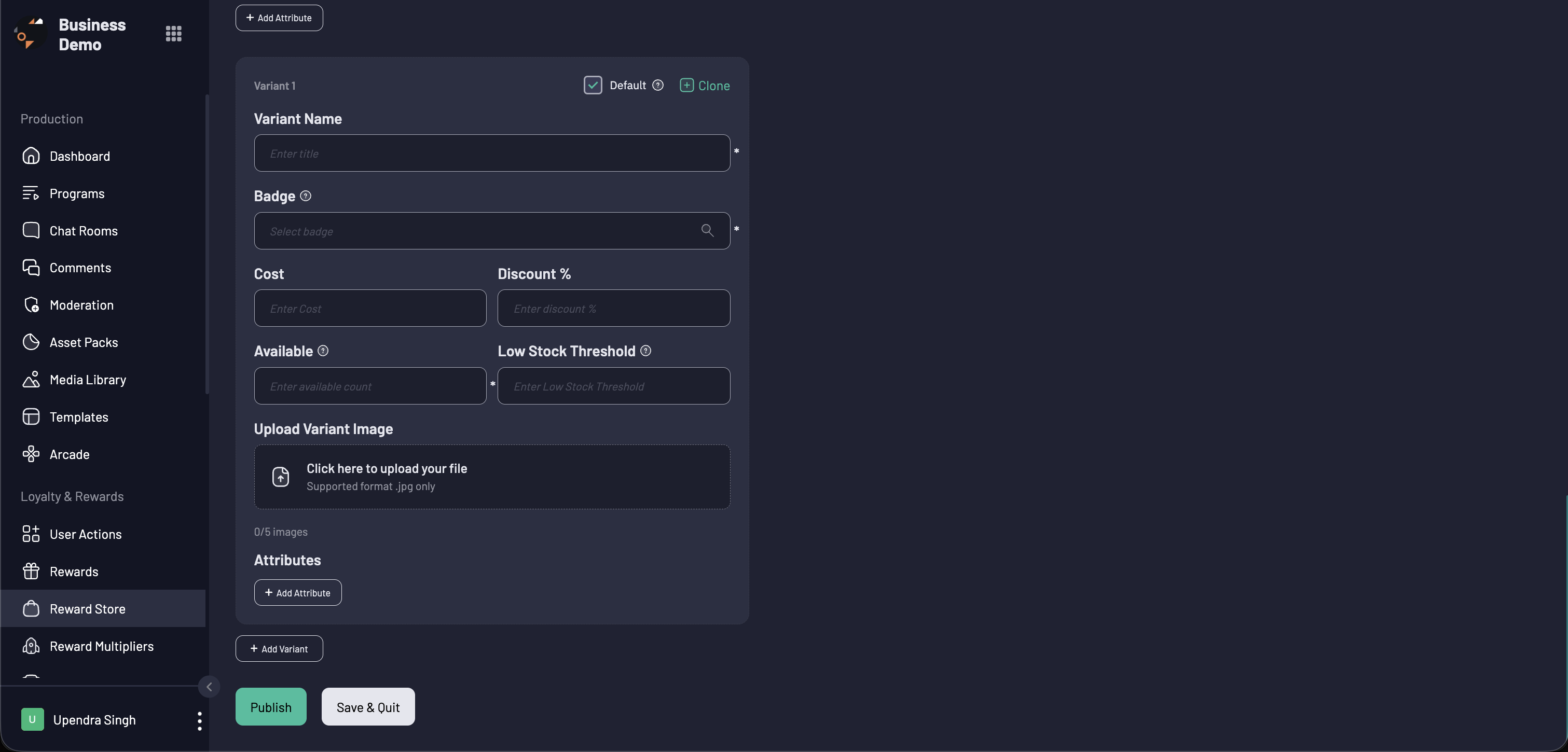
| Field | Description |
|---|---|
| Variant Name | Name of the variant (for example, "Medium" or "Gold Edition"). Must be unique within the product |
| Cost | Price in the store's reward item. Required to publish |
| Discount | (Optional) 0 to 100%. The user pays the discounted cost, rounded up to the nearest whole point. The Discounted Cost is shown for you |
| Available | Required. Units in stock. Nothing is sold beyond this number |
| Low Stock Threshold | (Optional) At or below this number, the variant shows as Few Left |
| Default | The variant selected by default for the product. Exactly one variant must be the default |
| Images | (Optional) Up to 5 images for this variant. If none, the product images are used |
| Attributes | (Optional) Custom key/value data |
Then fill in the type-specific field for your product type:
| Product Type | What to Fill In |
|---|---|
| Badge | Select the Badge ID |
| Multiplier | Select the Multiplier |
| Flair | Select the Flair |
| Common Code | Enter the Code that every redeemer will receive |
| Unique Code | Click Download Template, fill in one code per row, then click to upload the file (.csv only, max 5,000 entries). Use View List to see uploaded codes |
| Merchandise | Colour, Colour Hex Code, and/or Size (at least a colour or size) |
| Experience | Event Start and Event End |
| Konekt | Pre-filled from the provider's catalog. Set the Cost |
Some product types (coupon codes and partner products) support one variant only. Add Variant and Clone are disabled for them, and that variant is always the default.
Unique-code stock. Available cannot exceed the number of codes left in the pool, and a unique-code variant shows Sold Out when its pool is empty.
Step 5: Save or Publish
At the bottom of the form:
- Save as Draft saves the product without making it live.
- Publish saves and publishes it in one step.
- Exit without Saving discards your changes.
If a product cannot be published yet, it is still saved as a draft and you are returned to its edit page with "This product can't be published yet" and the reasons. A product can be published when:
- A product type is set
- At least one image is uploaded
- It belongs to at least one published category
- It has at least one active variant, and every active variant has a Cost
- (Unique Code) At least one variant has coupon codes uploaded
You can also publish later: in the Products tab, open the row menu (⋯) on the product and click Publish.
Step 6: Publish the Store
When your categories and products are ready, go back to the Reward Store list, open the row menu (⋯) on your store, and click Publish. A store needs a reward item attached before it can be published.
The store, its categories, and its products each have their own publish state, so publish each one.
Product Status
Each product, category, and store is Draft, Published, or Unpublished. For products, users also see a status that reflects the availability window:
| Status | Meaning |
|---|---|
| Draft | Not yet published |
| Unpublished | Taken offline |
| Coming Soon | Published, but the Starts From time is in the future |
| Published | Live and redeemable |
| Expired | Published, but the Expires At time has passed |
Variants also show Available, Few Left, or Sold Out based on stock.
Redemption Rules
Access Gating
If a product has one or more user groups under Access Gating, only members of at least one of those groups can redeem it. Products with no gating groups are open to everyone.
Redemption Limits
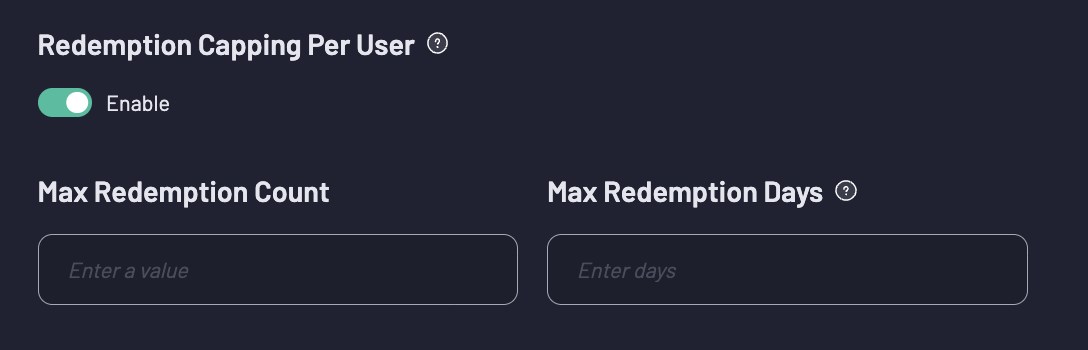
Turn on Max Redemption to limit how many times one user can redeem a product.
| Field | Description |
|---|---|
| Max Redemption Count | Maximum units one user can redeem of the product |
| Max Redemption Days | (Optional) Turns the cap into a rolling window. Only redemptions in the last N days count |
Example: a count of 5 and 7 days lets a user redeem up to 5 in any 7-day period. Each redemption frees its slot once it is more than 7 days old. Without Max Redemption Days, the cap is for the user's lifetime.
- The limit is per product, counted across all variants. Choosing a different size or color does not bypass it.
- Rejected and refunded orders stop counting and free the user's slot.
How an Order Works
When a user redeems from your storefront, LiveLike:
- Checks the product is published and inside its availability window, the user passes Access Gating, there is enough stock, and the user is under the redemption limit.
- Checks the user has enough balance to cover the whole order.
- Claims the stock (unique codes are drawn from the pool).
- Debits the user's balance once for the order total.
- Delivers built-in rewards (badge, multiplier, flair, codes).
Placement is all or nothing: if anything fails, the user is not charged and no stock is claimed. The price and product details are saved on the order, so order history looks the same even if you later edit the catalog.
An order must contain items from one store, and all items must be priced in the same reward item.
Common reasons an order is declined: the product is not published, not yet started or expired; the user is not in an access group; the item is out of stock; the user reached the redemption limit; insufficient balance; or the user already owns the badge or flair.
Managing Orders
In your store, open the Orders tab to see every order. Search by order, filter by status, product type, order value, or date, and sort by newest, oldest, or order value. Open the row menu (⋯) and click View Details to see the order.
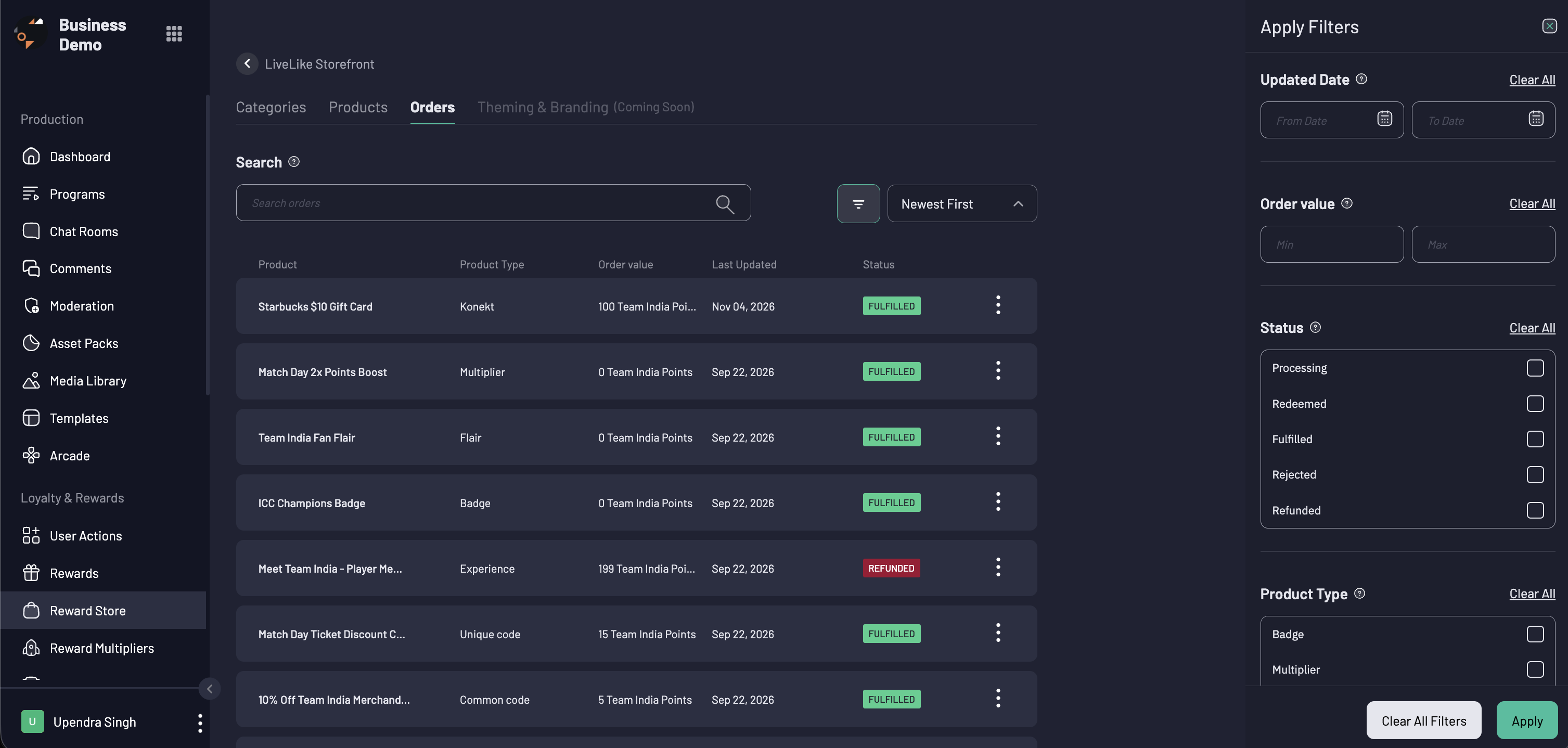
Each order item has its own status:
| Status | Meaning |
|---|---|
| In Progress | The order is being placed |
| Awaiting Provider Confirmation | (Konekt) Waiting for the provider |
| Redeemed | Payment is settled. Waiting for delivery |
| Fulfilled | Delivered |
| Rejected | Declined by you |
| Refunded | Points credited back and stock returned |
Where each product type starts:
| Product Type | Starting Status | What Happens Next |
|---|---|---|
| Badge, Multiplier, Flair, Unique Code, Common Code | Fulfilled | Nothing. Delivered instantly |
| Merchandise, Experience | Redeemed | You mark it Fulfilled once delivered |
| Konekt | Awaiting Provider Confirmation | Becomes Fulfilled on success, or is refunded on failure |
Actions on the Order Detail Page
Built-in and partner orders are managed automatically and show no actions. For Merchandise and Experience orders, the order detail page offers:
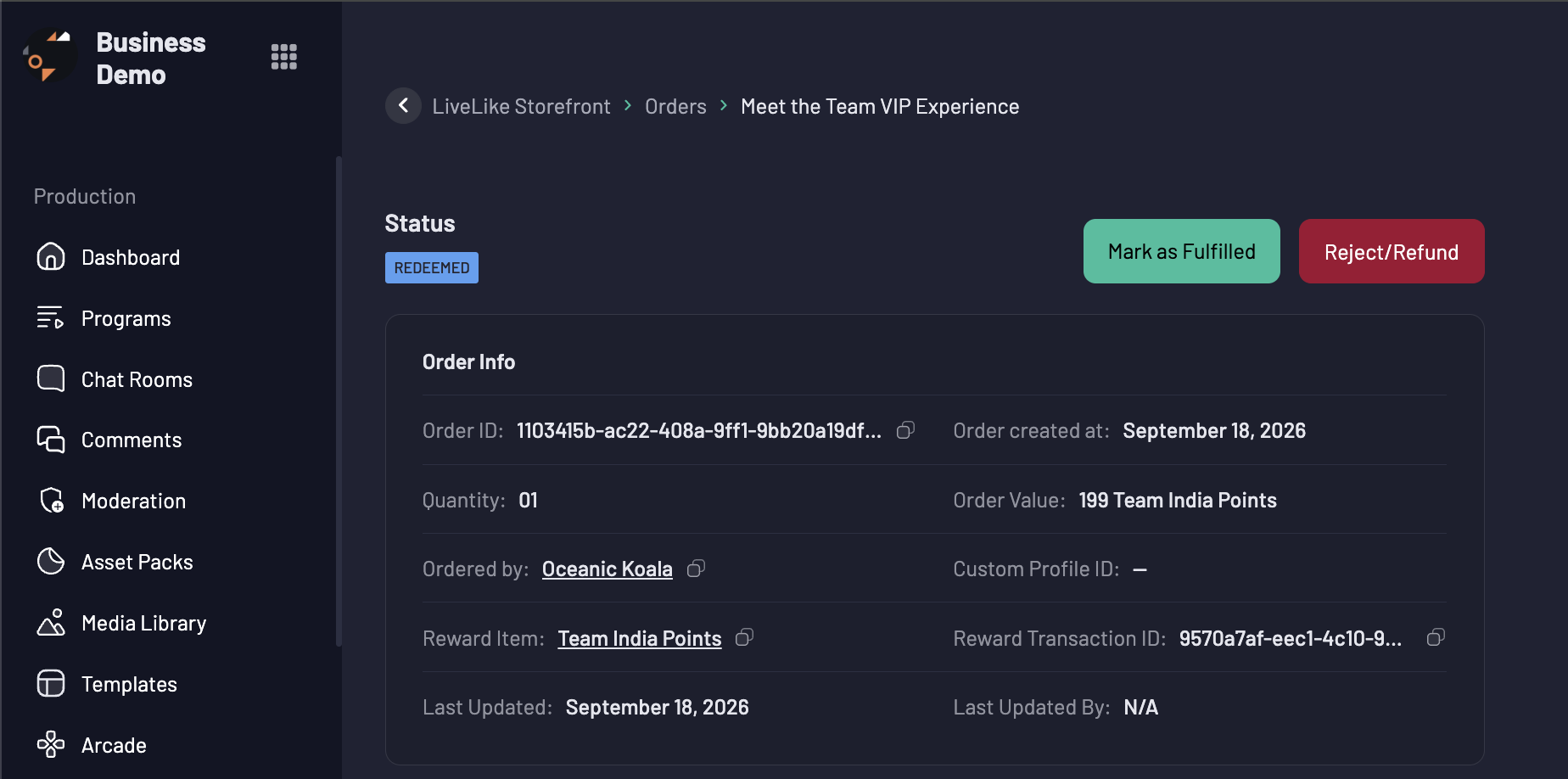
| Button | When Available | What It Does |
|---|---|---|
| Mark as Fulfilled | Order is Redeemed | Marks it delivered. No points move |
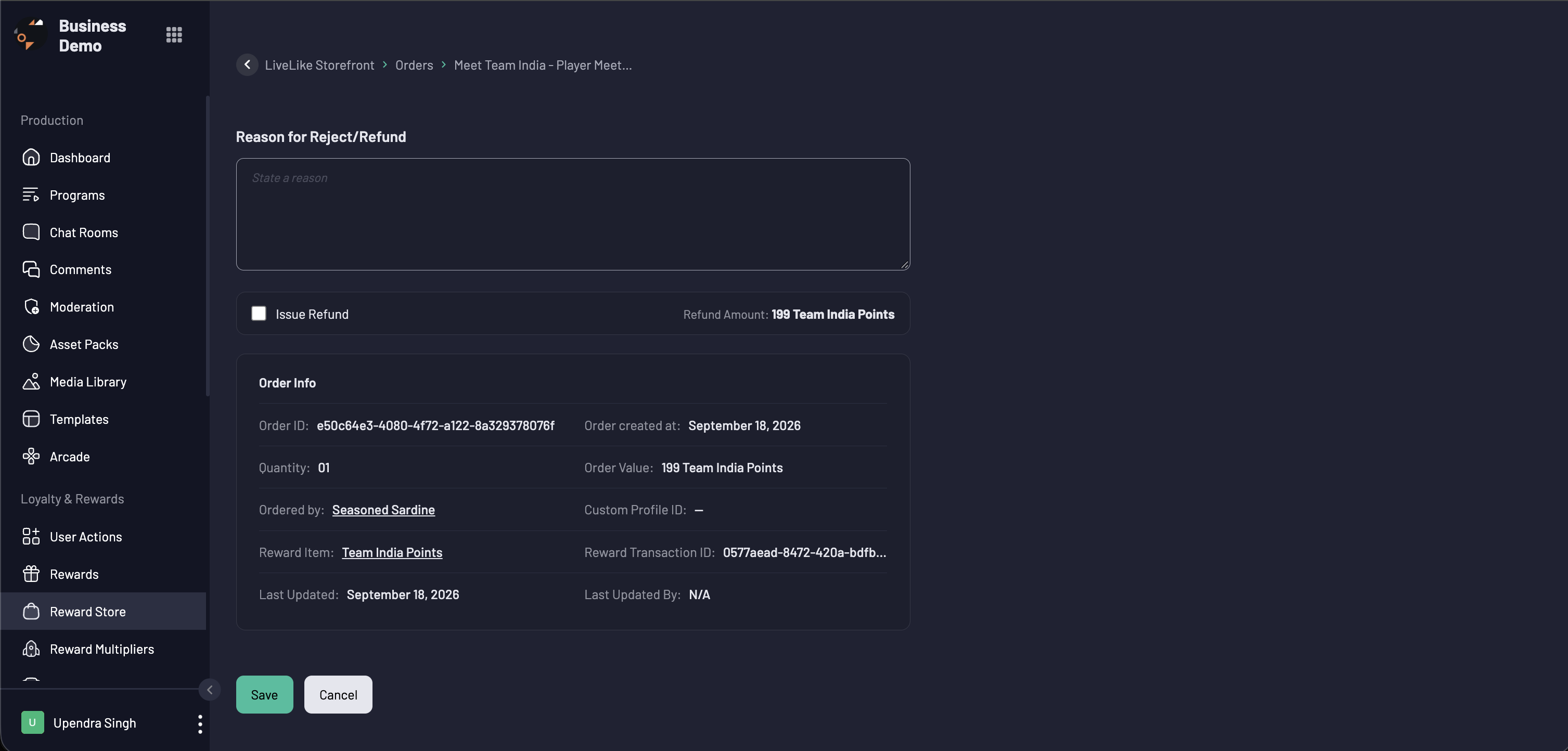
| Reject/Refund | Not already Rejected or Refunded | Opens a page where you enter a reason and choose to reject, or tick Issue Refund to refund |
| Undo Rejection | Order is Rejected | Returns it to Redeemed |
| Refund | Order is Rejected | Refunds a rejected order |
Each action asks for a reason. A reason is required to issue a refund.
Reject is not a refund. Rejecting only flags the order. It does not return the user's points or restock the item. To credit the points back and return the item to stock, issue a refund.
Refunds
A refund is issued per order item. When you issue one:
- The item's points are credited back to the user's balance as one transaction (the page shows the Refund Amount that will be returned).
- Stock is returned. Inventory goes up, and unique codes are released back into the pool.
- The order is marked Refunded and a Refund Info panel records the amount, status, credit transaction, who refunded it, and the reason.
An item can be refunded only once, and only if it is Redeemed, Fulfilled, or Rejected.
Inventory
Stock lives on the variant (Available).
| Event | Effect on Stock |
|---|---|
| Order placed | Decreases by the quantity ordered |
| Order refunded | Increases by the quantity refunded |
| Order rejected | No change. Stock stays claimed until refunded |
Editing and Removing Products
- A Draft or Unpublished product can be fully edited.
- To edit a Published product, unpublish it first. In the Products tab, click Edit on a published product and you will be asked "Unpublish the product to edit. Proceed?". Confirm, make your changes, then publish again.
- Existing orders are not affected by catalog edits.
- To take a product off the storefront, choose Unpublish from its row menu.
- A product that has ever been published cannot be deleted. Unpublish it instead.
Reordering Products in a Category
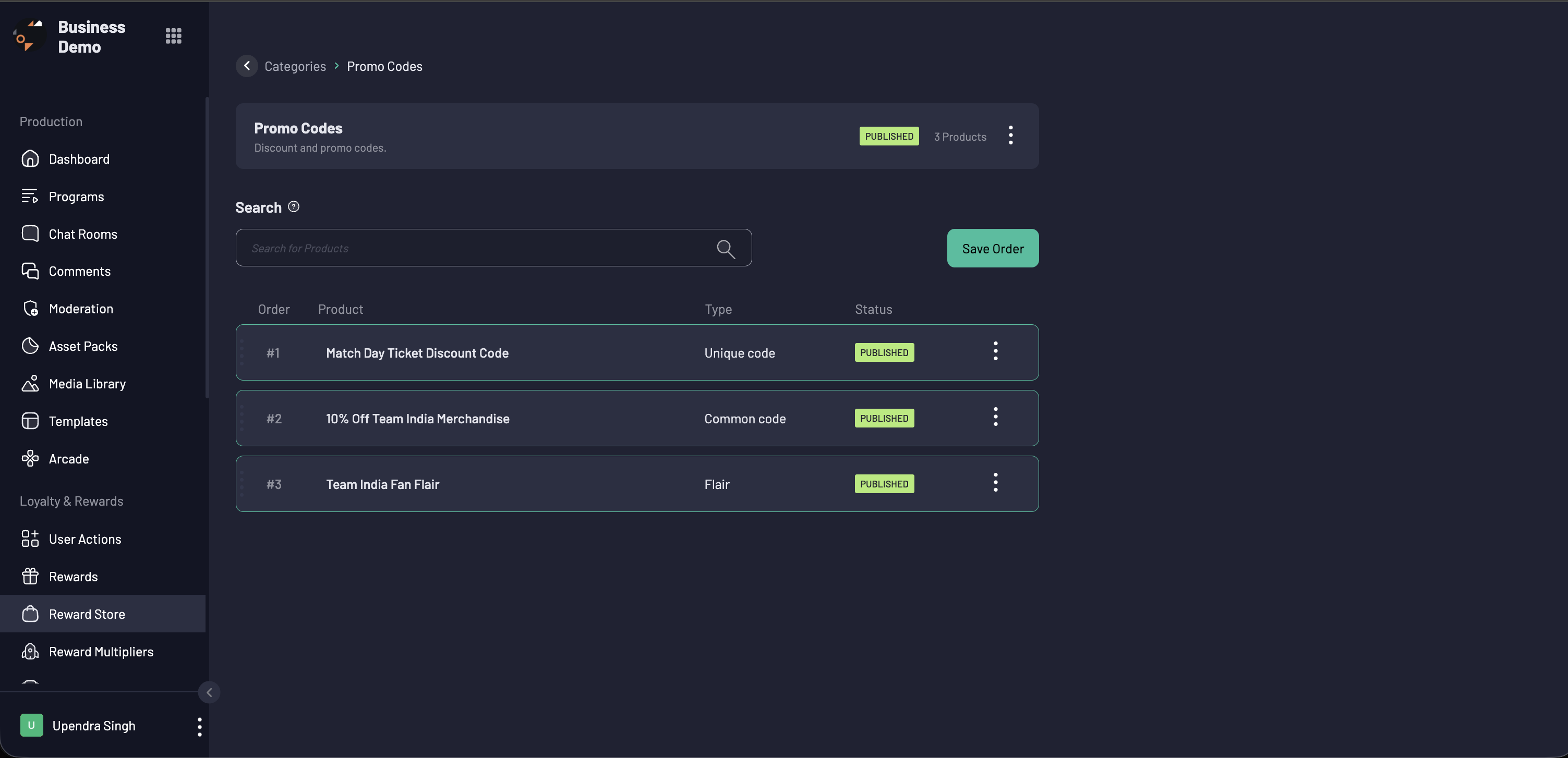
- In the Categories tab, open the category and select Manage Products.
- Click Edit Order, arrange the products in the order you want, and click Save Order.
Frequently Asked Questions
Setup
Can a store use more than one reward item?
Not today. A store has one reward item, and every product in it is priced in that reward item.
Can I change the store's reward item later?
Only while the store is in Draft. Once the store is published, the reward item is locked and only the name can be edited.
Does a product need a variant even if it has no options?
Yes. The variant carries the price and the stock, and a product cannot be published without at least one variant that has a cost.
Why can't I see Konekt when I create a product?
Konekt only appears when a Konekt integration is active for your application. Contact your LiveLike account team.
Why doesn't my multiplier show in the dropdown?
The list shows only multipliers that are published, user-activated, and currently inside their active window. Automatic multipliers cannot be sold.
Why can't I select my category when creating a product?
Only published categories are listed. Publish the category first.
Can one order mix items from different stores or reward items?
No. An order is one payment, so everything in it must come from the same store and use the same reward item.
Can I put a discount on a product?
Yes, per variant, from 0 to 100%. The discounted cost is rounded up to the nearest whole point.
Redemption
Can I limit how many times a user can buy something?
Yes. Turn on Max Redemption, and optionally set Max Redemption Days for a rolling window. The limit applies per product across all variants.
Do rejected or refunded orders still count toward the limit?
No. Both free the user's slot.
Can a user buy the same badge or flair twice?
No. They are one per user. A multiplier can be bought again.
Fulfillment and Refunds
Why is my badge or coupon order already "Fulfilled"?
Built-in products are delivered at order time, so there is nothing for you to do.
I rejected an order but the user still has no points back. Why?
Rejecting only flags the order. Open the rejected order and click Refund (or use Reject/Refund with Issue Refund ticked) to credit the points and restock the item.
Can I refund the same order twice?
No. An order item can be refunded only once.
A Konekt order is stuck. What happens?
LiveLike retries the provider for a limited time. If it fails, the user is refunded automatically. If it stays pending beyond the retry window, it is flagged for the LiveLike team, who can refund it.
Updating
Can I change a published product?
Unpublish it first, make your changes, then publish again.
Can I delete a product?
Only if it has never been published. Otherwise, unpublish it.
Updated about 6 hours ago