

Working in chat
The message box, files, plans, confirmations and keyboard shortcuts.
Everything in Genie starts from the chat. This page covers the tools in the message box and what to expect while Genie works.
The message box
| Control | What it does |
|---|---|
| Message box | Write your request in plain language. Press Enter to send. |
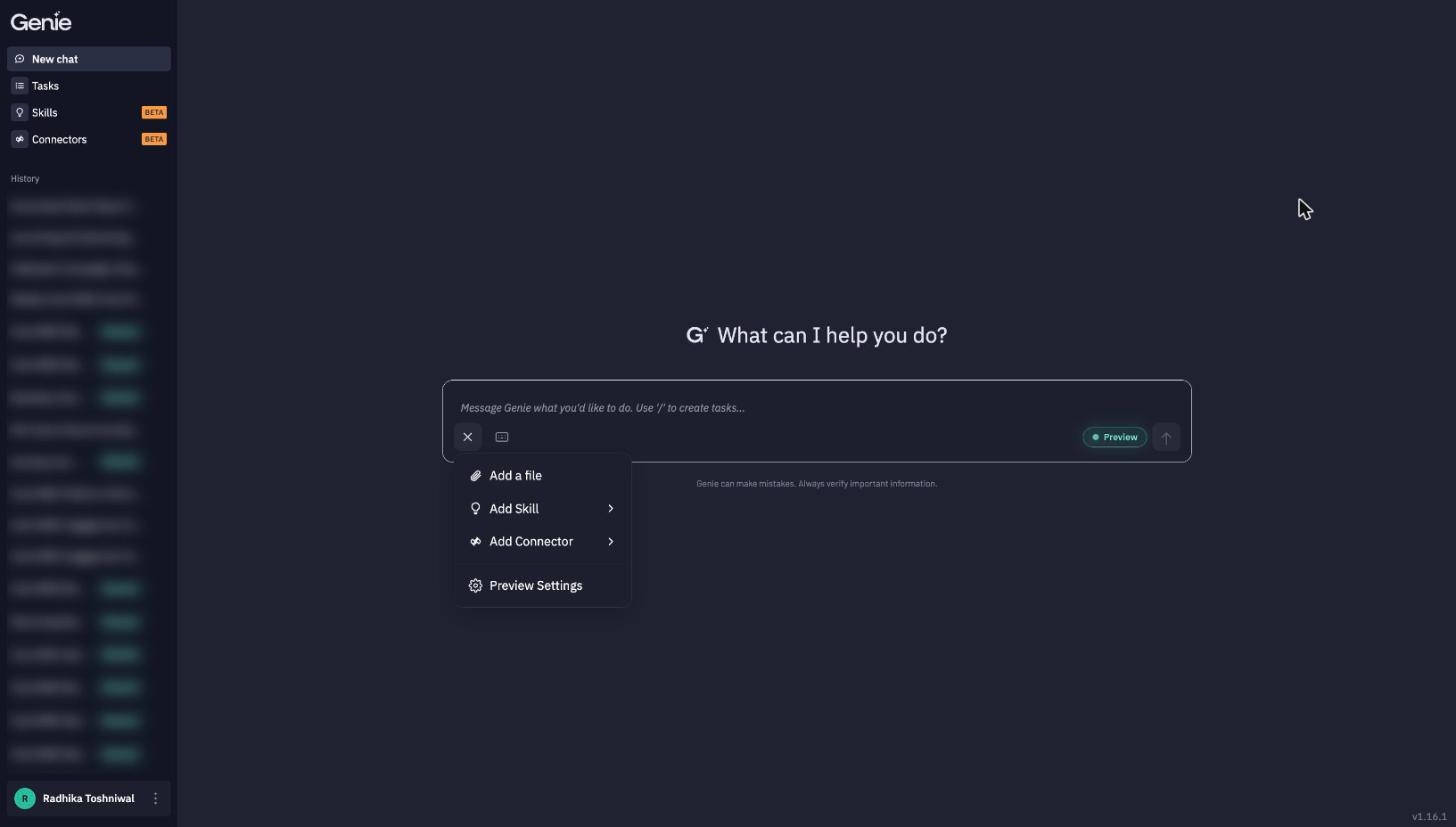
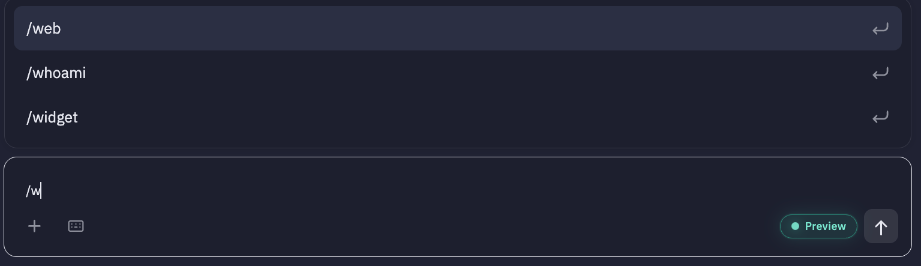
/ agents menu | Type / and start typing to pick a specific agent — /widget, /quest, /web, /whoami, /sponsor, /skills… — when you want to skip routing and go straight to a specialist. |
/task | Start creating a scheduled task. → Tasks |
| + menu | Add a file, Add Skill, Add Connector (switch connectors on or off for this chat) and Preview Settings. |
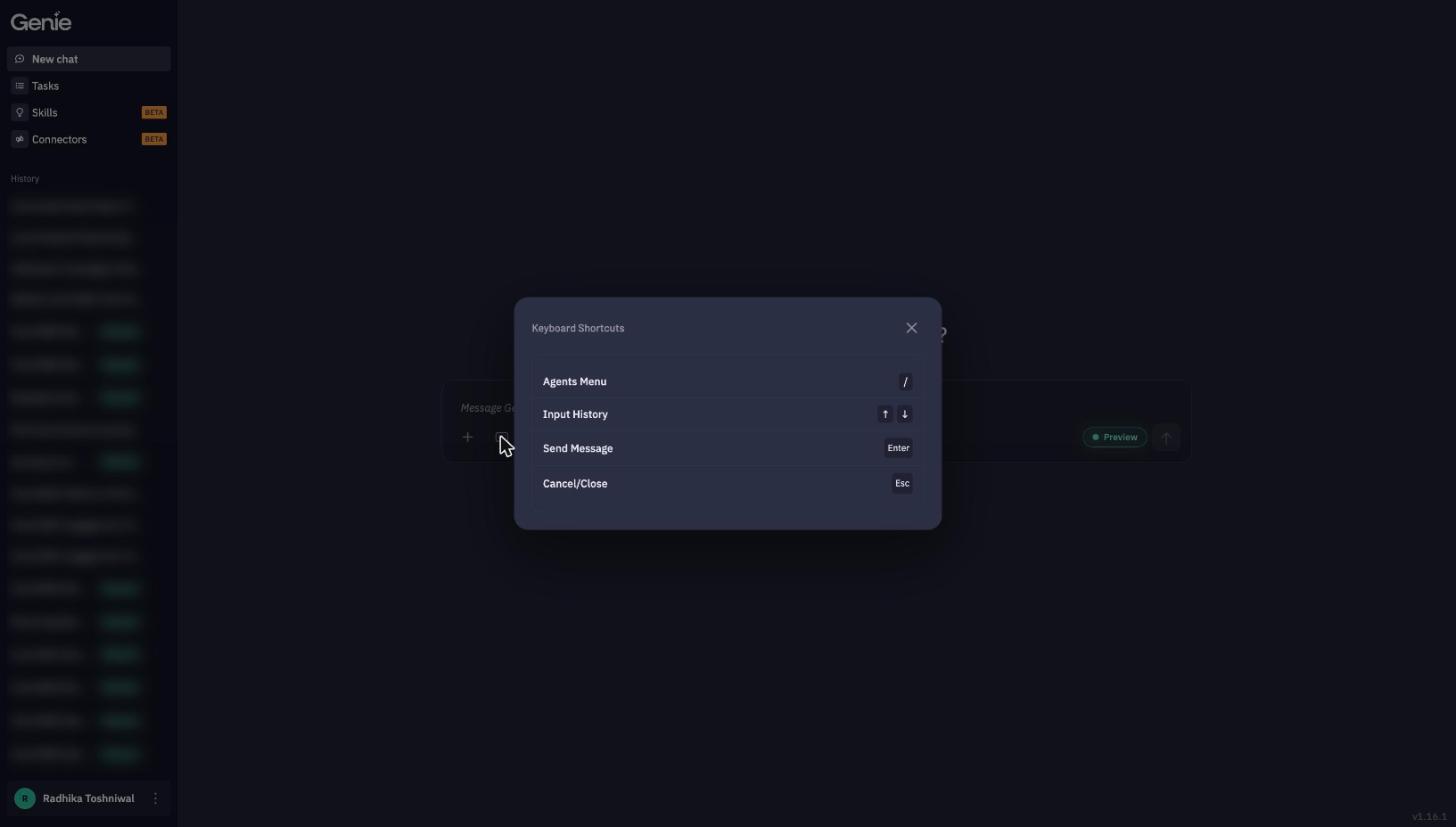
| ⌨ button | Show the keyboard shortcuts. |
| Preview | Open Preview Settings. |
Attaching files
Attach up to 5 files per message. Supported types: .csv, .xls, .xlsx, .pdf, .docx, .txt, .png, .jpg/.jpeg, .gif, .webp.
Use files to give Genie the source material for the job, for example:
- a CSV of quiz questions to turn into widgets,
- a spreadsheet of reward items to load,
- an image to use as a badge or widget asset,
- a PDF brief to build a quest campaign from.
Uploaded files are kept in your Files so Genie can reuse them. Ask "list my files", "rename the file Q3 schedule", or "delete the old badge images" to manage them.
While Genie is working
Each answer starts with a collapsible line showing how long Genie thought, which agents it used and how many steps it took — for example Thought for 2m 28s · LiveLike Analytics, Slack, Tasks · 28 steps. Expand it to see the detail.
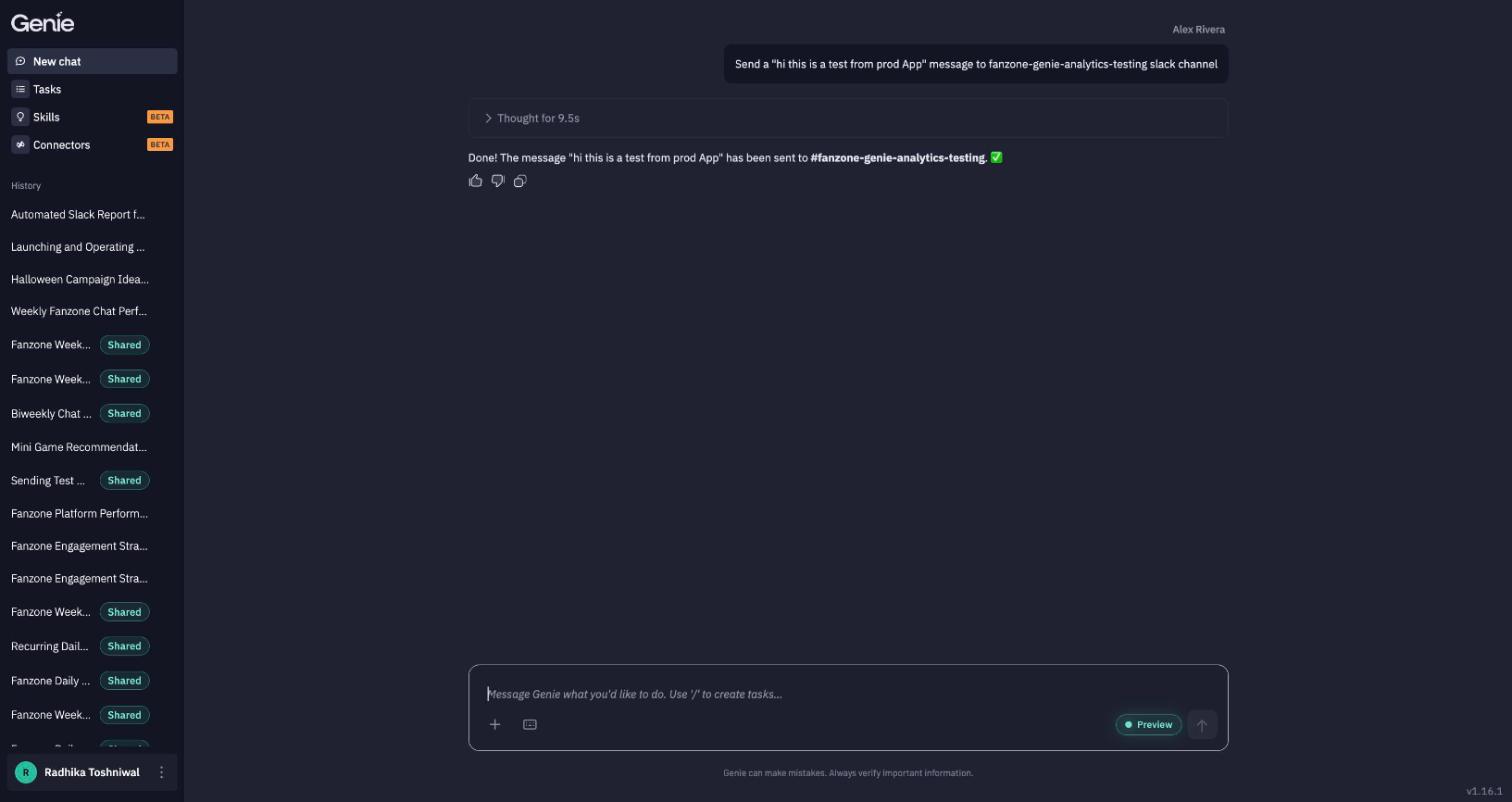
Under every answer:
- 👍 / 👎 — rate the answer, and add a comment if you like. This goes straight to the Genie team.
- Copy — copy the answer.
Press Esc to cancel a response in progress.
Plans, questions and confirmations
For anything more than a simple step, Genie works out a plan first.
- It asks when something is missing. If a decision is yours to make — a schedule, a time zone, which channel to post to — Genie lists the questions and waits for your answer.
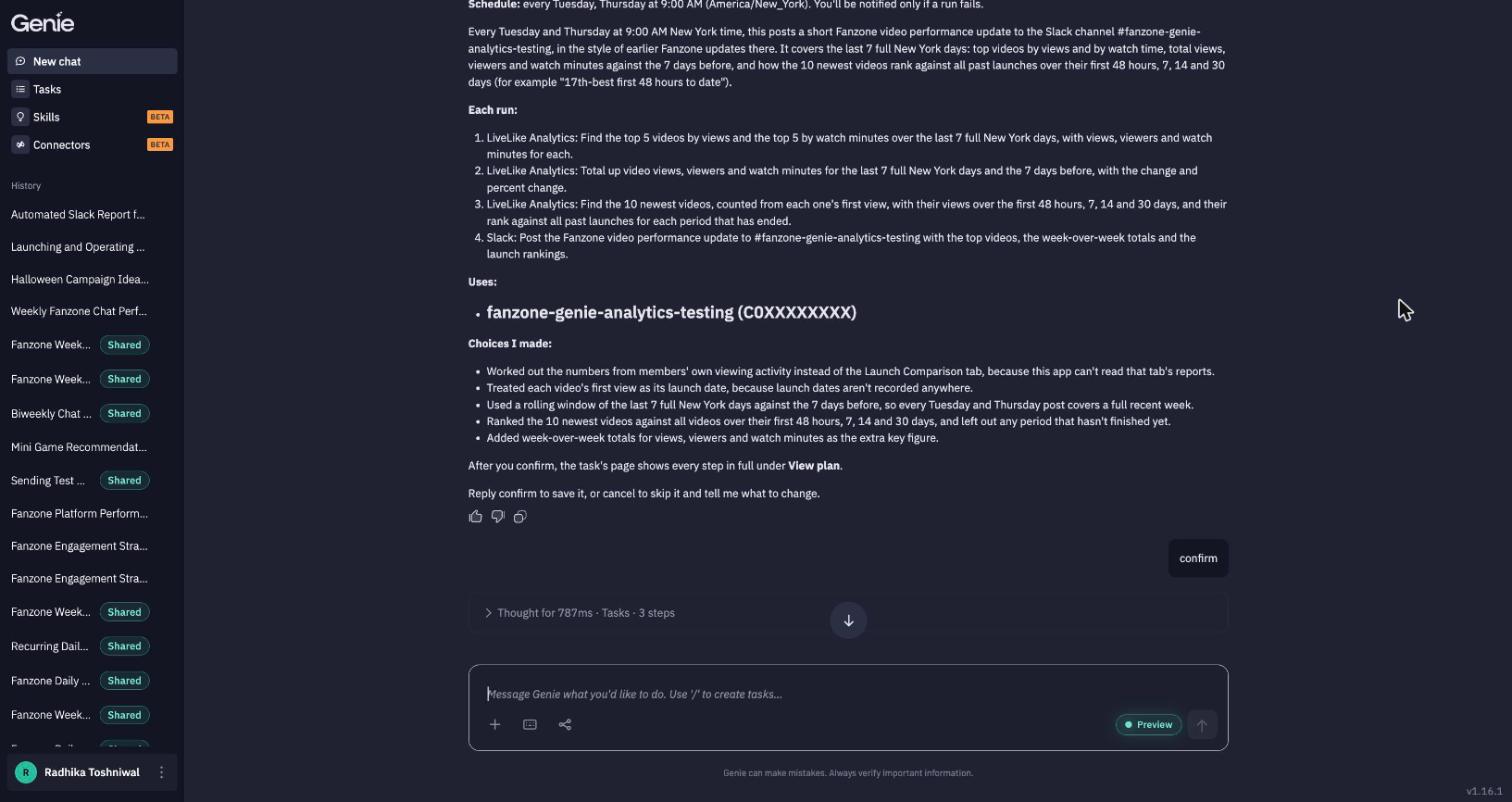
- It confirms before saving anything important. Genie shows exactly what it's about to do — the steps, the resources it will use, and the choices it made on your behalf — and ends with "Reply confirm to save it, or cancel to skip it and tell me what to change."
- You stay in control. Reply confirm to go ahead, cancel to stop, or reply with a correction ("post at 8am, not 9am") and Genie revises the plan.
Sessions
Every conversation is a session, saved automatically in History. From a session's menu you can:
- Rename it, or Regenerate title to have Genie name it,
- Share it with teammates (shared sessions are tagged Shared),
- Copy session ID (handy when reporting an issue),
- Delete it.
Genie keeps a rolling summary of long sessions, so it remembers earlier context without you repeating it.
Keyboard shortcuts
| Shortcut | Action |
|---|---|
/ | Open the agents menu |
↑ / ↓ | Step through your previous messages |
Enter | Send message |
Esc | Cancel / close |
Updated about 7 hours ago