

Preview Settings
Try preview agents in your own browser without changing Genie for anyone else.
Preview Settings let you try agents that are still in preview — before they're part of Genie's default behaviour — and test any single agent on its own. Your choices apply in your browser only; your teammates' Genie is unaffected.
Open Preview Settings
Click Preview in the message box (or + → Preview Settings), then switch on Enable Preview Mode.
Choose a mode
| Mode | What happens | Use it to |
|---|---|---|
| Orchestrator | Genie keeps routing your requests automatically to the appropriate agent, and also considers the preview agents you've ticked. | See how a preview agent behaves in normal use, alongside everything else. |
| Standalone | You chat directly with one agent you select, skipping routing. | Test one agent in isolation, or check why a request isn't reaching the agent you expected. |
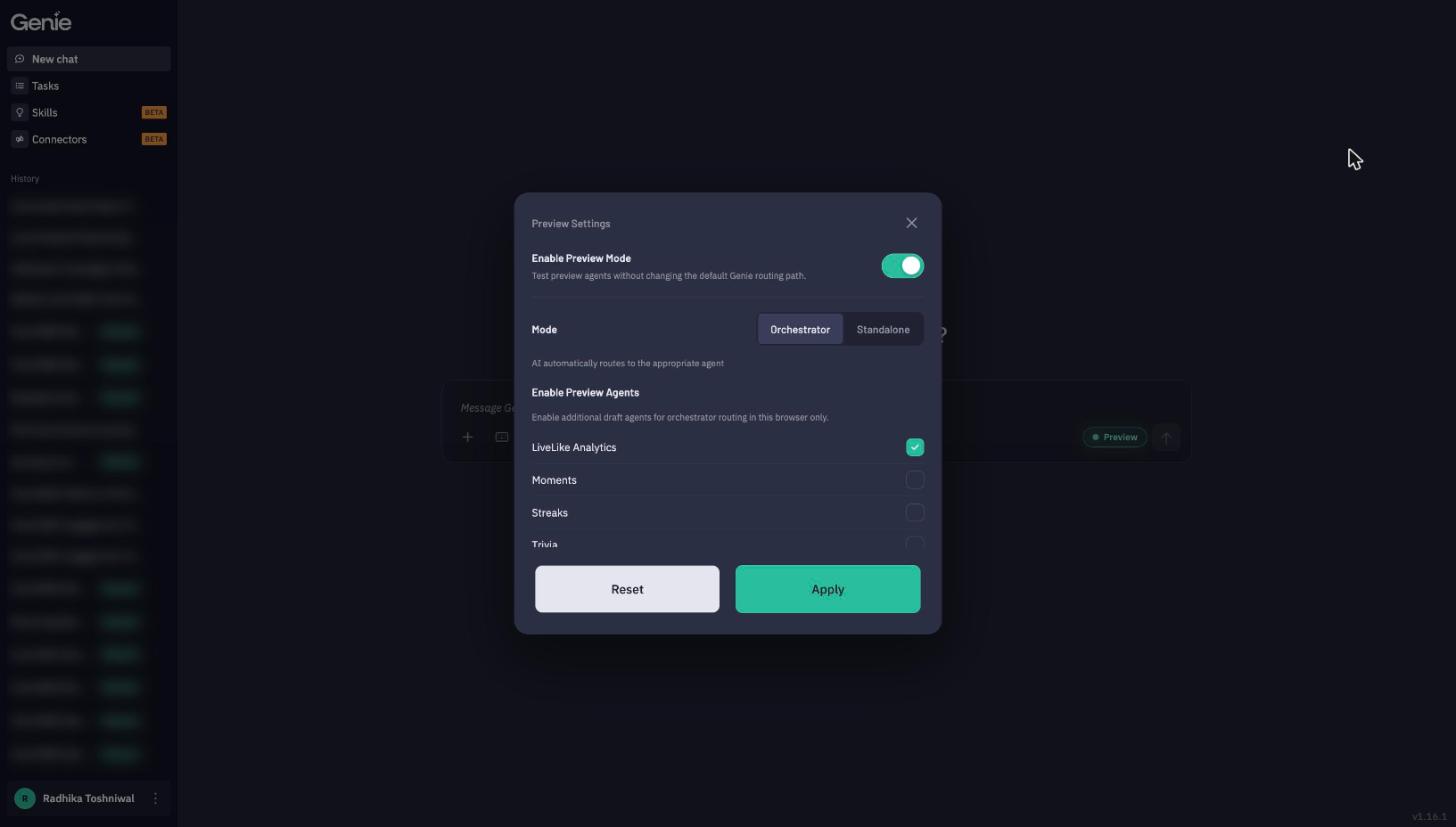
Orchestrator mode — enable preview agents
Under Enable Preview Agents, tick the agents to add to routing. Agents currently in preview:
- LiveLike Analytics — ask questions about your engagement data.
- Moments — create and organise highlight moments.
- Streaks — manage engagement streaks.
- Trivia — build trivia content.
(The dialog always shows the current list; agents leave it as they're released.)
Standalone mode — select an agent
Pick any agent from Select Agent — Widgets, Quests, Leaderboards, Rewards, Moderation, LiveLike Analytics, Web Search and more. Until you change it, every message you send goes to that agent.
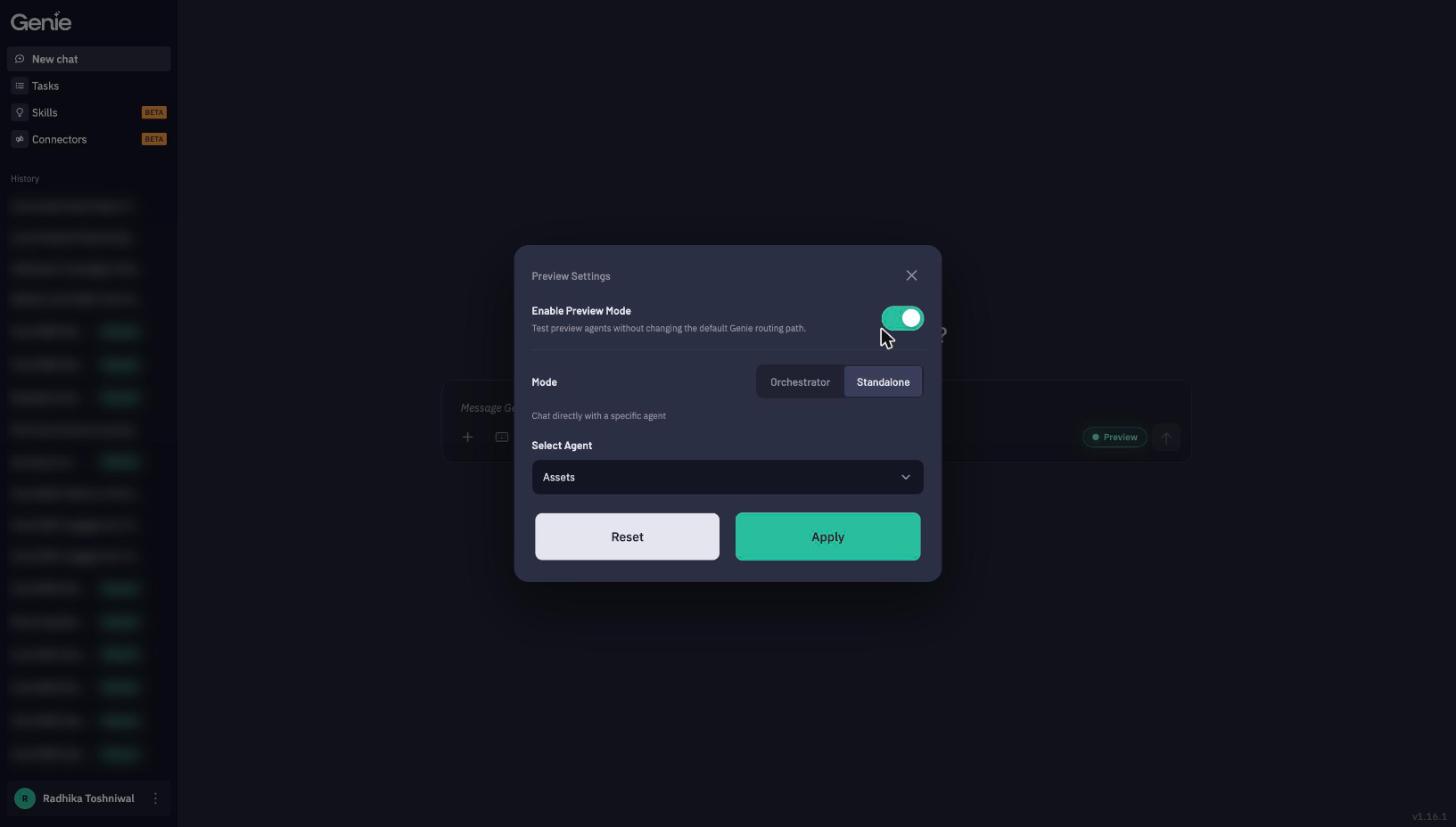
Apply or reset
- Apply saves your settings for this browser.
- Reset turns Preview Mode off and returns Genie to its default routing.
Tips
- Reset when you're done. Standalone mode sends everything to one agent, which is easy to forget.
- Compare side by side. Ask the same question with and without a preview agent enabled to see what it adds.
- Send feedback. Use 👍 / 👎 on preview-agent answers — that's how they graduate out of preview.
Updated about 7 hours ago