

Tasks
Put recurring work on a schedule.
A Task is a request Genie runs for you on a schedule. Anything you can ask Genie in chat — create content, pull a report, post to Slack, reset a leaderboard — can become a task.
Good uses for tasks
- Twice-weekly report — "Every Tuesday and Thursday at 9am New York time, post a video performance update to #engagement in Slack: top videos by views and watch time, and totals versus the week before."
- Weekly reset — "Every Monday at 6am, reset the weekly leaderboard and award the top 3 the Weekly Champ badge."
- Pre-game content — "Every Saturday at noon, create a first-goal prediction for that day's fixture."
- Monitoring — "Every hour on match days, check the derby chat room for abusive messages and list them."
- Monthly report — "On the 1st of every month, report quest completions by program for the previous month."
Create a task
Tasks are created in chat, so Genie can work out the plan and check it with you.
- Go to Tasks and click New Task (this starts a chat with
/task), type/taskin any chat, or simply describe a recurring job. -
Say what should happen and when, including the time zone:
"/task Every weekday at 9am New York time, list widgets that ended yesterday with fewer than 100 responses and post them to #producers in Slack."
- If anything is missing, Genie asks — typically the day and time, the time zone, and whether you want to be notified always, only on failure (the default) or never.
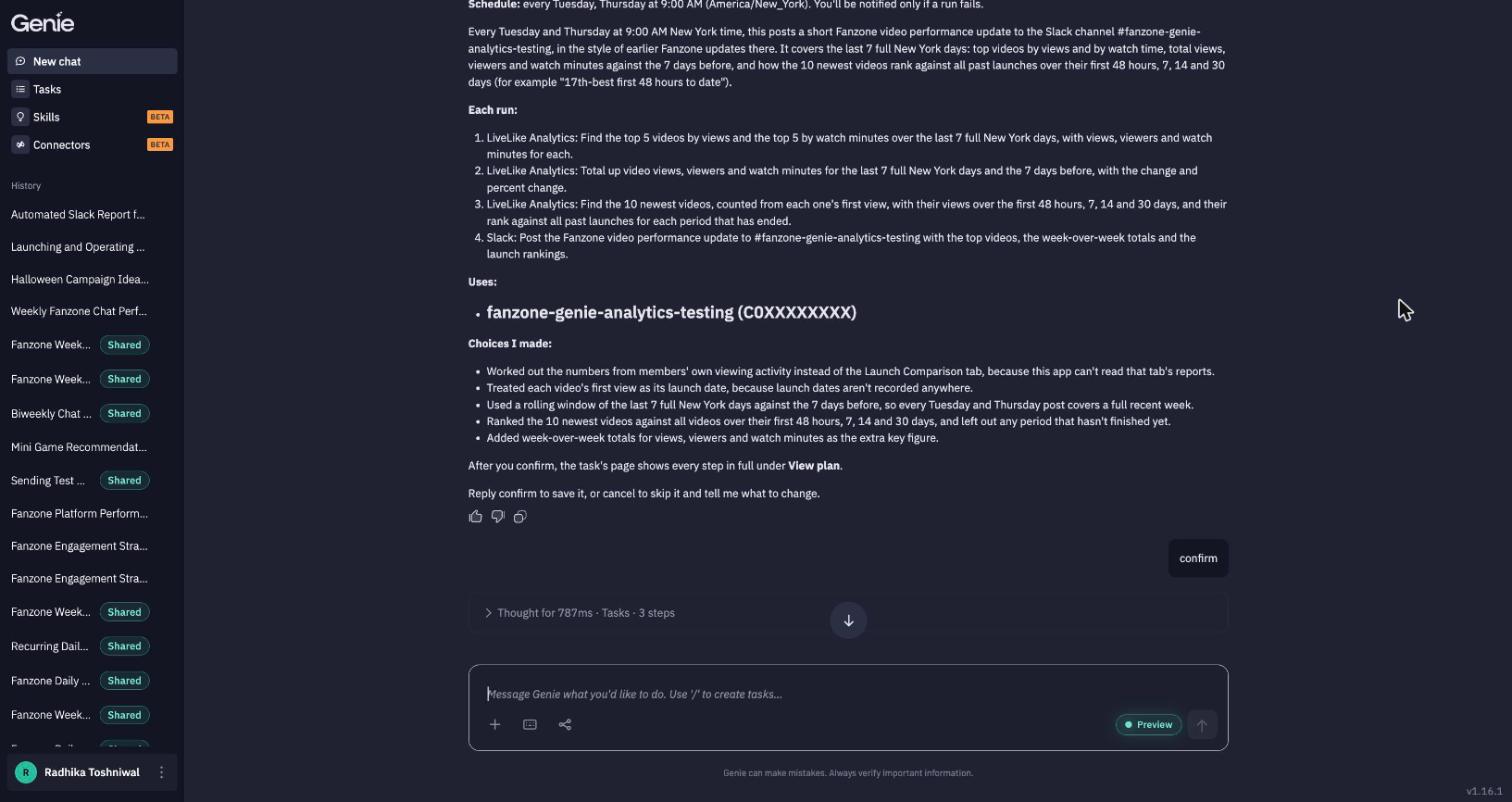
- Genie shows a plan preview: the schedule, what happens on each run, the resources it will use (such as a Slack channel), and any choices it made for you.
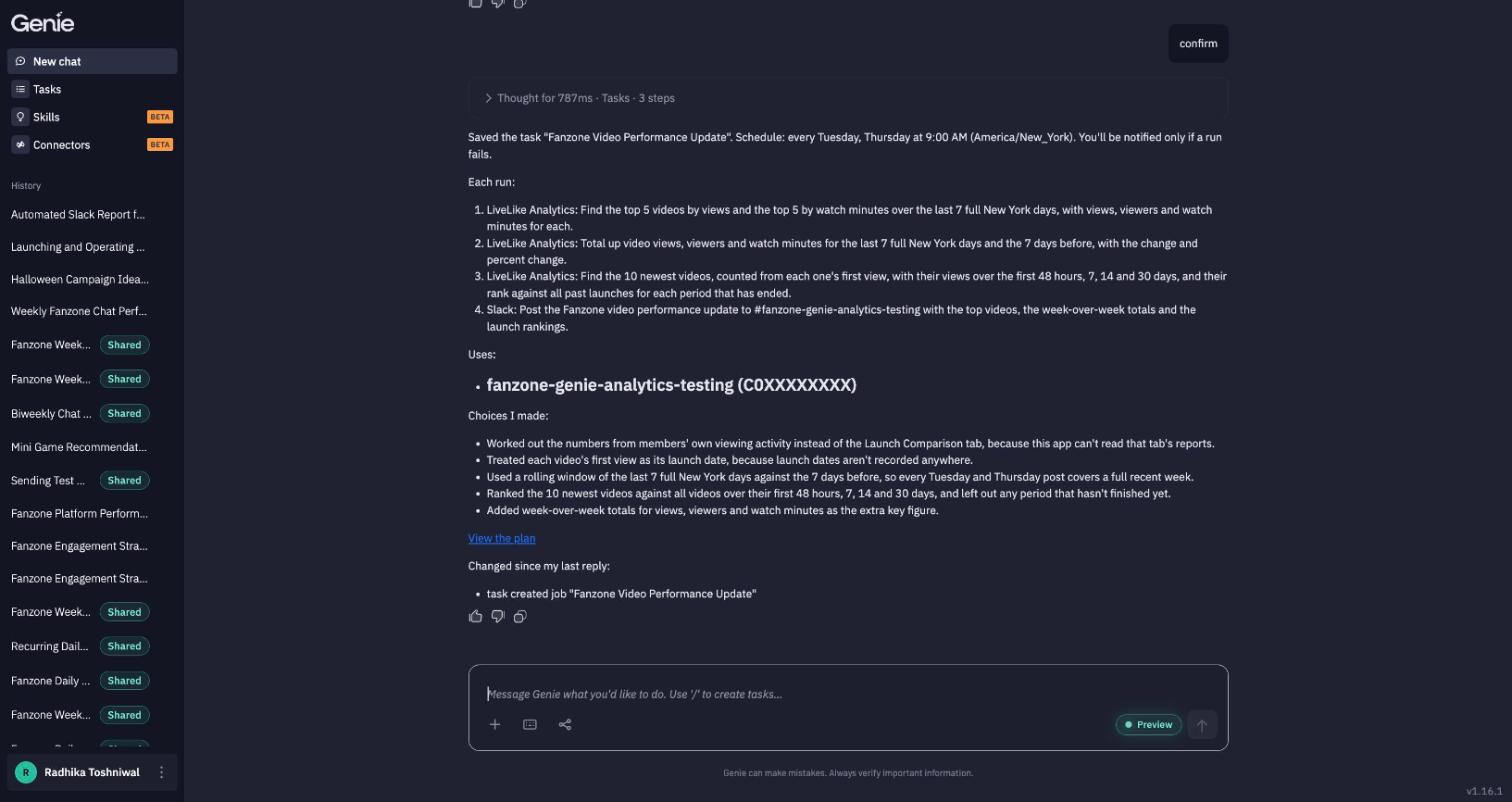
- Reply confirm. Genie saves the task and replies with its schedule and a View the plan link.
If the task needs files (for example a spreadsheet of questions), attach them while creating it. They're saved with the task and checked before every run.
Connectors must be healthyA task can't be created, and won't run, while a connector it uses needs reconnecting. Reconnect it from Connectors and the next run goes ahead.
The Tasks page
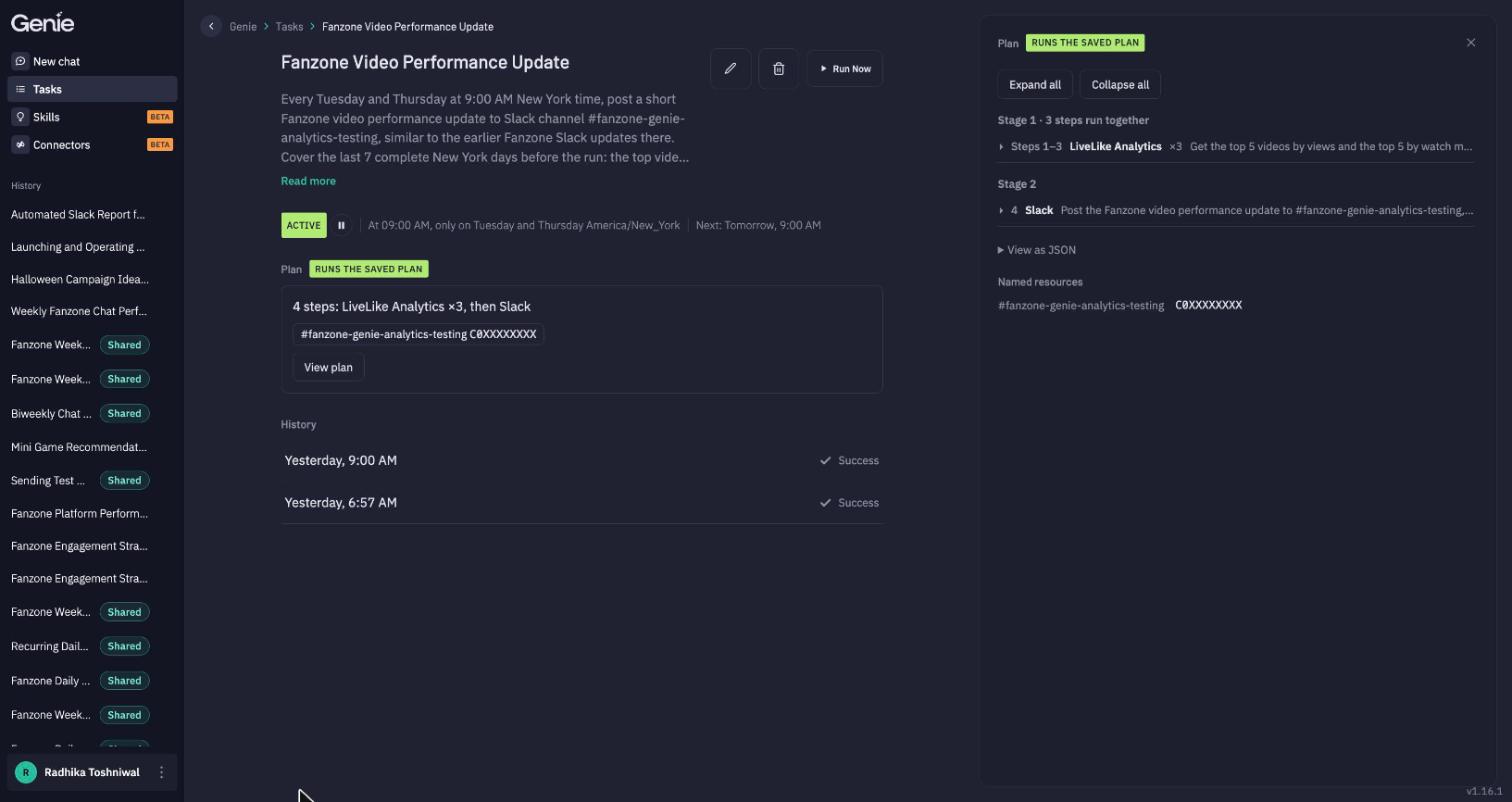
Tasks lists every scheduled task with its schedule and status (Active or Paused). Search by name, and use the filter button to sort by Next Run or Status.
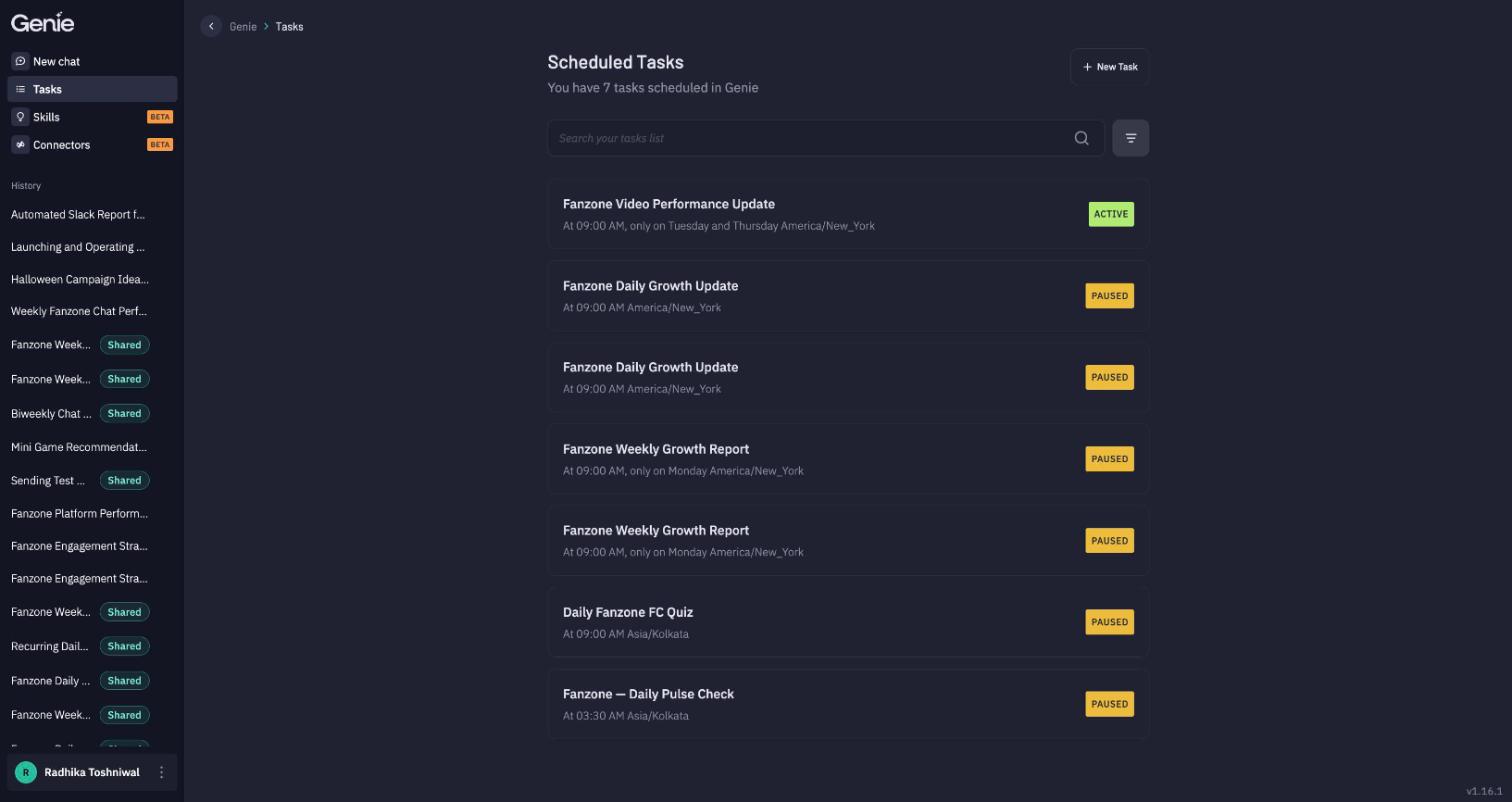
Open a task to see everything about it:
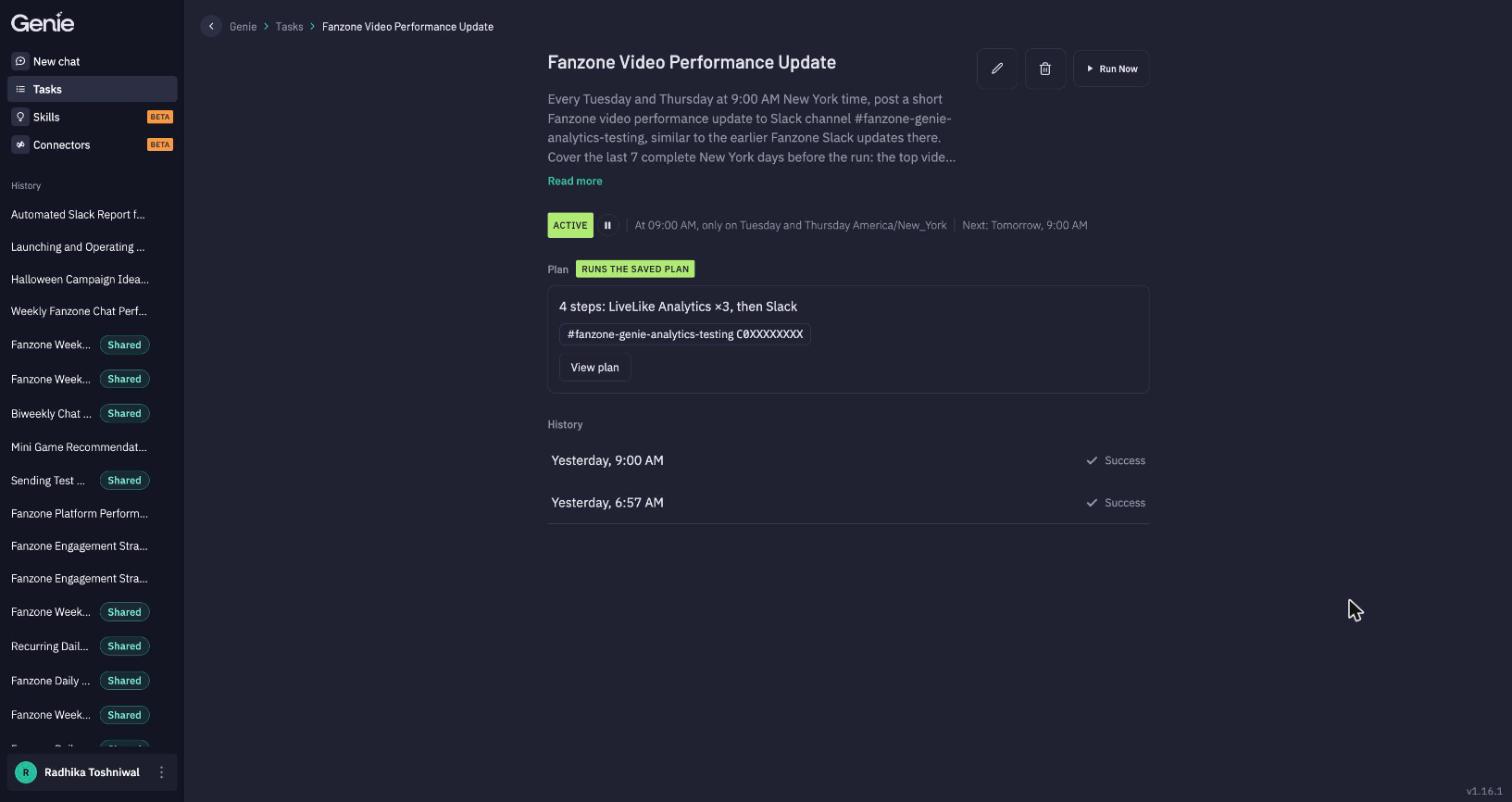
| Status and schedule | Active or Paused, when it runs, and the next run time. Use the pause button beside the status to pause or resume. |
| Run Now | Run it immediately, outside the schedule — the best way to test a new task. |
| Plan | A summary of the steps (e.g. 4 steps: LiveLike Analytics ×3, then Slack) and the resources used. Runs the saved plan means every run follows the plan you confirmed. |
| View plan | Opens the full plan: each stage, which steps run together, which agent runs each step, and the named resources. |
| History | Every run with its time and result. Open a run to read the full conversation of what Genie did. |
| ✏️ Edit | Change the name, description and schedule. |
| 🗑 Delete | Remove the task and stop all future runs. |
Editing a task
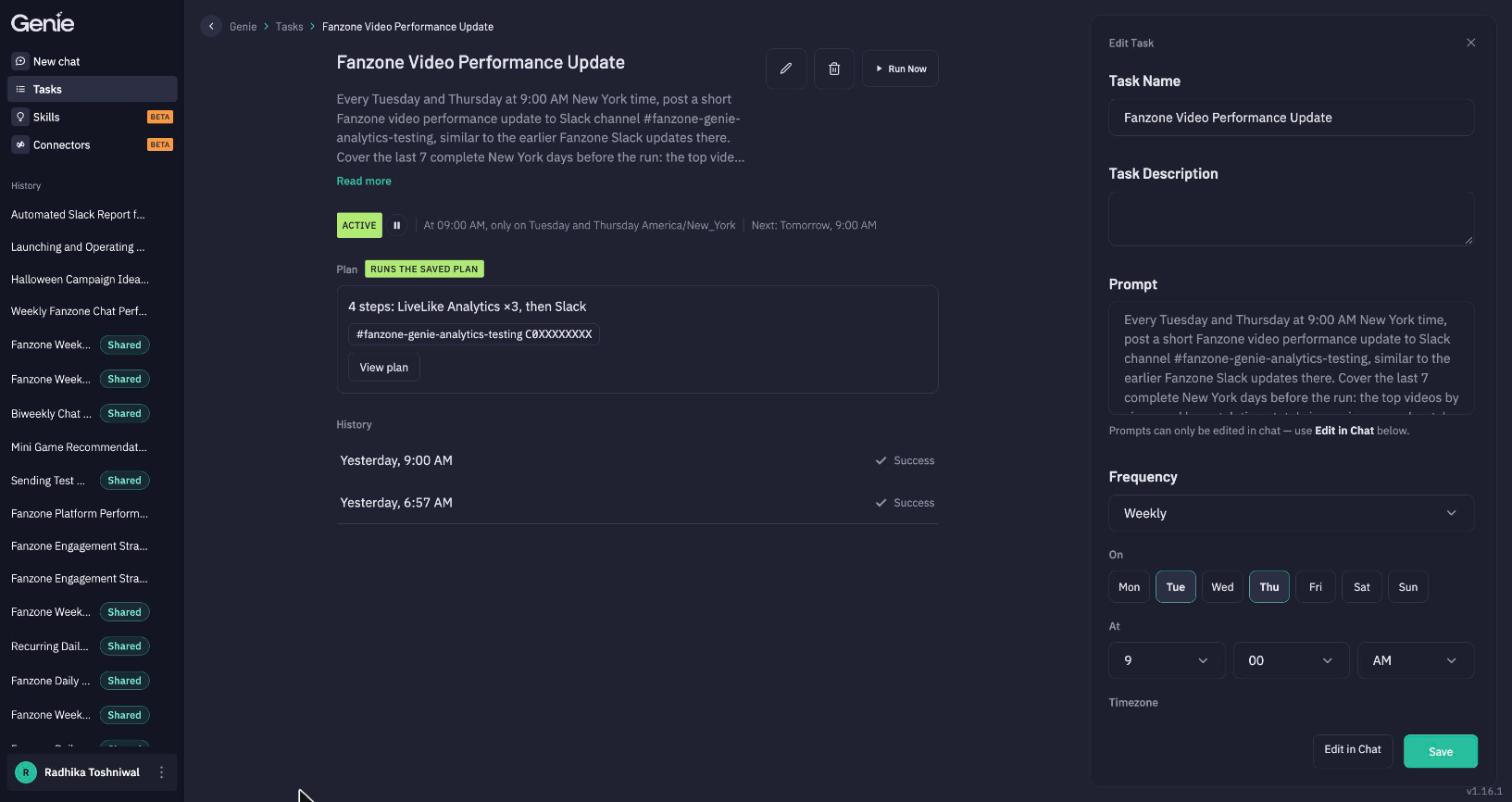
Click ✏️ to open Edit Task:
- Task Name and Task Description
- Frequency — Daily, Weekly (pick the days), Monthly (pick the day of the month), Yearly, Interval (every N minutes or hours), or Custom (cron)
- At — the time of day, and Timezone
Click Save to apply.
The Prompt is read-only here. To change what the task does, click Edit in Chat — Genie re-plans it and re-checks your connectors, so the saved plan always matches the instruction.
Managing tasks from chat
You can do everything from the conversation too:
- "List my tasks."
- "Pause the weekly leaderboard reset until further notice."
- "Run the daily recap now."
- "Change the pre-game task to 11am instead of noon."
- "Notify me after every run of the daily recap task."
Tips
- Be explicit about time zones. "9am" is ambiguous for a global audience — say "9am London time".
- Test with Run Now before relying on the schedule, then read the run in History.
- Name resources precisely. "The Season 2026 leaderboard" or "#producers in Slack" survives better than "the leaderboard" or "the team channel".
- Read the "choices I made" list in the plan preview — it's where Genie tells you what it assumed.
- Pair tasks with skills. If every report should follow a format, put that format in a skill — the task will pick it up on every run.
Updated about 7 hours ago