

Skills
Teach Genie your way of working once, and it follows it every time.
A Skill is a reusable set of instructions — a naming convention, a required set of attributes, a house style, a step-by-step procedure — that Genie applies automatically whenever it's relevant. Write it once; stop repeating yourself.
Examples
- Widget naming — "Name every widget
<Program short code> – <Type> – <Question summary>." - Quest defaults — "Every quest must have a badge, a 7-day expiry and at least one reward."
- Widget copy in three languages — "Write every widget question in English, French and Spanish."
- Match-day checklist — the full set of widgets, chat rooms and leaderboards to create for every fixture.
- Report format — "Lead with the headline number, then a table, then three bullet takeaways."
Skills vs. connectorsA connector gives Genie a new capability (it can now talk to Slack). A skill shapes its behaviour (when it creates a program, name it this way). They work together.
How a skill is applied
Each time you send a message, Genie looks at your request and picks the installed skills whose description matches it, then follows their instructions for that request.
You can also apply a skill on purpose: choose + → Add Skill in the message box, or type /skills to pick one.
Nothing is installed automatically — not even skills you wrote yourself. Install the ones you want.
Your skills
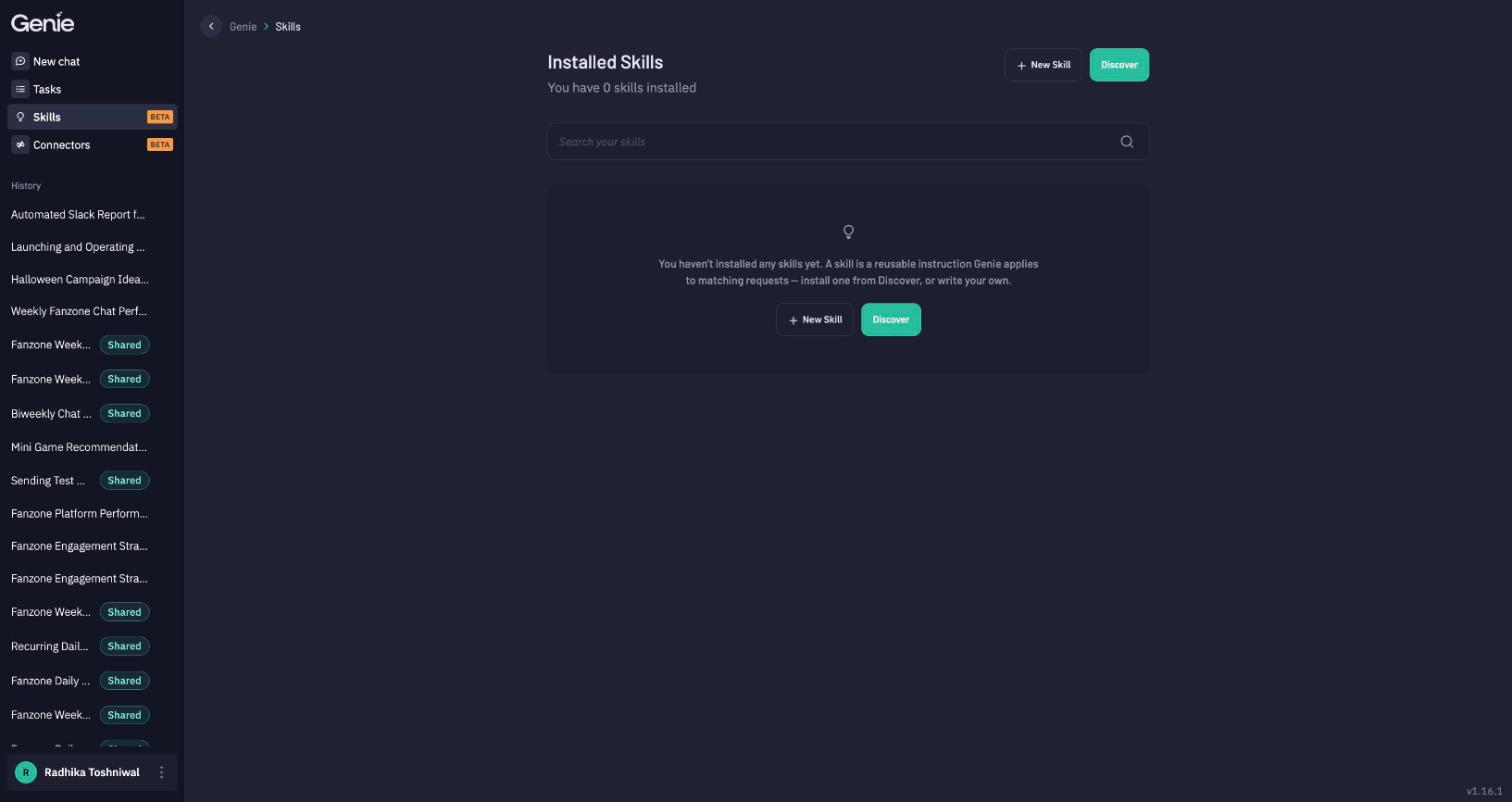
Skills opens on Installed Skills — the skills you're using.
Discover and install
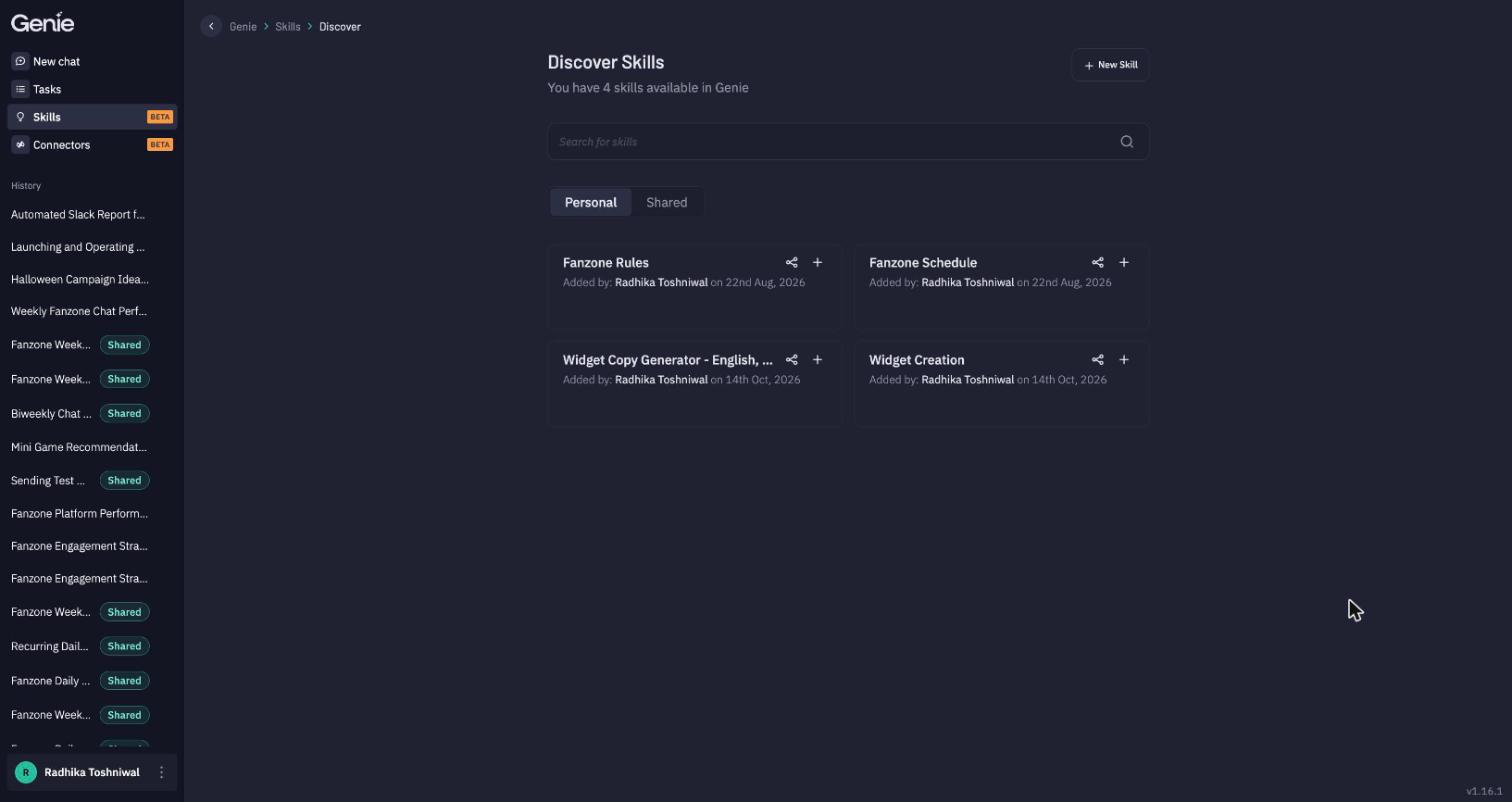
Click Discover to browse every skill available to you:
- Personal — skills you've written.
- Shared — skills teammates have shared with you, and skills shared across your application or organisation.
Click + on a card to install it, or open the card to read it first.
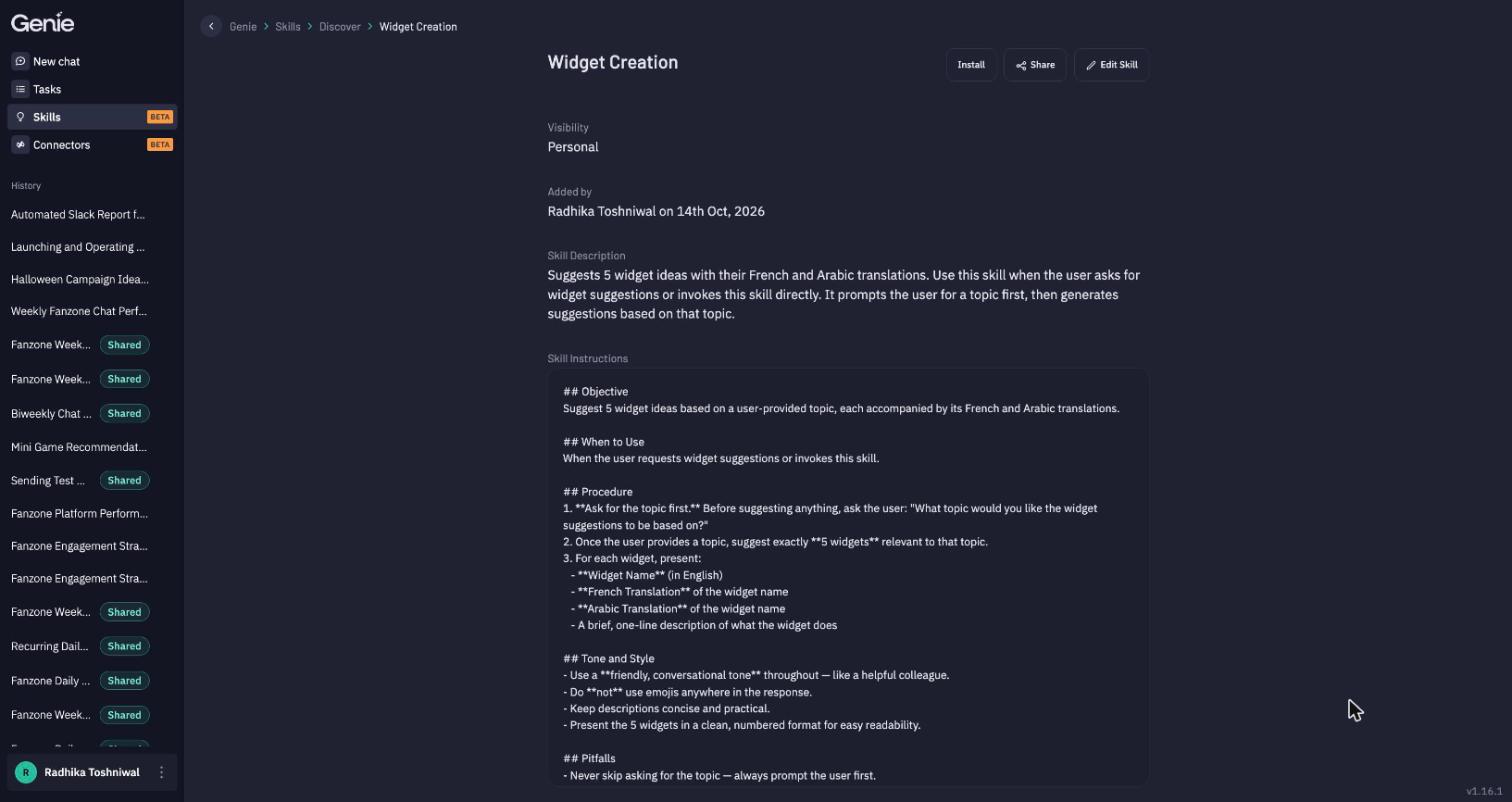
A skill's page shows its Visibility, who added it, its Skill Description and its Skill Instructions, with Install, Share and (for your own skills) Edit Skill.
Write a skill
Click New Skill (or, in a conversation, ask Genie to "turn this into a skill" — Genie drafts it and you confirm before it's saved).
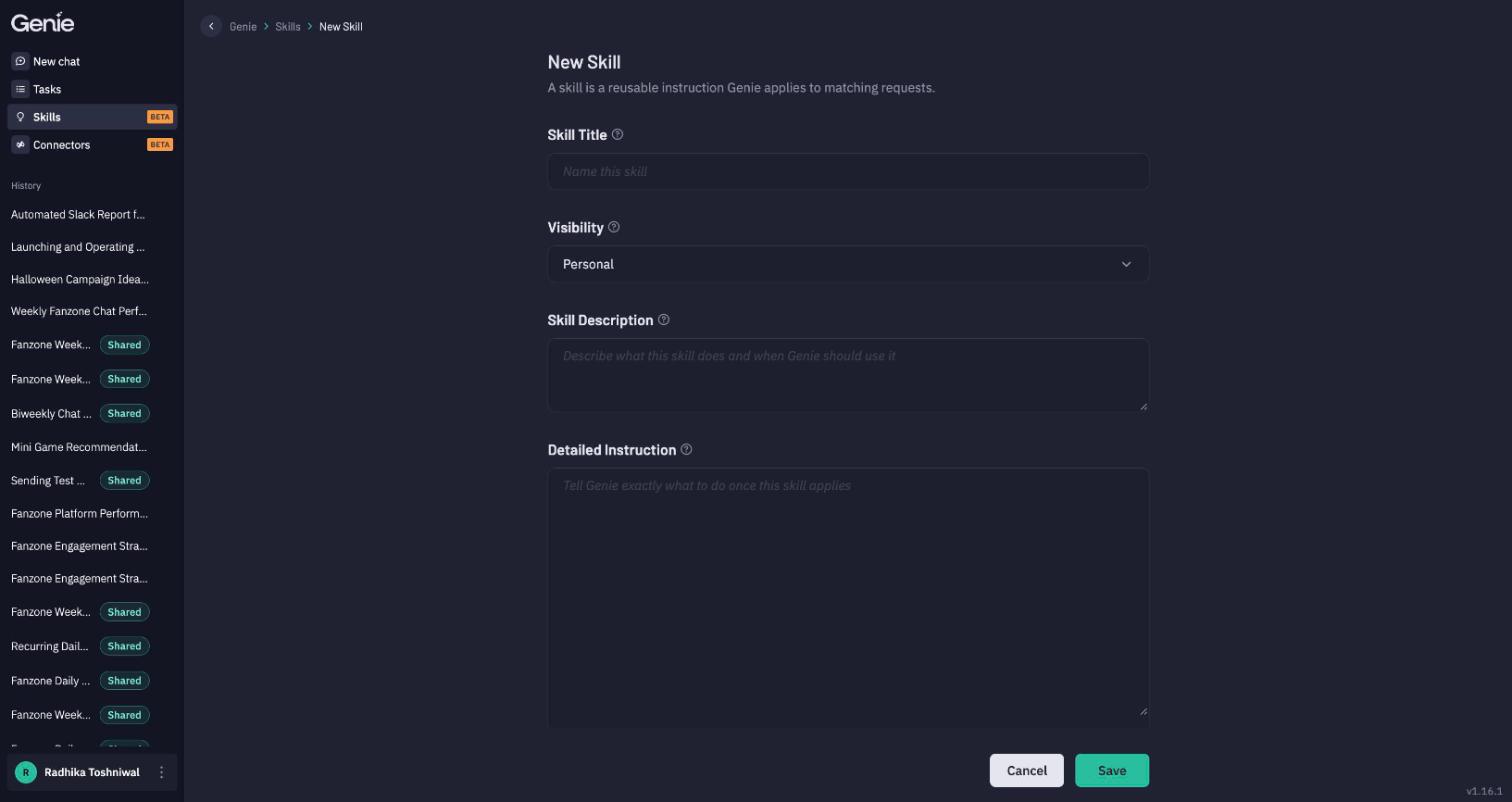
| Field | Guidance |
|---|---|
| Skill Title | A short, clear name, e.g. Widget naming. |
| Visibility | Who can find it. Personal keeps it to you (and anyone you share it with). |
| Skill Description | The most important field. It's what Genie reads to decide when to use the skill. Say what it does and exactly when to use it, in the words people actually type. Up to 1,536 characters. |
| Detailed Instruction | What Genie should do once the skill applies. Up to 32,000 characters. |
A template that works
## Objective
Name every widget consistently so producers can find it in Producer Suite.

## When to use
Whenever creating or renaming a widget of any type.

## Procedure
1. Use the format: <Program short code> – <Widget type> – <Question summary>.
2. Program short code = the first word of the program title, uppercase.
3. Question summary = 3–6 words, no punctuation.

## Pitfalls
- Don't include dates; the program already carries them.
- Don't abbreviate widget types (write "Prediction", not "Pred").

## Verification
The widget title matches the format above.
Description for this skill:
Names widgets using our house format. Use whenever creating, duplicating or renaming a poll, quiz, prediction or any other widget.
Share a skill
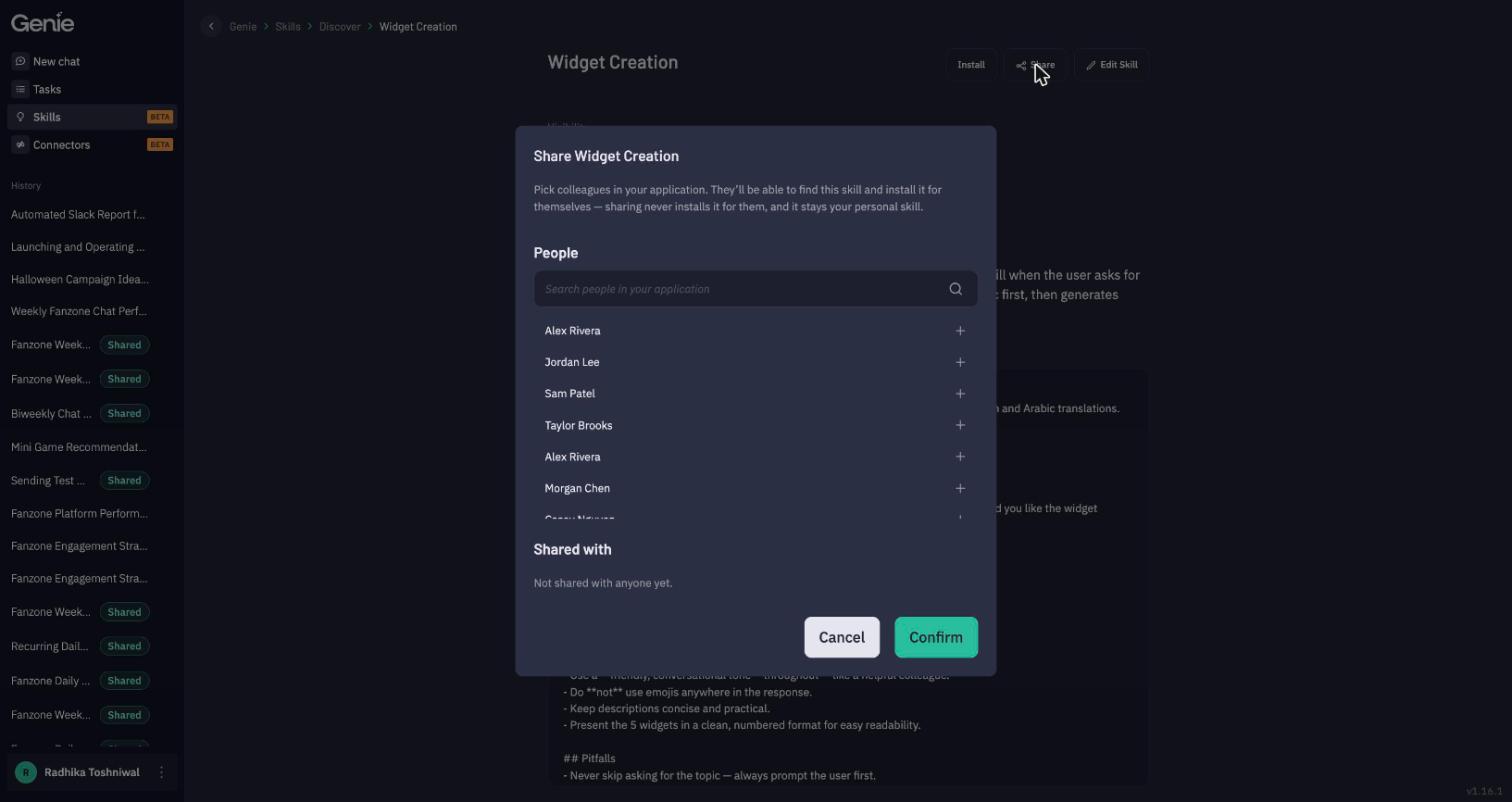
Click Share on a skill's page, pick colleagues in your application, and Confirm. They'll be able to find the skill under Discover → Shared and install it for themselves. Sharing never installs it for them, and the skill stays yours.
Tips
- One job per skill. Small, focused skills are picked more accurately than one giant "everything" skill.
- Write the description for the matcher. Vague descriptions are the number-one reason a skill doesn't fire.
- Be concrete. "Set the expiry to 7 days" beats "use sensible expiries".
- Use the template headings — Objective, When to use, Procedure, Pitfalls, Verification.
- Skills apply to Tasks too. Scheduled runs follow your installed skills.
Updated about 8 hours ago