

Getting started with Genie
Open Genie from Producer Suite and send your first request.
1. Open Genie
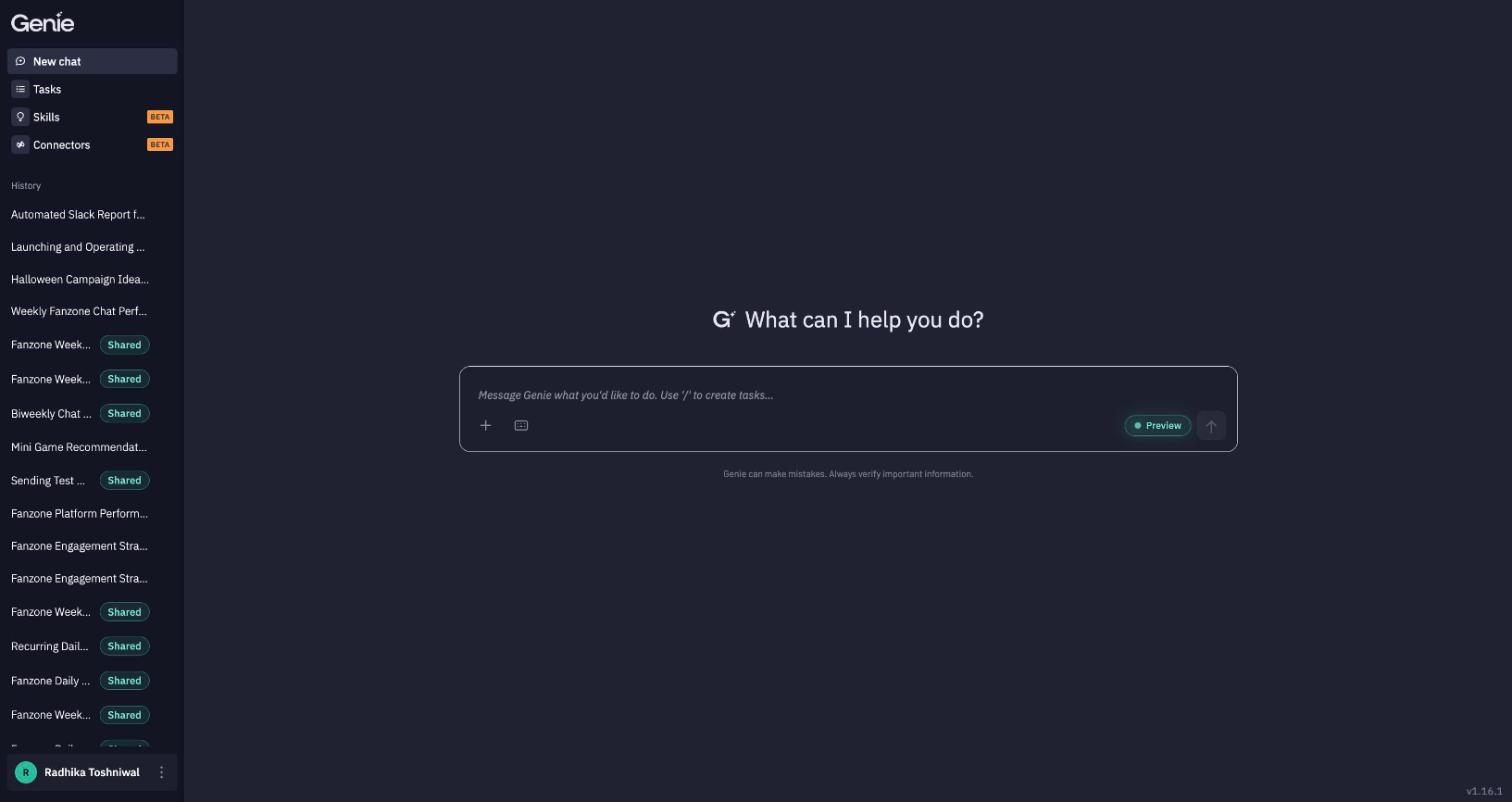
In Producer Suite, go to Business Tools → Genie. It takes you to genie.livelike.ai, where you land on a new chat.
Don't see Genie under Business Tools? It needs to be enabled for your account — see How to Enable Genie.
2. Choose the application Genie works on
Genie acts on one LiveLike application at a time, as you. It opens on the application you came from in Producer Suite, so there's nothing to set up.
To check or switch the application:
-
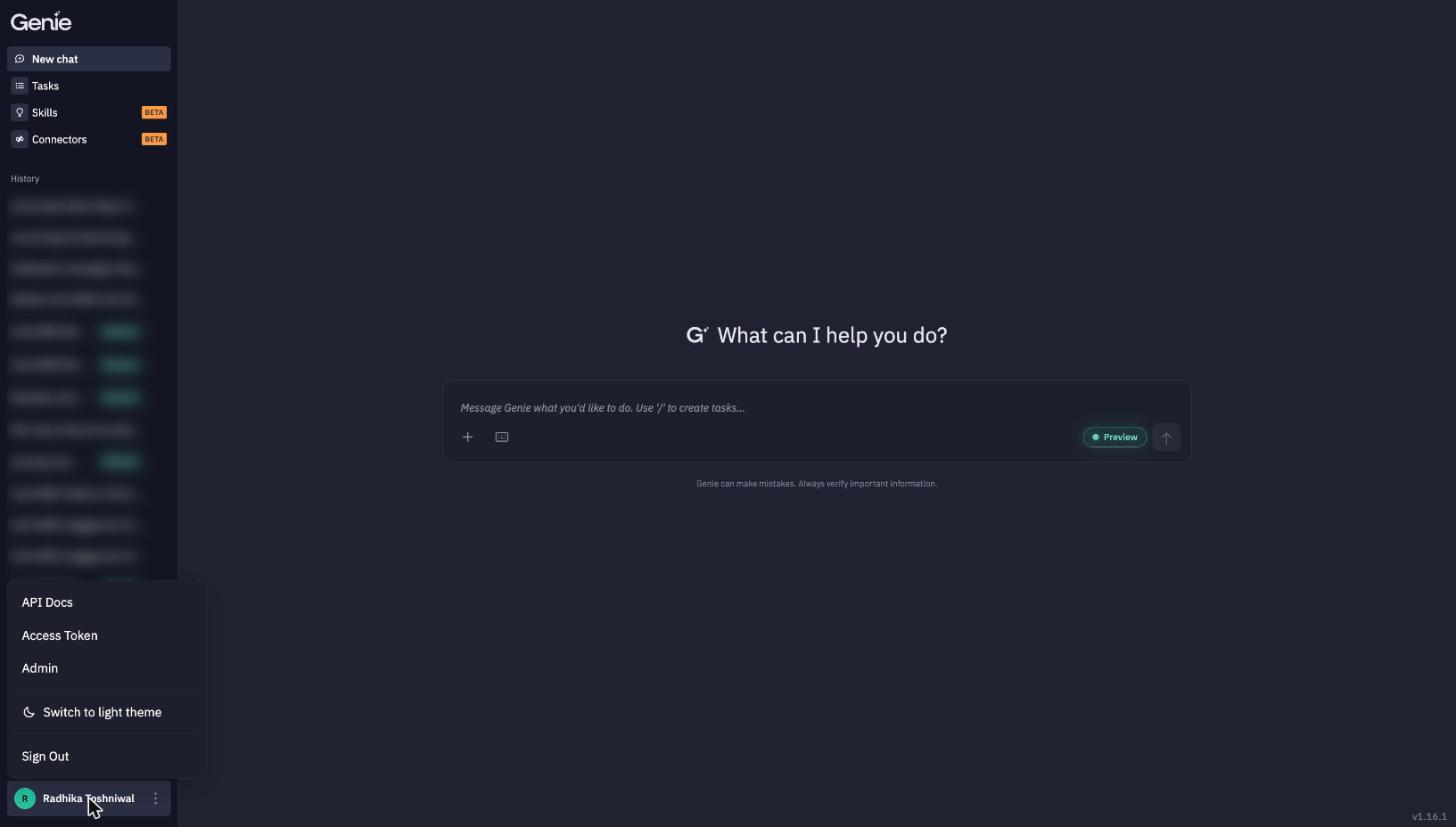
Click your name at the bottom-left of the sidebar to open the account menu, then choose Access Token.
-
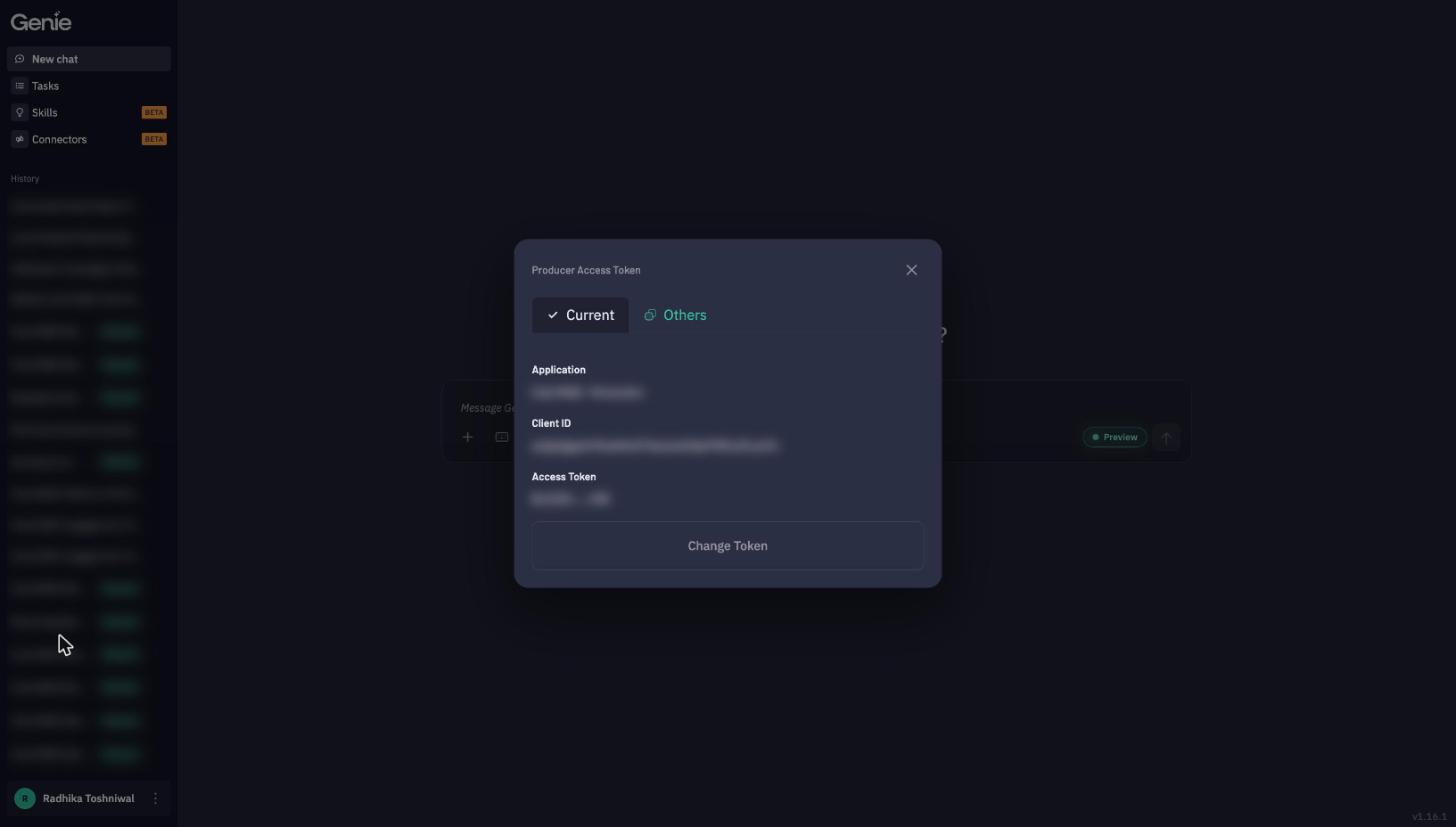
The Current tab shows the application Genie is working on now.
-
To switch, pick another application from the Others tab.
Ask Genie "Who am I?" (or type /whoami) at any time to confirm which user and application it's acting as.
3. Send your first request
Type into the message box and press Enter. Good first requests:
- "List my programs that are live this week."
- "Create a text poll in the Saturday Derby program asking who scores first: Home, Away, or No goal."
- "How many users completed a quest in the last 7 days?"
- "What widget types does LiveLike support?"
Genie shows how long it thought and which agents it used, asks you to confirm before it saves or changes anything important, and finishes with a summary.
4. Find your way around
| Area | What it's for |
|---|---|
| New chat | Start a new conversation. |
| Tasks | See, edit, pause and run your scheduled tasks. → Tasks |
| Skills (Beta) | Discover, install and write skills. → Skills |
| Connectors (Beta) | Connect Genie to Slack, Asana, Segment and other services. → Connectors |
| History | Your past sessions. Sessions shared with you are tagged Shared. |
| Account menu (your name, bottom-left) | Switch application (Access Token), API Docs, light/dark theme, Sign Out. |
| Preview (in the message box) | Try preview agents in your own browser. → Preview Settings |
Next: Working in chat.
Updated about 7 hours ago