

Connectors
Let Genie read from and act in the tools around LiveLike.
Connectors link Genie to third-party services so it can use their data and take actions there alongside your LiveLike work. Once connected, each service becomes another agent Genie can route to.
What connectors make possible
- "Post tonight's top 3 poll results to #matchday in Slack."
- "Pull this week's NBA schedule from Sportradar and create a prediction for every game."
- "Get the latest ESPN scores and draft a recap quiz."
- "Create an Asana task for each widget that underperformed this week."
- "Send a push notification through OneSignal when the halftime poll opens."
- Combine with Tasks: "Every Monday, post the leaderboard to Slack."
The catalog
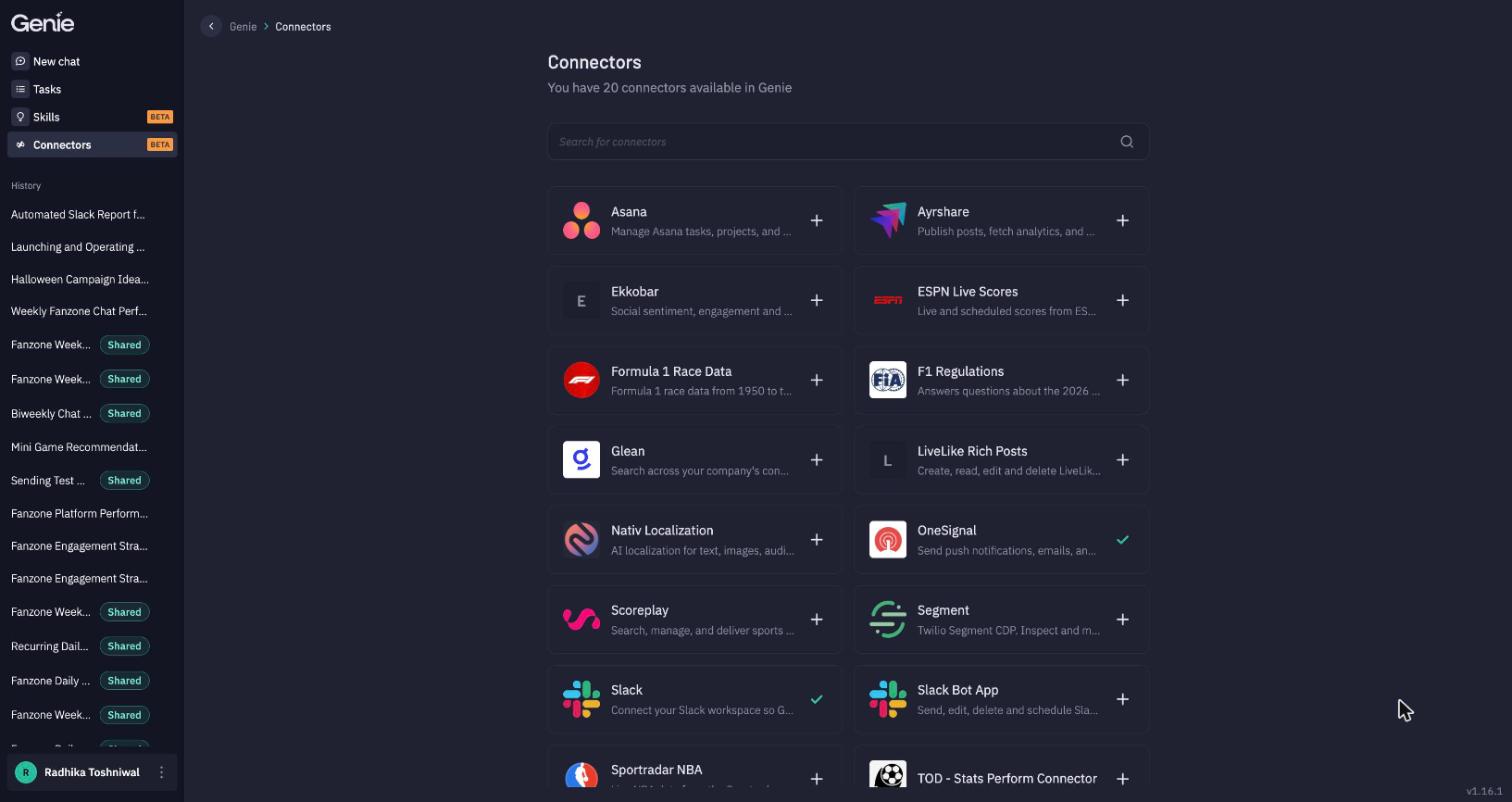
Connectors shows every connector available to your application — for example Asana, Ayrshare, ESPN Live Scores, Formula 1 Race Data, Glean, LiveLike Rich Posts, Nativ Localization, OneSignal, Scoreplay, Segment, Slack, Slack Bot App and Sportradar NBA. Search to find one. A ✓ marks connectors you've already connected.
Connectors belong to an applicationConnectors are tied to the LiveLike application you opened Genie from. Switch application (account menu → Access Token → Others) to see and manage another application's connectors.
Add a connector
-
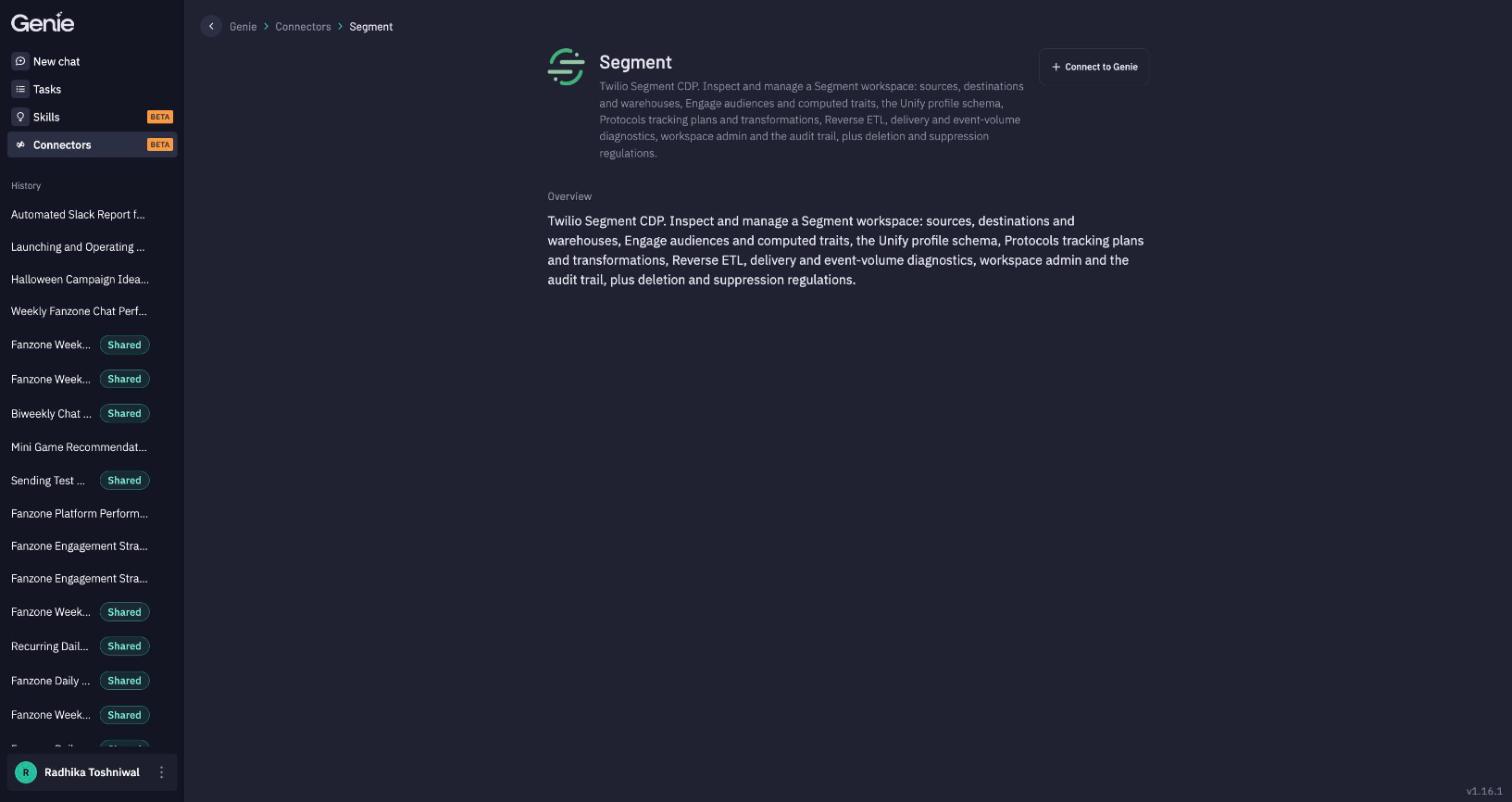
Open a connector to read its overview, then click Connect to Genie (or click + on its card).
-
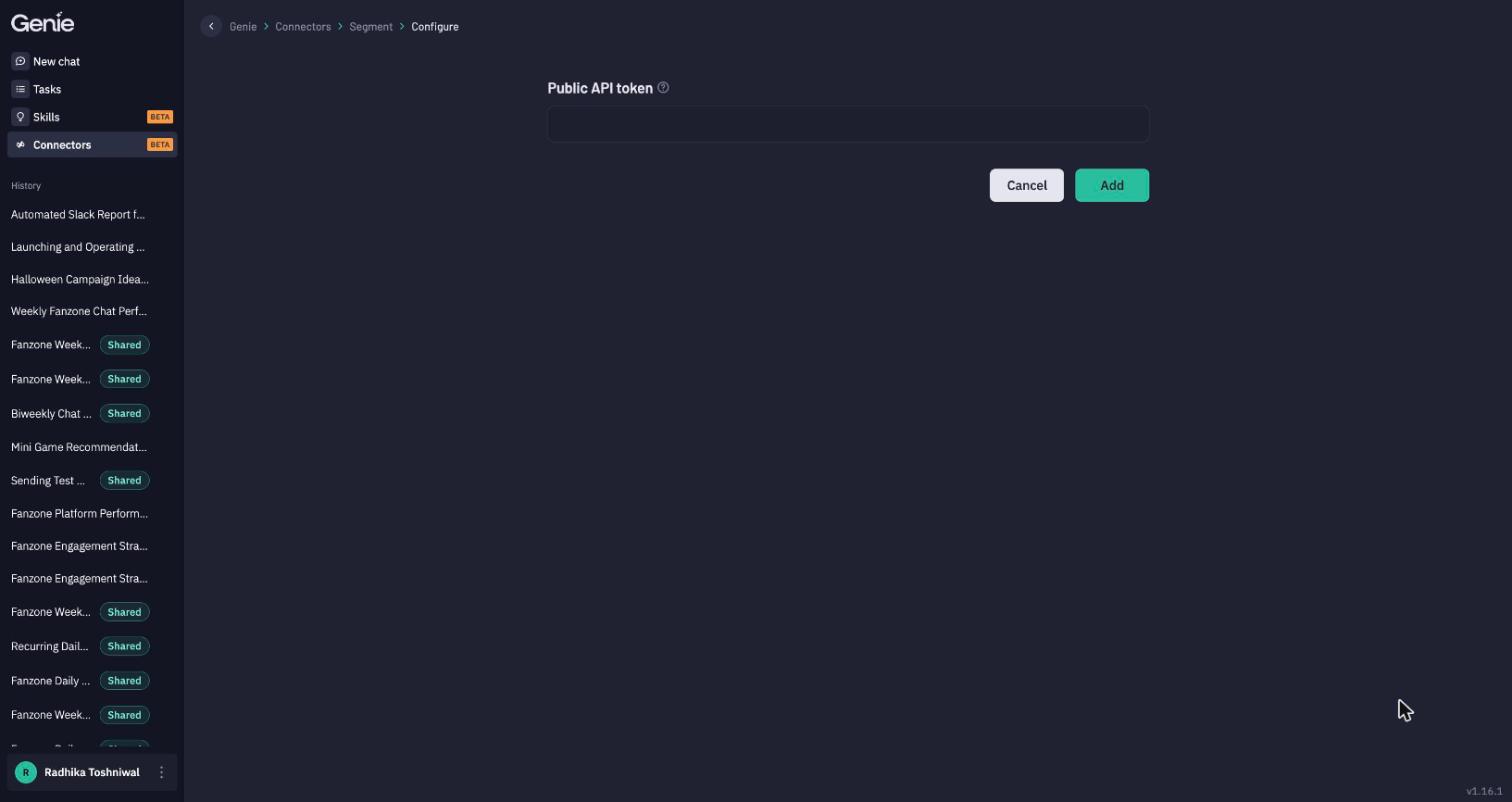
Authenticate. Depending on the service, you'll either:
- Enter an API key or token and click Add, or
- Sign in with OAuth — you're sent to the service to approve access, then returned to Genie.
-
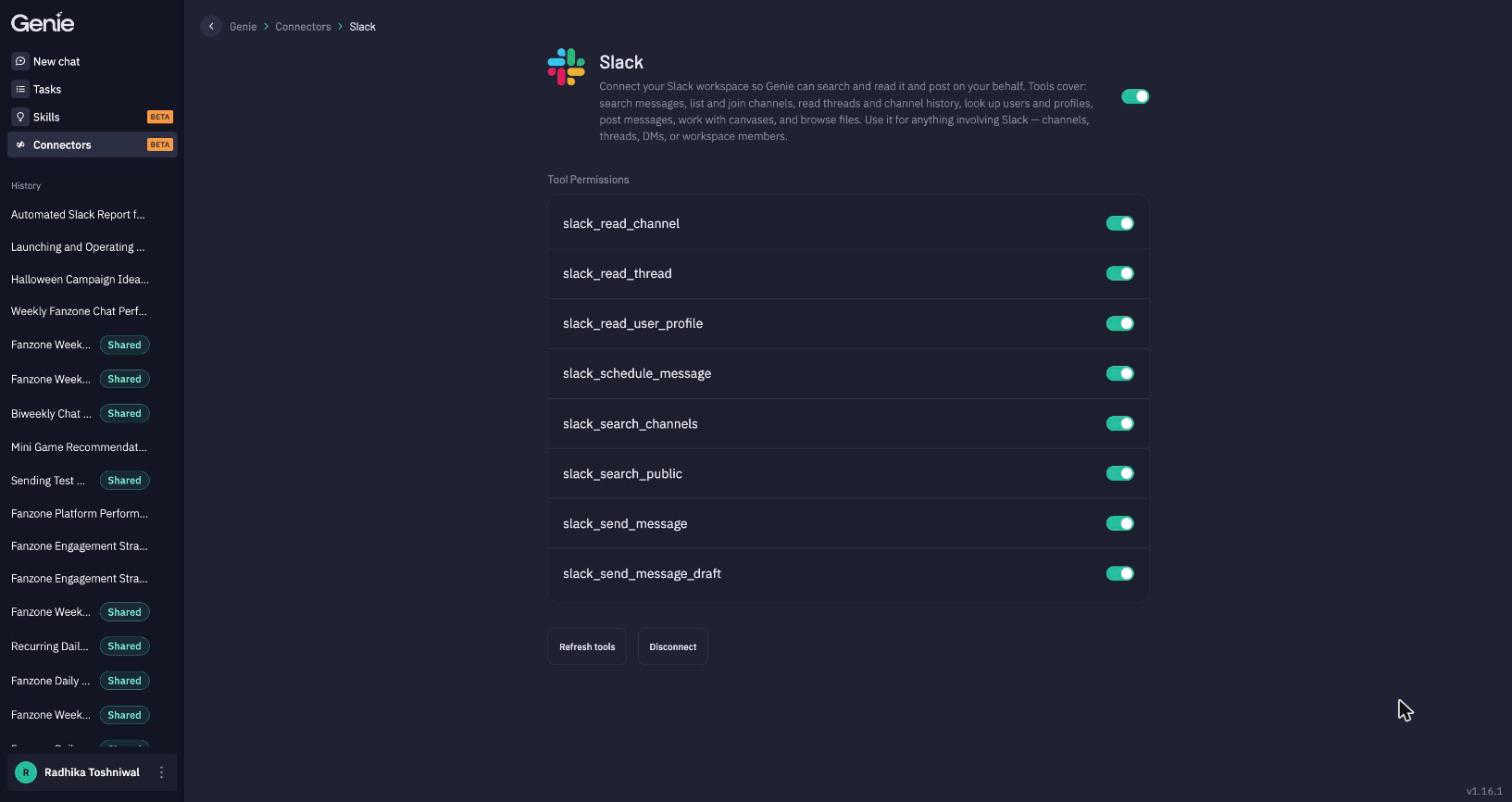
Once connected, the connector shows its tools — the individual actions Genie can take with it.
Your credentials are encrypted and only used for requests made by you.
Control what Genie can do
| Control | What it does |
|---|---|
| On/off switch (top-right) | Switch the connector off without losing its setup. You can also toggle connectors per chat from + → Add Connector in the message box. |
| Tool Permissions | Allow or block each tool individually — e.g. allow slack_read_channel but block slack_send_message. |
| Refresh tools | Reload the connector's tool list if the service has added new actions. |
| Disconnect | Remove the connection and its stored credentials. |
Share a connection with your team
API-key connectors can be shared within your application so teammates don't each need their own key:
- Owner: make your connection shared. Teammates can now pick it.
- Teammate: when connecting, choose Use a shared connection and pick one, or Enter your own configuration to use your own key.
Teammates using a shared connection can switch it on or off and set their own tool permissions; only the owner can change the key. If the owner updates the key, everyone picks it up automatically. If the owner disconnects, teammates lose access too.
OAuth connectors are always personal — each person signs in with their own account.
When a connector needs attention
If a connection's credentials expire, you'll see a warning on the connector card, in the + menu, and on its page:
- Reconnect — for OAuth connectors; re-runs the sign-in.
- Reconfigure — for API-key connectors (or a shared connection whose owner's key no longer works).
Genie tells you in chat when it can't use a connector and links you straight to the fix. Scheduled tasks that use that connector won't run until it's reconnected.
Tips
- Name the destination. "Post to #matchday in Slack" is better than "send it to the team".
- Start read-only. Allow read tools first, check the results, then allow write tools.
- Prefer shared connections for team service accounts, so one key update covers everyone.
- Missing a service? Ask your LiveLike contact — new connectors can be added to the catalog without any change on your side.
Updated about 8 hours ago